
Episode 1: Dynamics Lost
Welcome everyone to my new blog series dedicated to the issues and bugs that plague our life as Sibelius users, from very beginners to professional engravers. Every episode will feature a single problem, thoroughly describe how to reproduce it and, if possible, show available solutions. The written version will be in English here on the blog, and it will be accompanied by a video in Italian (my native language) with subtitles in English.
The idea to create such a series comes from my recent engraving of an opera, where too many times Sibelius managed to interrupt my workflow. I sincerely hope that these articles and videos will both help users find a way to keep creating and also prompt the Sibelius team to do something about these bugs. They are aware of these issues, but since my voice is the voice of one, until more people join my cause for a better software they will most likely prioritise something else.
Today we look at dynamics apparently disappearing when moving them, so, without further ado, let’s get started.
The scenario
When you write a piece for a large ensemble—in my case an opera—, you often show condensed woodwind and brass staves in the score and create extra staves for the single instruments, which you then hide in the score. Then, you either use the Explode or Reduce shipping plug-ins (thought both are incredibly buggy and overdue an update1) to populate the extra staves, select the staves you want to hide and press Alt/Option-H to show them only in parts. Your music will likely have some dynamics and, even more likely, instruments belonging to the same family will show the same dynamics. Here is where the problem lies.
Building the starting project
You can follow my instructions here or download the test file for free from my Gumroad storefront. I am using a product as it is simpler for me to have a single place where to store everything and that you can access at will.
- Create a new project from any stock template, I will use the “Treble Staff” one. After clicking once on its thumbnail, click on Change Instruments, remove the only instrument by selecting it and tapping on Remove from Score. Now, add the following instruments: 3 Horns, 3 Trumpets, and 3 Trombones (specific transpositions and key signature visibility are not relevant). Click OK, then Create.
- In the ribbon, go to the Appearance tab, Instrument and Staff Names section, then, in the dropdown menu next to At start, choose Full. This will show the full-length instrument names.
- Double click (or select and press Return) on the first “Horn in F” staff label (in my case it’s in F), and insert “1.2” between “Horn” and “in F”. Repeat the process for the next two horns, adding “1” and “2” respectively. Repeat the process for trumpets and trombones. Now we have, for each instrument, one stave for the condensed instruments, and one stave each for the single instruments.
- Write some elementary music in the condensed staves, such as a very long tied dyad (a chord of two notes, also known as “harmonic interval”). In this case, with Transposing Score turned ON, I wrote A-C (sounding D-F) in the Horns, G-B flat in the Trumpets, and C-E in the Trombones. For rhythm, I have chosen four bars of tied whole notes and a final bar of a single eighth-note. You should get a result similar to this:

- Now, let’s add some dynamics. We need to have a few of them for this issue to become reproducible, so I have opted for a starting F, then a P with a long crescendo and a final SFZ. Like this:

The easiest way to copy these dynamics to the other staves is to select the first instrument (double-click on any of its bars to select the entire system), then Cmd/Ctrl-click on each of the other two staves to add them to the selection, then run the Multiply Dynamics plug-in. Another way is to double-click on the first stave, filter for dynamics, copy, select the other two staves, and paste them in. - The last step to get started requires us to distribute music onto the single-instrument staves. To achieve that, double-click on the “Horn 1.2” stave to select its content, Cmd/Ctrl-C to copy, then select the first bar of “Horn 1”, and extend the selection to “Horn 2” by holding down Cmd/Ctrl and selecting a bar in its stave. Now, go to the Note Input tab, Arrange section, and press Explode. Your music will be propagated to the two selected staves. There’s another way, but it requires more steps2. Repeat the process for Trumpets and Trombones, and you are ready for the next step.
Reproducing the bug
Now that we have the project built up, it is time to reproduce this issue. In the full score, the single instrument staves will be hidden, so let’s do that first.
- Double-click on an empty region within the Horn 1 stave to select all the system
- Keep Cmd/Ctrl pressed down and click anywhere within the other single staves—Horn 2, Trumpet 1, Trumpet 2, Trombone 1, and Trombone 2. This will add those staves to the selection.
- Set them to show only in parts in one of the following ways: press Option/Alt-H, or go to Home in the ribbon, Edit section, Hide or Show dropdown, Show in Parts, or press Parts in the top segmented control of the Inspector.
- With those staves still selected, Hide Empty Staves either by pressing Cmd-Option-Shift-H (that’s Ctrl-Alt-Shift-H on Windows) or by going to Layout, Staff Visibility section, and pressing Hide.
You will be left with something like this:

Now, the F dynamic looks a bit too much to the left for my taste and I would like to change its horizontal position. The other dynamics are better placed, so editing a default value would not work here. To avoid repeating this process for every instrument and also for the now hidden staves, I can either make a system selection of the first bar or—bear with me a second—passage select the visible staves in the first bar. Let’s start with this second option, you should get a blue selection like this:
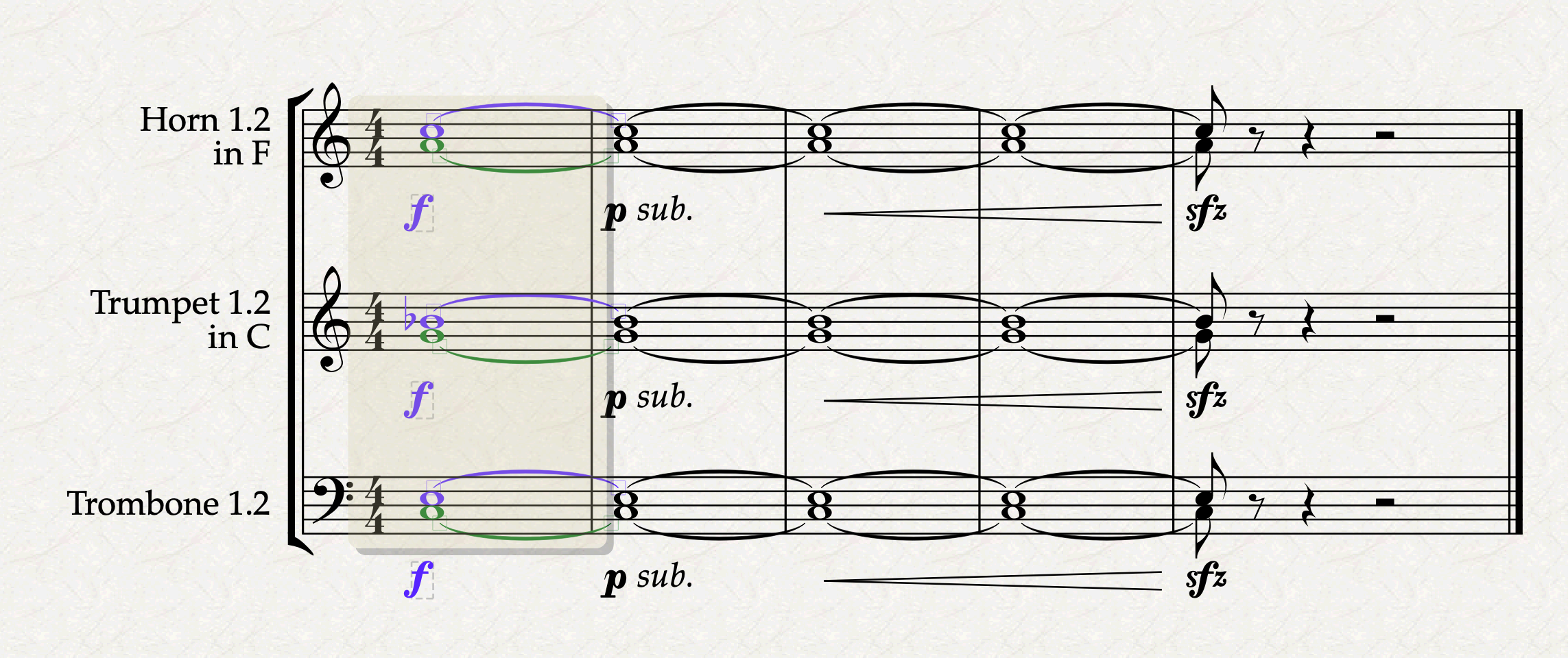
At this point, filter dynamics with Option/Alt-Shift-D or via Home > Filters > Dynamics and nudge the dynamics a bit to the right using the directional arrows on your keyboard. This is what happens on my screen and what you should also see:
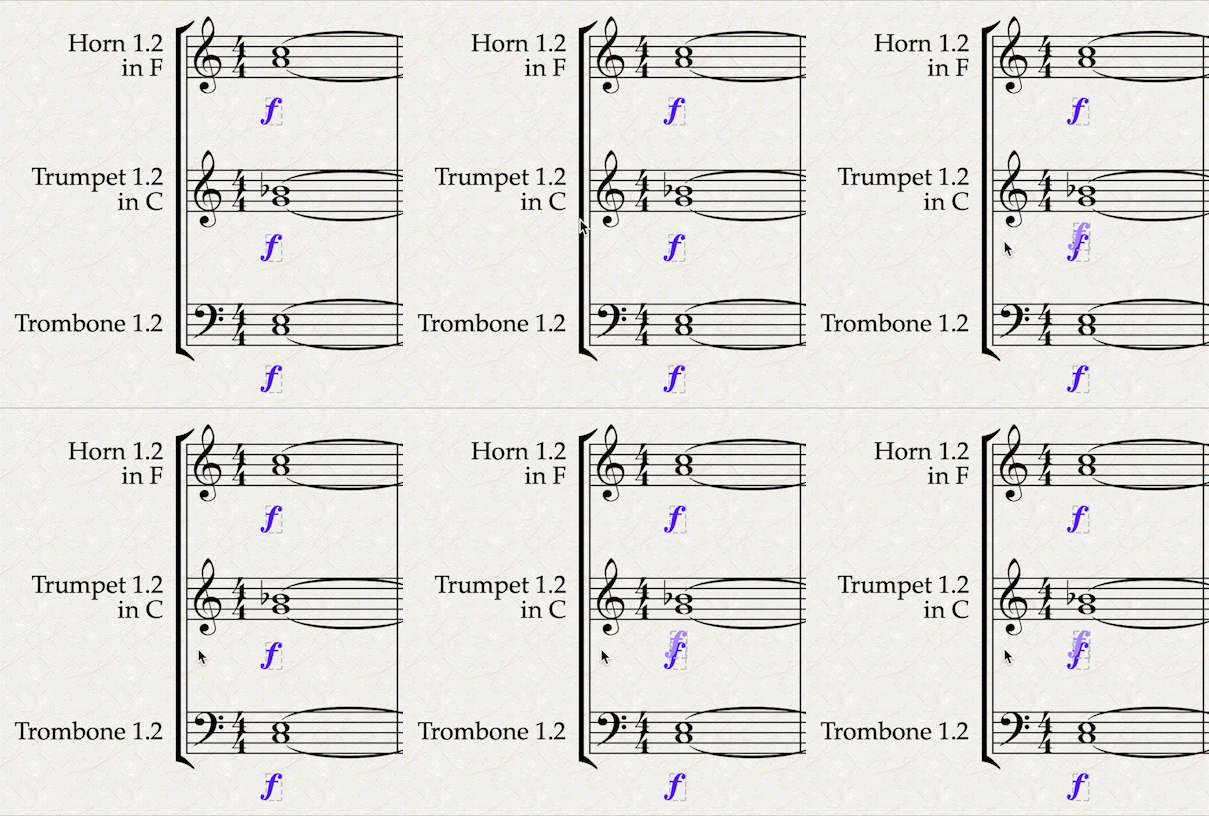
I suggest you turn on View > Invisibles > Hidden Objects, otherwise this will apparently disappear if you deselect the area. Now, if you look closely next to the F for Trumpet 1.2, you will notice another, faint F, slightly offset from the other.

The first times I got this effect, I believed it to be some sort of glitch, and I simply deleted it, noticing, though, that if you try to delete it, it apparently doesn’t work.

What is truly happening is that there are several copies of this dynamic text, all stacked one atop the other. In fact, if you try to select one and move it away, you can do it!
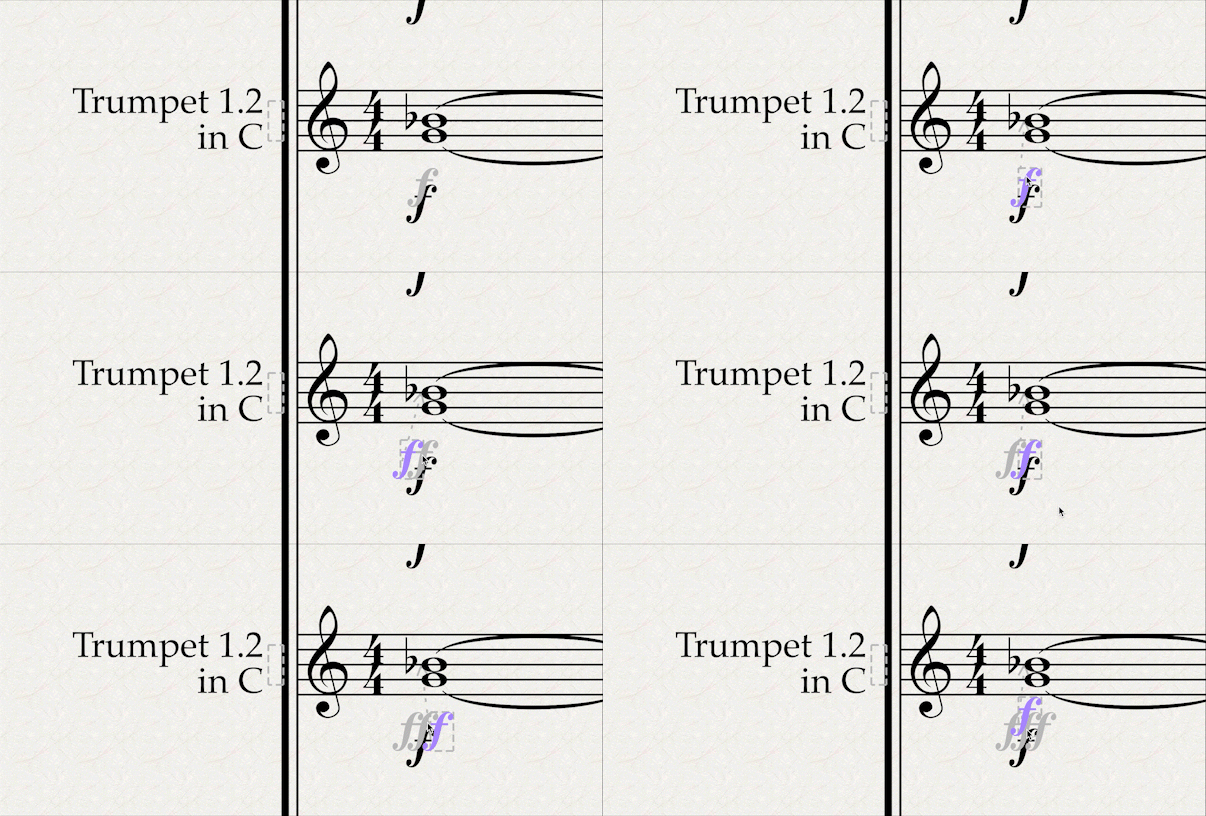
There are four total instances of this, but where do they come from? The answer lies in Panorama View (activated via Shift-P).

Here you can see that the two horns and the two trumpets have lost their dynamics. Those hidden superposed dynamics that we found in the “Trumpet 1.2” line are effectively their dynamics, which have been teleported away by the magic of Sibelius. You may see that Trombones didn’t lose their dynamics, and this is easy to explain why: when we selected all visible condensed staves, our passage selection included every stave between “Horn 1.2” and “Trombone 1.2”. Thus, “Trombone 1” and “Trombone 2” escaped the teleporting spell simply by being below its area of effect. Had we performed a system selection, they would have been involved too.
Zooming in to the “Trumpet 1.2” stave, we can see that the misplacement is not a mere X-Y-Offset thing, since those dynamics have their attachment lines belonging to their new stave. Now, we made a pretty simple experiment here, with just three condensed staves and six hidden ones. In the opera I have just engraved, the woodwinds and brasses had many more hidden staves, due to all possible combinations between coupled staves. This meant that sometimes I would see the hidden dynamics jump to the top stave, sometimes to the bottom, in apparent randomness. The good thing with programming is that everything is deterministic: a computer cannot perform anything for which it has not explicitly trained for and—so far—cannot yet think independently. So, if this is happening, there is a chunk of code somewhere in Sibelius that is telling it to perform this change in these conditions.
I wish the best of luck to the developers who will want to dig into this and try to find a solution.
How do we survive this bug?
Until an official solution is found in the program—and this could be a very long time—we need to live with it and find a way to move on with our work. Luckily, there are many things we can do, and I will try to list them all.
Just don’t do that!
The most obvious thing to do, now that you know that the problem exists, is to simply avoid triggering it. If you know that you have hidden staves, do not perform a passage or system selection to filter for dynamics and then nudge them. Cmd/Ctrl-select the elements you want to move and do it manually.
Use Panorama Mode
If your score has a relatively small number of staves, you can enter Panorama Mode (Shift-P), perform a passage selection there, filter for dynamics, and nudge them without triggering the issue. The hidden staves will still show greyed out, to remind you of their hidden status, but it will be possible to interact with them. If, instead, like me, you have an enormous number of staves, you could use the Focus on Staves feature in Layout > Staff Visibility to narrow down what you see on screen.
Cmd-select
The safest method, albeit being the slowest, and already mentioned above, is to select the first dynamic, then hold down Cmd/Ctrl and select all the other dynamics you want to add to the selection. This will avoid the issue but, on the flip side, it will not adjust the position of dynamics on the hidden staves. You get something, you lose something else.
Select Staves plug-in
If you have more staves that need this treatment that you can easily select from a single screen, I suggest you use Bob Zawalich’s Select Staves plug-in3. Now, perform a horizontal passage selection on a single stave that contains the dynamics you would like to reposition. Run the Select Staves plug-in and you should see something like this:
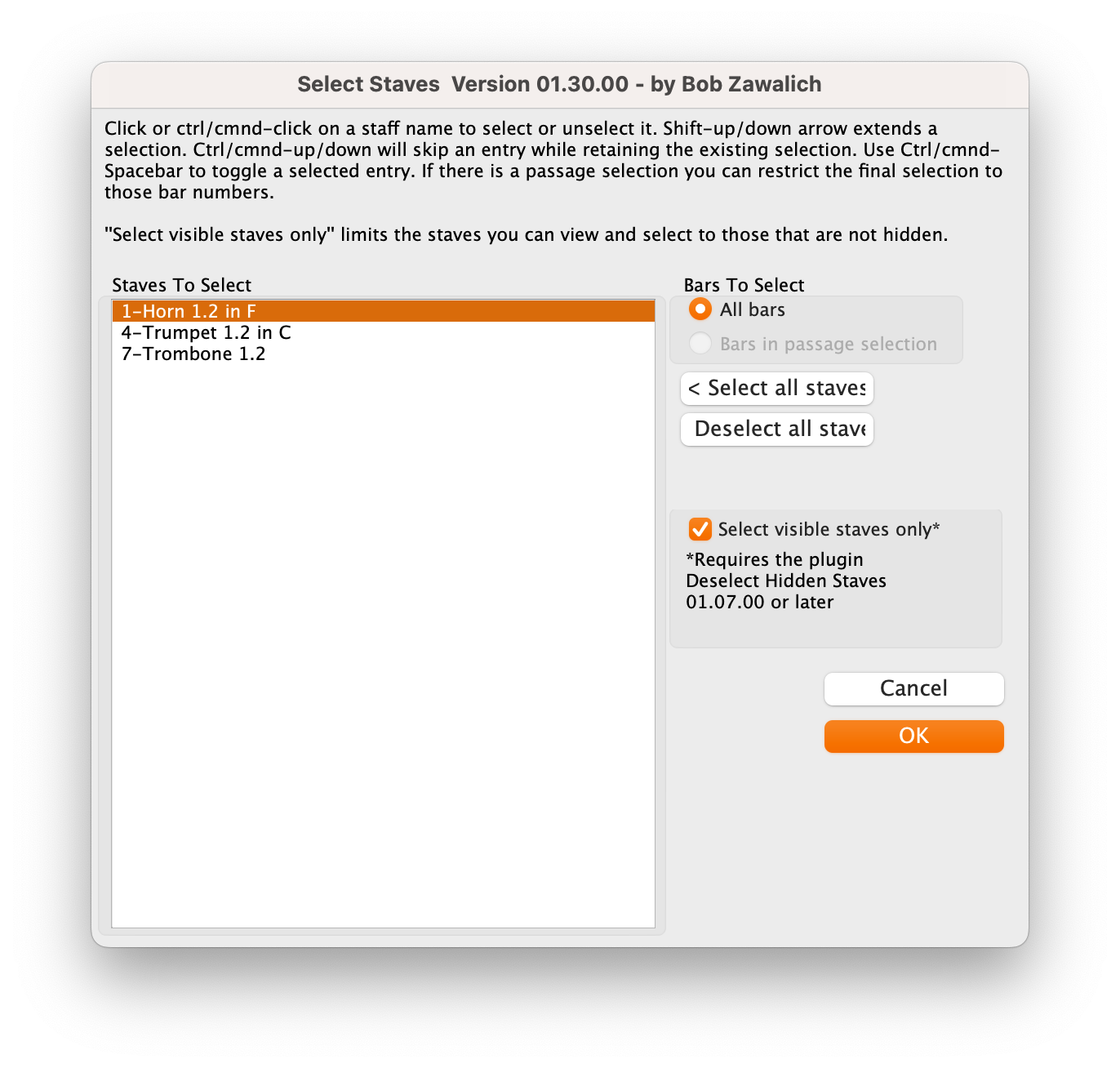
You can see that we have only three staves in the list, instead of the total of nine. This is because the “Select visible staves only” option is checked. The list updates dynamically, so feel free to play with this option if you want to select also other staves. Once you’ve done this, filter for dynamics and proceed as before.
What do I recommend?
Personally, since I constantly try to optimise time, I prefer to switch to Panorama Mode, then either perform a passage selection in there, or use the Select Staves plug-in to select the staves I need in a quicker and more efficient way. This is because I require dynamics to be corrected in both visible and hidden staves, since this will save time when preparing parts.
What do I recommend avoiding?
The recent release (2023.5) contained enhancements to the Hide feature, allowing you to create parts from condensed staves by hiding material. This may induce you into thinking you no longer need all the staves you have created. Sure, it may work in very specific and very limited circumstances, but as soon as your piece becomes slightly more complex, you need reliable and clear solutions. This new hiding feature is so much user-error prone to make it unbelievably dangerous to non-expert users. Besides, longer works need to add cues to parts, and that would be yet another thing to hide in one part and show in another. What then if you make edits to the original score? No, thank you! I will pass on this feature, and I suggest you thread carefully when using it.
Bottom Line
I hope you found this first episode useful and that you learned something along the way. In my work, this bug has caused an impressive loss of working time, especially because it was reproduced several times before I could understand what was happening. I had to go back through the whole opera and check whether each woodwind and brass stave had the same dynamics as their hidden/shown counterpart. It was incredibly stressful, and I hope this article will at least help other users be aware of the problem and give them a few ways to work around it.
If you like what I do, please consider liking this article, sharing it with your peers and colleagues, and subscribe to this blog to be notified of upcoming articles.
If you use an iPad and would like to improve your Sibelius experience, please give a look at my viewset for MetaGrid Pro here.
I also have a newsletter that follows my publishing journey, check it out if you are interested in cello and would like to receive special gifts. You can also browse my online catalogue here.
Thank you for your time and continuous support.
See you in the next episode!
Michele
- Let me know in the comments if you would like a dedicated article on the main issues with these two plug-ins. ↩
- 1. Select the music
2. Note Input > Explode
3. In the dialogue, select ‘2’ from the dropdown menu
4. In the next dialogue, choose “Use existing staves as destination”, then “Below source staff”
5. Press OK ↩ - I assume you know how to install plug-ins in Sibelius and how to run them but, if you are not, please let me know and I will make a dedicated tutorial on that. ↩
 Music Preparation Services
One thought on “Sibelius Bugs and how to survive them! – Ep. 1”