

Overview of Note Input
This article is an expanded, paraphrased and enriched transcription of the excellent video by Anthony Hughes. Go watch it, then come back for a recap, or follow along while watching.
Introduction
The video starts with the now iconic presentation:
Hello, I’m Anthony Hughes
If there is something that represents the openness and friendliness of Dorico’s online presence, it must be this. You immediately feel at home when you listen to his deep, calming voice. I certainly feel like grasping for a cozy hot beverage at the right of my chair.
After the opening welcomes of the house, Anthony introduces us to this new series of tutorials covering Note Input, that is, the actions needed to start entering notes into Dorico. He describes them as “bite-sized tutorials”, but since I am more of a Slow Food guy, I am here to offer you the full meal.
These tutorials have been recorded on Dorico Pro 4, while this blog series will be written using Dorico Pro 5 to begin with. It will also be updated every time something changes. The Elements, SE, and iPad versions all work the same in this area, so you need not worry about anything. Just sit back, relax, and enjoy the meal…that is, the ride!
Three types of Note Input
Broadly speaking, we can input music in Dorico using either of the three following methods:
- Insert notation using a mouse or trackpad and the computer’s keyboard
- Play and record music in real-time using a MIDI keyboard
- Import music from various file formats.
I would like to briefly elaborate on point 1, since there are several separated and interconnected ways to achieve this.
- One could simply use the pointer (mouse or trackpad) and perform close to every operation, from adding notes to the staff, to selecting dynamics and then inserting them under a note.
- One could use the computer’s keyboard to engage Note Input or to access specific panels, or simply to specify the duration and pitch of the desired notes. Methods 1 & 2 can, of course, be combined if you don’t remember the specific shortcuts for certain operations.
- One could use the computer’s keyboard to specify certain elements (duration, articulations, etc…) and use a MIDI keyboard to just input notes and chords more quickly. Methods 1, 2, and 3 could be then combined to increase your speed. It is even possible to assign certain keys on your MIDI keyboard to perform actions normally tied to keyboard shortcuts.
Brief overview of the series
The topics covered in this series will be, among others:
- Input note and chords
- Input tuplets
- Input grace notes
- Add slurs, ties, and articulations
- Discover how Dorico helps you input music more freely, without need to input rests
- Discover unlimited voicing! (Layers? Four voices? No! Unlimited power!)
- Discover how to resolve problems in the middle of the score with (spoilers!) Insert Mode.
Dorico approaches music notation unlike any other software before, and it will take time to master everything it has to offer. If you come from another software, there will be a good deal of frustration involved. I’m telling you because I passed through it. Then, suddenly, on a Winter’s day1, everything made sense, and suddenly, it was all other software that became frustrating to use. Please be patient, and know that your patience will be greatly rewarded.
Getting started
To prepare yourself for this series of tutorials, you should create a new document. The process itself is worthy of its separate lesson, so we will choose a stock template from Dorico’s Hub. The Hub is the first window you see when you launch Dorico. It looks like this on Mac (or PC):

And like this on iPad:

As you can see, they are pretty similar.
Now, tap on the middle button in the segmented control at the top of the window, and you should see the interface change: to the left is the Category, in the middle are all available templates for the given category, and to the right is the Project Info area. Here’s an illustrated diagram of what you should do:
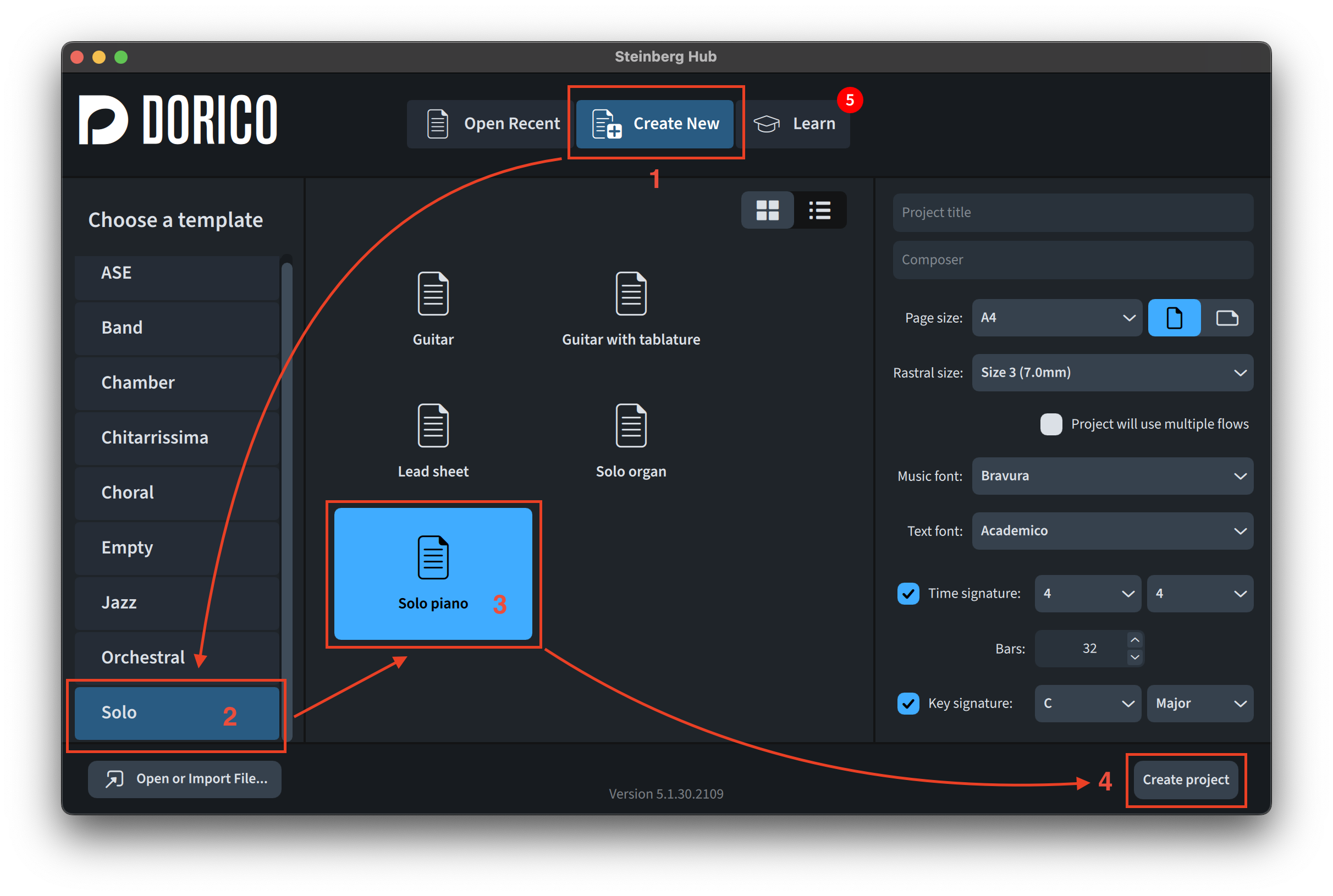
The process on the iPad is the same! I am sure you will have no problem getting your first project created.
Before signing off, please save the project: on Desktop that’s Cmd/Ctrl-S (Mac/Windows), while on iPad it is slightly less intuitive. Dorico has no option in the iPadOS Settings app for where to automatically save projects—which is where I would have expected to find it—, but worry not. With the project still open, tap on the hamburger menu (three horizontal lines) in the top right and hit Preferences. It should open on its General page. There, at the top, in the Files section, you will find the option to specify where new projects should be saved: iPad or iCloud Drive. Here you will discover that the Dorico default is “On this iPad”, which means “save locally on device”. Toggling this option and pressing Apply in the bottom-right corner will take effect from the next project you create.
Going back to the Hub, you should see your “Untitled Project 1” at the top left of the list. To the right, instead, is another segmented control with options for “Recent projects”, “iPad”, and “iCloud Drive”.

If you explore those options, you will see that your project has been saved in “iPad”. But where is it on the device?
Open the Files app, go to the iPad location, and find the Dorico folder. It should then appear in there:

If you want to save an individual project (or create a copy of an existing one) on iCloud Drive (or anywhere different from where the project currently resides), pull down the Share menu by clicking on the activity indicator button (an open rectangle with an arrow sticking out of it) and choose Dorico Project. From the options given, select Save to Files and specify a location (it can be anywhere the Files app has write access to). This will create a copy of the current project and leave it untouched.
Finally, if you are working on a Dorico project on the desktop and want to continue on the go, simply make sure the project is saved to a cloud location and then use the Open or Import File… button in the Hub. As a final note of warning, files opened from cloud locations apart from iCloud Drive will appear in the “iPad” section of the Hub.
Bottom Line
That should be it for today!
If you enjoyed it, please like this article, subscribe to get notifications about upcoming articles, and don’t forget to do the same for Anthony’s video and for the Dorico YouTube channel.
Should you be interested in my other activities, please visit my website and consider joining my mailing list, where you will be able to follow my journey through music notation and independent music publishing!
Thank you for your time, and see you here next time.
- Not sure it was Winter, this is just a knowing glance to a famous song. ↩
 Music Preparation Services
2 thoughts on “Dorico Tutorials — Episode 1 (EN)”