
A review of Dorico 6’s new Cycle Playback feature
This article is an expanded, paraphrased and enriched transcription of the excellent video by Anthony Hughes. Go watch it, then come back for a recap, or follow along while watching.
Cycle Playback!
Introduction
Few composers and arrangers have the innate or acquired ability to get things right at the first attempt, or to consider themselves completely satisfied with the result of their first draft. In Dorico 6, now, they get a new, exciting feature that allows them to iteratively improve their output on the go, and that’s Cycle playback.
Cycle playback allows you to define a region of your music that will be played back in a loop during playback. This means that, whenever the playback line crosses the starting of the cycled region, it will not progress beyond its ending, instead jumping back and playing back the region over and over again.
Setting cycle locators
The most straightforward way to define a cycled region—that is, the portion of music that will be repeated—is to use the Jump Bar. Select the desired music region you would like to loop, press J on your keyboard to open the Jump Bar, and look for ‘Set Cycle Locators From Selection’. Hit return and you will see the following:
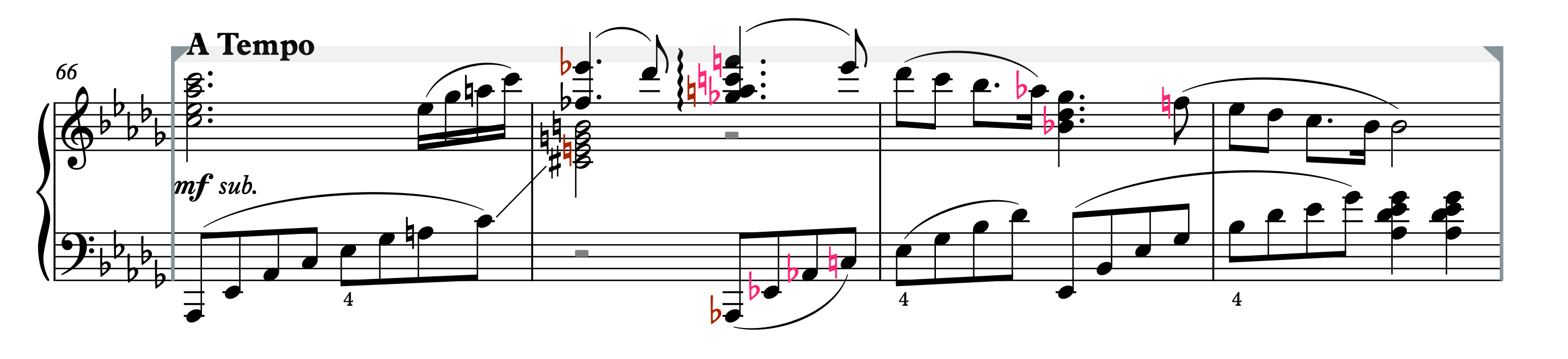
Notice the two vertical lines with inward triangles and the faint grey ribbon joining them. That’s how Dorico highlights a cycle playback region. The grey colour is important, so keep it in mind for now.
It is also possible to set start and end locators independently, by going through the menus Play ▶︎ Locators ▶︎ Set Left/Right Cycle Locators.

Bear in mind that setting a new cycle locator when another set is already in place with remove the existing one, without any warning. I suggest you add a comment to the region you marked before, should you want to go back to that spot quickly. When you set up a single cycle locator, Dorico will actually create a pair of locators (left and right) at the same rhythmic position. Drag one of the handles to extend the region to your liking and needs.
The new View Options button in the toolbar at the top allows quick showing and hiding of the locators.

You can also decide whether cycle locators are shown/hidden in general via the menu View ▶︎ Cycle Locators. Upon upgrading to Dorico 6, this will be active by default.
Enabling Cycle Playback
Simply setting up locators will not activate cycle playback; hence the grey colour mentioned before. To enable it, you need to tap on the new dedicated button in the toolbar.

The locators will now light up with a purple hue, showing that cycle playback is now enabled.

Both the active and the inactive colour for cycle locators can be adjusted on the Colours page of Preferences.
When you now activate playback in the usual ways, and the right locator is reached, the playhead will instantly jump back to the left locator, endlessly repeating the lap.
Now, time for the juicy stuff: you can edit your music while playback is running, with updates taking effect on the next pass. This is a truly game changer!1
Key commands
There is a set of new key commands available for you in Preferences ▶︎ Key Commands, ready to bring your control-freak experience to a whole new level!

You can clear cycle locators, enable/disable them, move the playhead to the left/right locator, set cycle locators from selection, and start playback from either locator.
Limitations
As of version 6.0.10, the following limitations are in place:
- If a flow has an attached video, the video soundtrack will not cycle correctly.
- If you are using Groove Agent SE or another plug-in that relies on the synchronisation of playback position and tempo, the playback from that plug-in will not cycle correctly.
- If you record while cycling is enabled, the music you record will be inserted into the flow, ignoring the cycle locators.
iPad Check
I’m thrilled to say that all features described in this article are available in Dorico for iPad, with no special new workflow to learn.
Bottom Line
That’s it for today! I think this new feature, while simple on the surface, can be a really useful one when you are iterating on an idea or checking that the music is exactly as you want it to be. Locators will also be shown in the Key Editor, and will remain fully editable in there.

If you enjoyed this article, please leave it a like, subscribe to get notified of upcoming articles, and don’t forget to do the same for Anthony’s video and for the Dorico YouTube channel.
Should you be interested in my other activities, please visit my website and consider joining my mailing list, where you will be able to follow my journey through music notation and independent music publishing!
Thank you for your time, and see you here in the next episode.
- In Sibelius you already have a similar function, called Loop, but it is severely limited compared to Dorico 6’s one: first you can either have standard or loop playback enabled, then you cannot define specific regions and then forget about them. If you have a selection, that region will be played back; if you don’t, the entire project will be looped. ↩
 Music Preparation Services
One thought on “Just one more time!”