
A review of Dorico 6’s new Fill view feature
This article is an expanded, paraphrased and enriched transcription of the excellent video by Anthony Hughes. Go watch it, then come back for a recap, or follow along while watching.
Fill View
Introduction
Up to version 5 included, Dorico had two ways of displaying your music on screen: Page view, and Galley view. The first would show how the printed page would look, while the second would unravel the music over a continuous system, with all staves visible at all times—barred any applicable filter.
With Dorico 6, the family got a new child: Fill view. As the name presents, this new mode will “fill” your screen—actually, Dorico’s window—with as much music as it can “fit”. This reminds me of the initial philosophical quandary I had in InDesign when looking at the “fit content to frame” and “fill frame with content” buttons! Let’s dive in and take a look.
Switching to Fill view
There are two main ways to access Fill view:
- Use the key command Cmd/Ctrl-Option/Alt-3 on your keyboard.
- Press the dedicated button on the Status Bar.

Now, you can scroll up and down to see more music, including previous and following flows, since the music will be in an uninterrupted continuum. This is what you can expect to see:
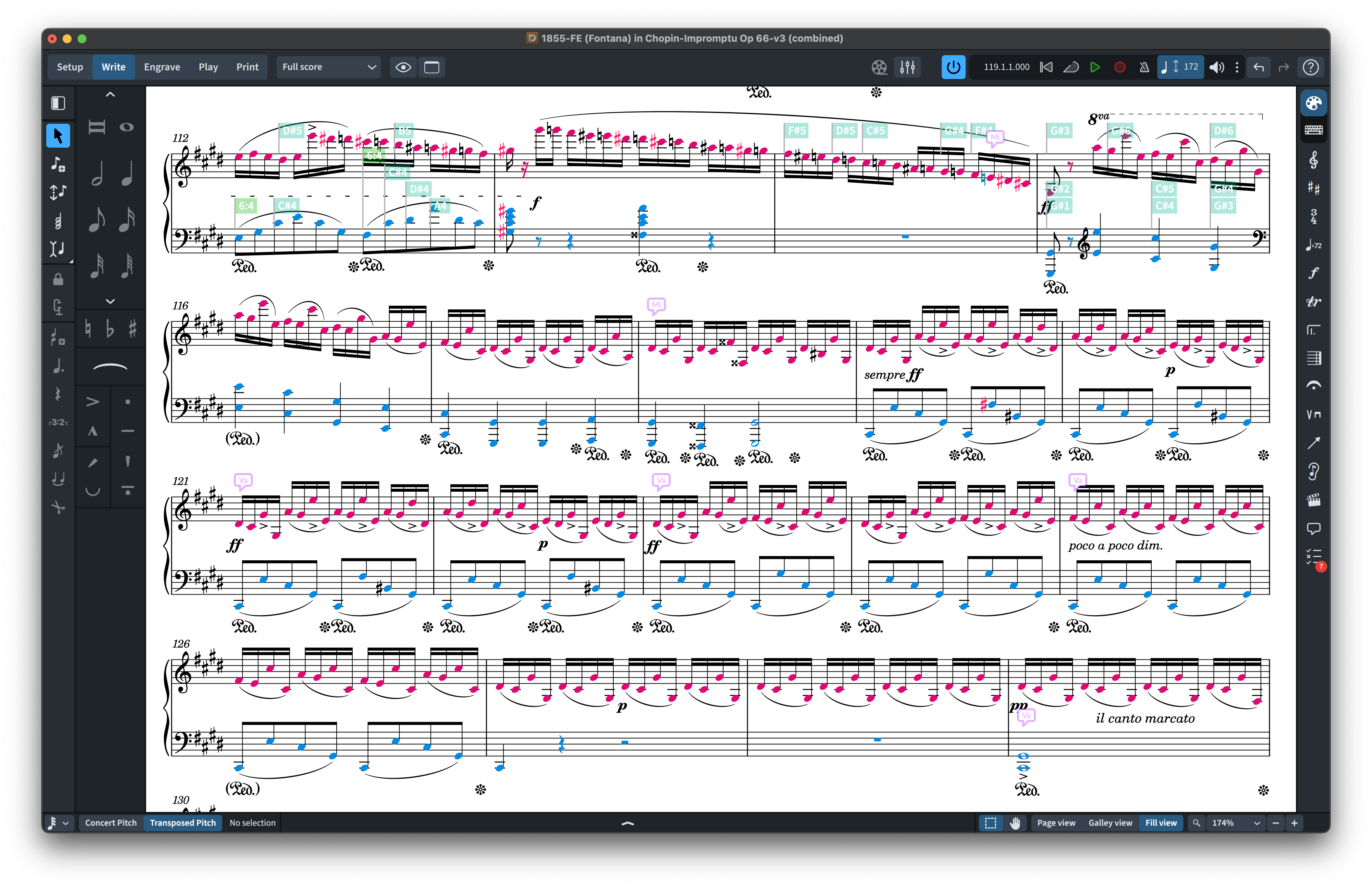
If you change the zoom level, or edit the width of the Dorico window, the music will reflow, showing a different amount of music. It is immediately evident how this feature is at its best with smaller ensembles, from solo to 4–5 instruments because the idea is to see as much music as possible onscreen.
There is also a new default key command for switching to Fill view: Cmd/Ctrl-Option/Alt-3.
Cycling and toggling views
Up to Dorico 5, there was a Toggle View Type command that let us switch between Page and Galley view. Since we now have three views, this has been replaced by the Cycle View Type command (under the Window category), which—as the name implies—cycles between the three views. I have noticed that using the key command produces a slightly better performance when switching view on my system than when using the dedicated key commands for each view.
Should you want to toggle specifically between Page and Galley view or between Page and Fill view, they are now available as well (no Galley to Fill view, though!? — see below).
Fill view restrictions
In fact, Fill view is very similar to Galley view in concept, as it can only be used in Write mode. Let’s say that it’s like Galley view, but it scrolls vertically instead of horizontally. Switching to Engrave mode will always bring you back to Page view. Additionally, with Fill view being governed by the width of Dorico’s window, condensing cannot work here—as it is system-based. Empty staves visibility options will be respected, though.
Space between systems
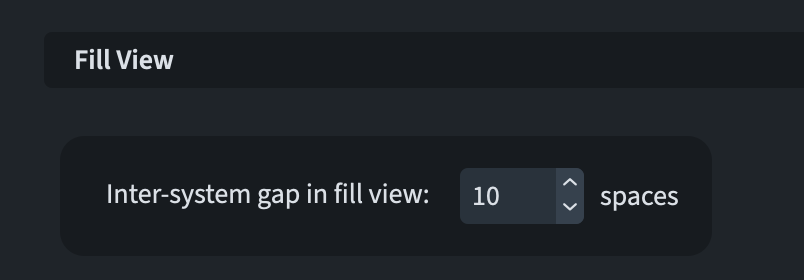
If you are unhappy with the default space between system, you can manage it in Layout Options ▶︎ Vertical Spacing.
Bar numbers
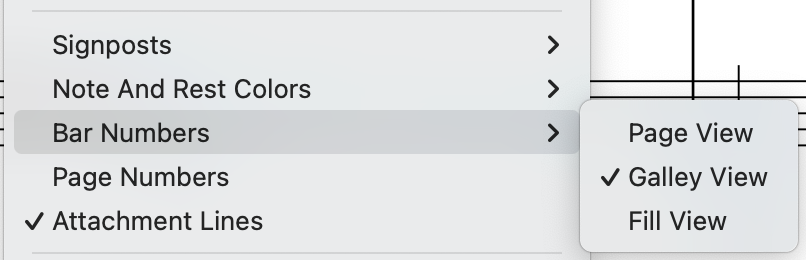
The visibility options for showing bar number over each bar which, up to Dorico 5, could be managed only for Page and Galley view, can now be set up for Fill view as well through View ▶︎ Bar numbers ▶︎ Fill view.
Default view type
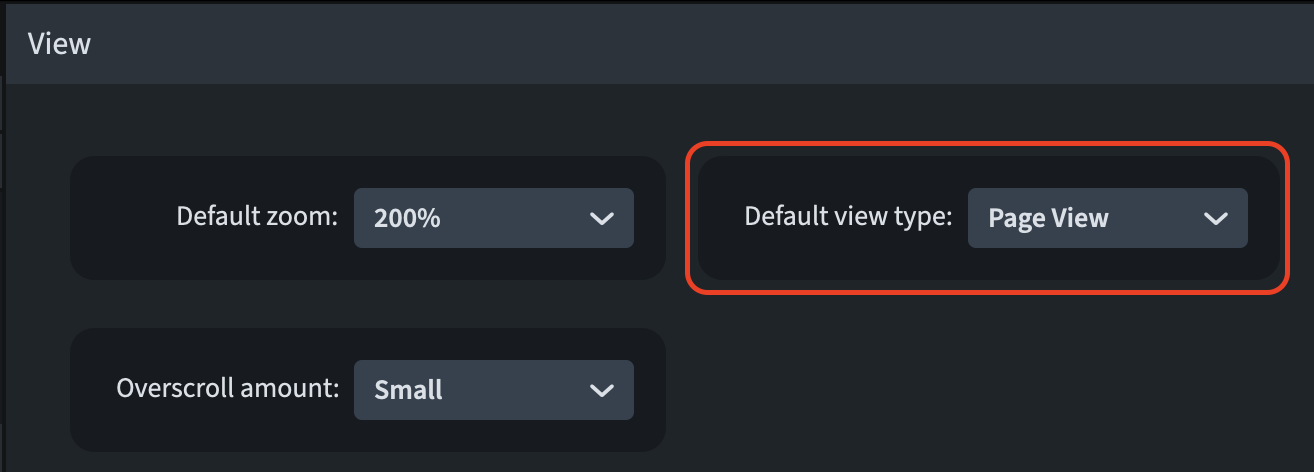
Last but not least, you can now set up Fill view to be the default view type for every document on the General page of Preferences.
iPad check
Fill view is well-supported on the iPad version of Dorico, where the smaller screen can benefit from showing as much music as possible. A most-welcome win!
Bottom line
That’s it for today!
If you enjoyed this post, please leave it a like, subscribe to get notified of upcoming articles, and don’t forget to do the same for Anthony’s video and for the Dorico YouTube channel.
Should you be interested in my other activities, please visit my website and consider joining my mailing list, where you will be able to follow my journey through music notation and independent music publishing!
Thank you for your time, and see you here in the next episode.
 Music Preparation Services