
A review of Dorico 6’s improvements to workflow
This article constitutes the third and last part of our expanded, paraphrased and enriched transcription of the excellent video by Anthony Hughes. Go watch it, then come back for a recap, or follow along while watching.
PART 3
Filter by Paragraph Style
In Write mode, there is now a new dialog that allows you to filter by paragraph styles, allowing for a quick selection of all text objects using a specific style. To use it, either select a range of bars or Cmd/Ctrl-A to Select all, then go to Edit ▶︎ Filter ▶︎ Text Using Paragraph Style…
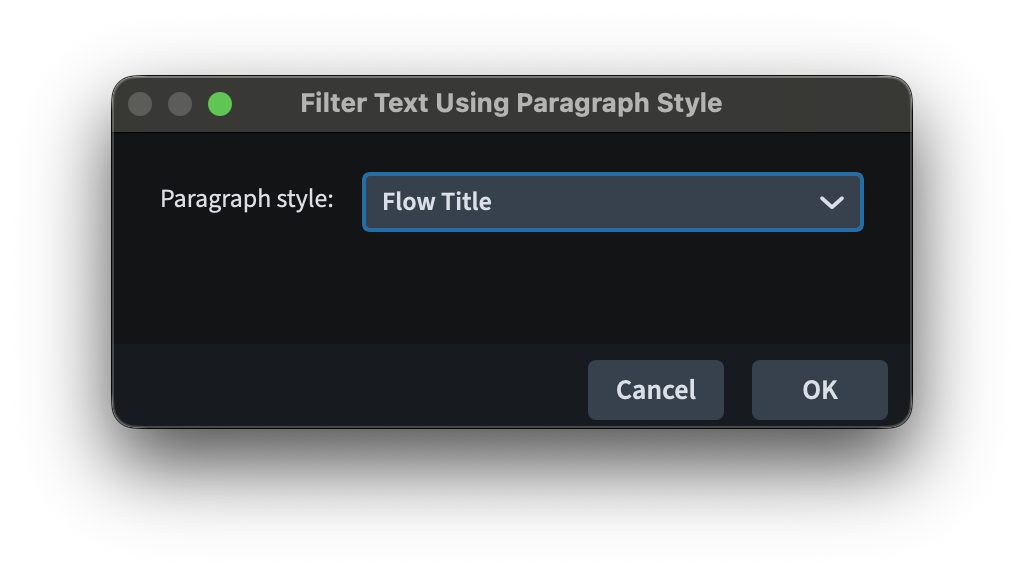
This function is particularly useful in combination to the new possibility of converting staff text into system text:
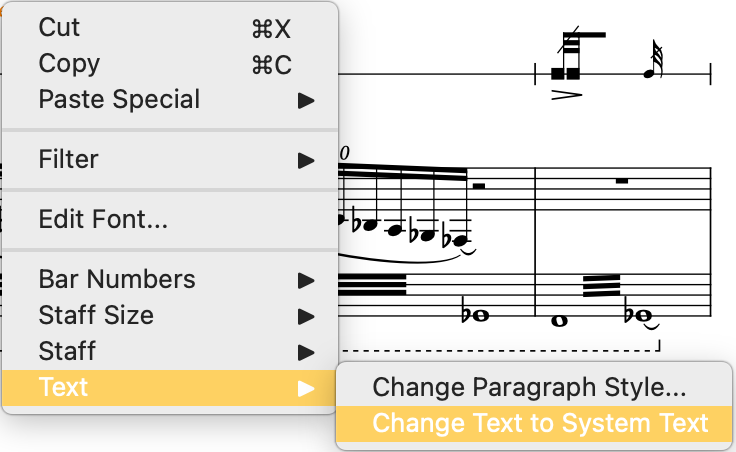
Library Manager
A massive improvement has been baked into the Library Manager, accessible from the bottom of the Library menu. When accessing Notation Options, it is now possible to apply the desired settings to all flows through the new dedicated button found at the bottom left of the dialogue.
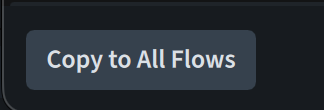
Be careful, though, that ALL Notation Options settings will be copied to all flows so, if you want only specific ones, you will still need to apply them individually.
The same goes for Layout Options: if you select a score layout as source, you will get a “Copy to Full Score Layouts” button, while if you select a part layout as source, you will get a “Copy to All Part Layouts” button.
Instrument filters improvements
The instrument filter control is available (and visible) only in Galley view. In Dorico 6, when using a key command to activate a specific filter while in Page or Fill view, you will receive a warning that you should be in Galley view to use this feature. The alert will also give you the option to switch directly to the correct view.
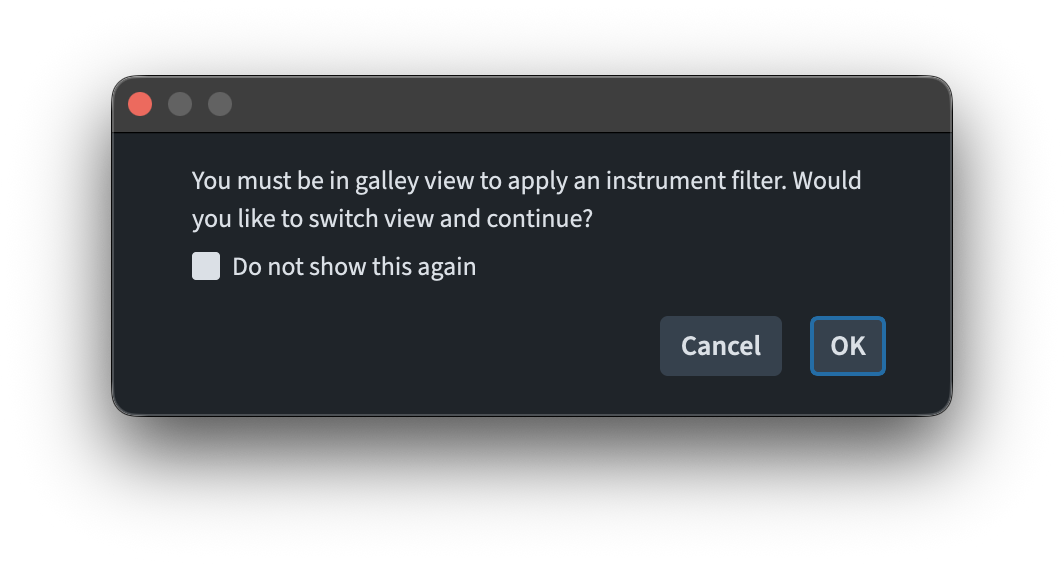
If, before pressing OK, you choose to tick the “Do not show this again” box, you will get an automatic bonus behaviour: running the shortcut will switch the view to Galley view and activate the filter.
Finally, then, hidden instruments are automatically ignored. When performing actions such as extending the caret in Note Input mode, or moving/duplicating notes to the staff above or below, or pasting and exploding notes to multiple staves, only instruments that are currently in view will be considered as valid targets. A great improvement!
Miscellaneous goodies!
It is now possibly to assign key commands to specific Playing Techniques, allowing you to thoroughly ignore the popover for the most common markings. You can find a list of all playing techniques defined (unclear if it is in the current project or in all projects ever opened on a given machine in Dorico, since it’s a preference) in Preferences ▶︎ Key commands ▶︎ Note Input ▶︎ Create Playing Technique. From there, browse the alphabetically-ordered list until you find the one you are looking for. My suggestion is to apply a key command exclusively to very common playing techniques, such as “arco” or “pizz.”.
While I cannot show this to you as I do not have a Windows machine, the support for fonts under the Windows operating system has been improved. Now, instead of a family appearing once for every style, it will now be listed only once while correctly presenting all of its styles in the Style dropdown menu.
In the Hub, available from Window > Hub, a new magnifying button has been added to the thumbnail used to show recent projects in grid view. Pressing and holding on it will briefly show a zoomed in version of the first page of the project if it was last saved and closed in Page View.

Last but truly not least, it is now possible to export and import user settings, making it easier to transfer settings to a different or new computer. The export is done through File ▶︎ Export User Settings. This will trigger the Open/Save dialogue for your operating system and create a ZIP file in the chosen location. When importing, through File ▶︎ Import User Settings, a dialogue is chosen instead:
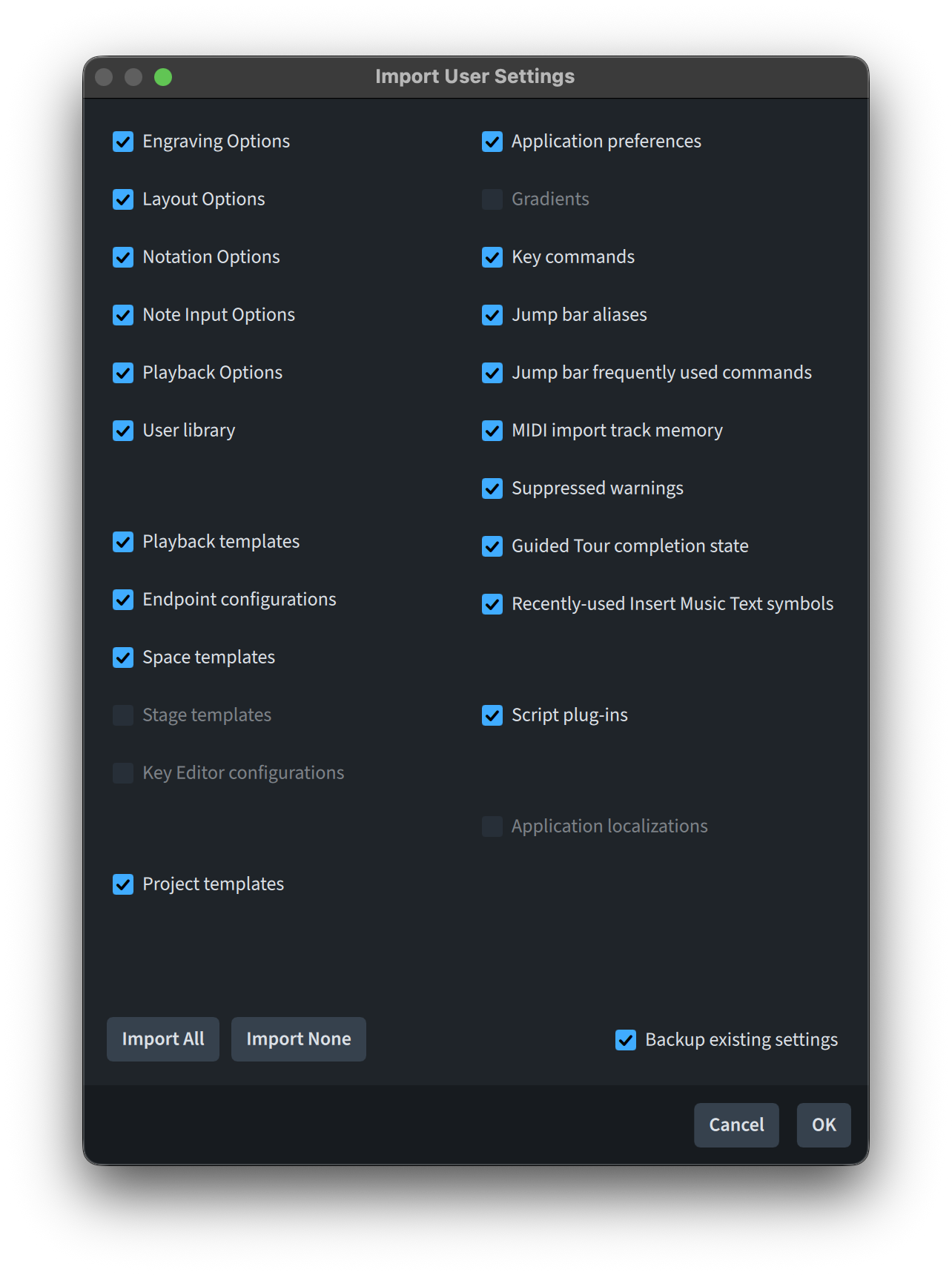
Here you will be able to decide which settings you would like to import and, most importantly, to back up existing settings before importing. This could be very useful when working for different publishers who may have wildly different setups. To make sure one would not forget any setting, one could switch working environment in a few clicks just through this action. Brilliant!
iPad Check
It is now time to go back to the beginning and see what is available on the iPad version of Dorico 6.
Both the Rulers and the Grid are available on iPad, but I have noticed a couple of strange things: from Engrave mode, gone is the eye button where view options could be set. Switching to Write mode gives us back the eye button, where we can set Rulers and Grids. Going back to Engrave mode, then, shows the rulers but not the grid, even if it was activated. Neither the hamburger menu to the top right, nor the ellipsis button just below it, have any option for this. The new menu bar introduced in iPadOS 26 appears not to be well-supported by Dorico, as it does not show the same menus that we get on desktop. The only reliable way I’ve found to show rulers, grid, or grid options, is to invoke the Jump bar (J) and type what you need.
Given its just demonstrated superpowers, all improvements to the Jump bar seem to work, except for one: holding down Option and pressing Return to be brought to a specific entry in the various Options dialogues has no effect. It just closes the jump bar.
Popovers now also show the attachment line and the various interface improvements. Once again, holding down Option to input a local item appears to be working, but the human head button doesn’t light up as it does on the desktop. Pressing it with the pointer makes it light up, but it doesn’t appear to be reliable.
View Options are available in all modes pressing the Cmd-Shift-V key command or, exclusively from Write mode, using the eye button mentioned above. Sadly, there is no equivalent to the eye button on Desktop for quick applications of certain view options.
Double-tapping on staff or player group labels works as it does on desktop, thus opening the Edit Instrument Name dialogue.
Secondary clicks (or right-clicks) do not seem to work in Dorico for iPad as nothing happens neither when I use a two-finger tap on the trackpad, nor when I try with a proper mouse, nor when I use Ctrl-click to open the contextual menu the old way. It is therefore impossible to access the Edit Font… dialogue from the iPad version. Search fields have been added to most dialogues as well, so that’s a partial consolation.
Frame editing is now automatically set so that double-tapping on a frame containing a placeholder text (either empty or filled) will open the Project Info dialogue, without the need for a dedicated preference. Actually, the preference is there in the same place where it is on desktop, it is just checked by default.
The lower zone (Properties panel) has received the same amount of love as the desktop version, if we exclude the fact that there is no search field in the iPad version, something that, I believe, should be implemented sooner rather than later.
I’m not sure whether the modal dialogues improvement has been brought over to iPad because I see that tapping anywhere outside the dialogue’s area closes the dialogue and restores usability of the score. Pressing Cmd-Return doesn’t really do anything here. Perhaps the simplicity of just tapping outside a dialogue has been deemed enough.
Filters have not received too much love so far in Dorico for iPad. Looking for them through the Jump bar returns no appreciable result, meaning that the filter by paragraph style is also not available in this version. The same goes for the Library manager, which is not available on iPad.
Curiously, instead, instrument filters and their key commands work reliably here, and so do the setting of keyboard shortcuts for the creation of specific Playing Techniques.
Finally, the zooming in the Hub area and the Import/Export of User Settings are not available on iPad. So far, a solid release, and Dorico is an app that I constantly use in the classroom for elementary demonstrations. For anything else, though, the desktop version is still much too ahead to warrant even a mild comparison.
Bottom Line
And that’s it, folks! I hope you enjoyed this extensive walkthrough of all improvements to workflow in Dorico 6.
If you enjoyed this post, please leave it a like, subscribe to get notified of upcoming articles, and don’t forget to do the same for Anthony’s video and for the Dorico YouTube channel.
Should you be interested in my other activities, please visit my website and consider joining my mailing list, where you will be able to follow my journey through music notation and independent music publishing.
Thank you for your time, and see you here in the next episode.
 Music Preparation Services
2 thoughts on “Shining baubles!”