
A review of Dorico 6’s additional improvements
This trio of articles expands on the previous ones to list everything that didn’t make it to the limelight during the announcement of Dorico 6. While front-facing features are often those that attract more attention, encouraging more users to switch or update, professional users like myself, who spend hundreds of hours per month on a specific software, dream of those small fixes that will etch several minutes per day of gained time. Add all those minutes in a month, or in a year, and you will see both your productivity—and your health!—soar to new heights! There is plenty to discuss, so let’s dive straight in.
PART 1
Accidentals
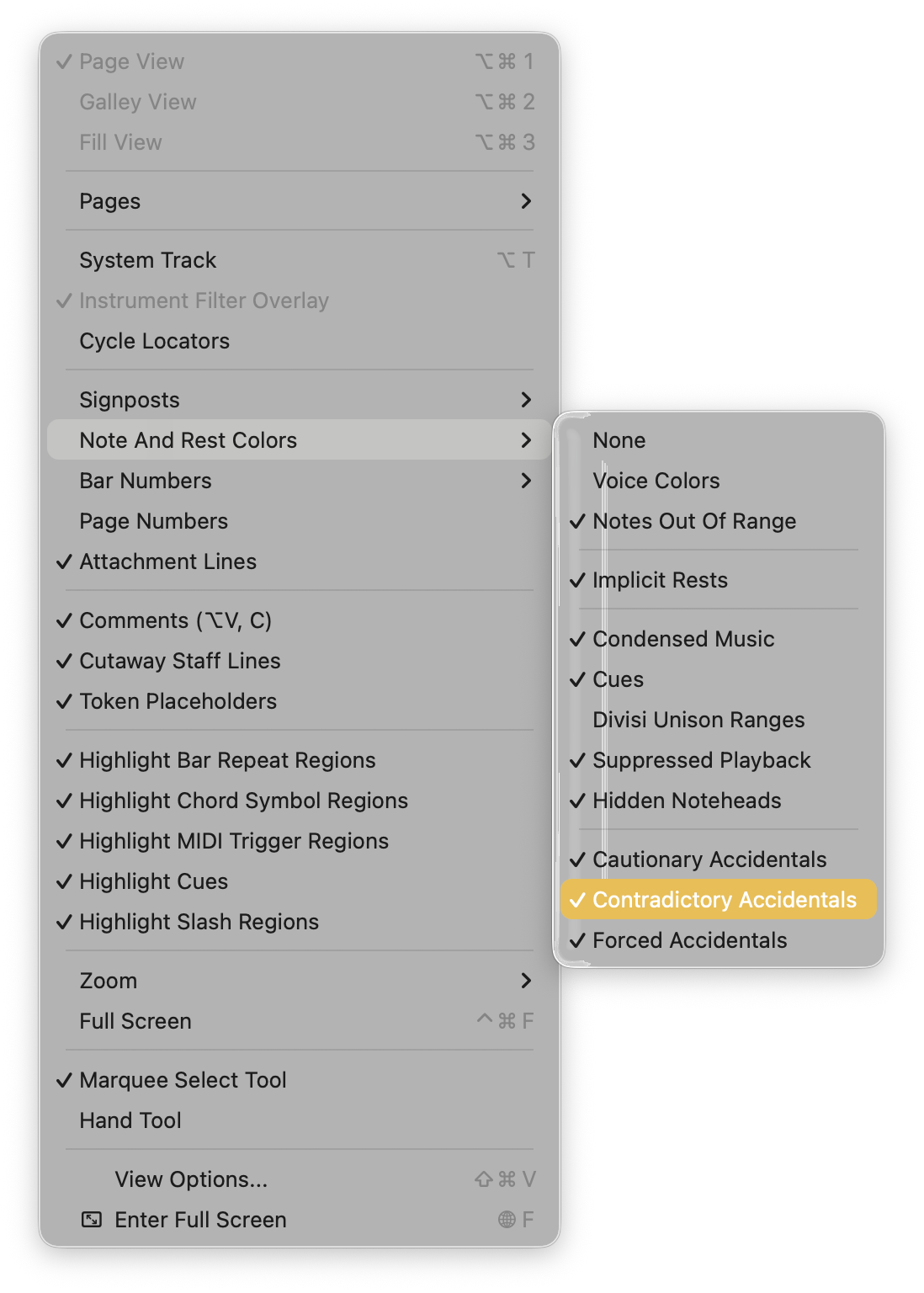
There are times when notes with the same name but different accidentals are played close to each other—or together—by the same instrument. A common example would be a C3 in the LH of the piano and a C#5 in the RH. These are called contradictory accidentals. When these are shown, it is possible to locate them easily by going to View ▶ Note and Rest Colours ▶ Contradictory Accidentals.
Barlines
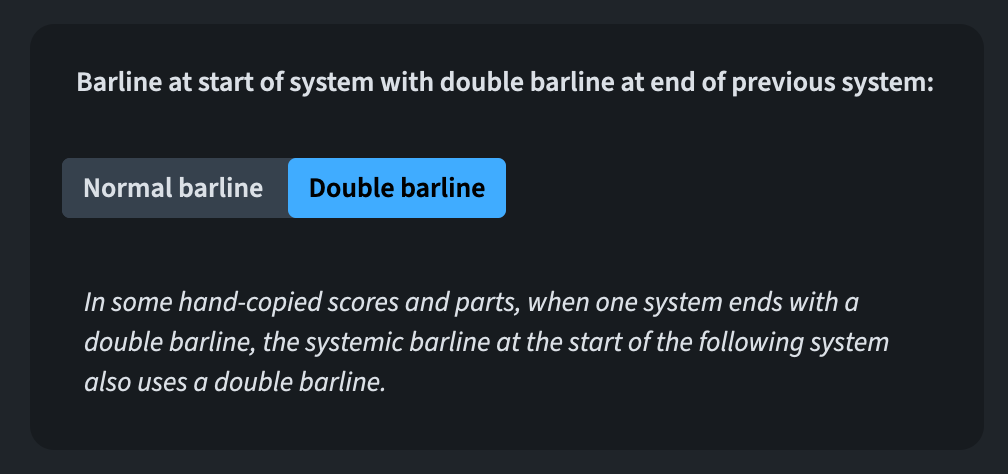
In certain kinds of music, it is necessary to show a double barline at the start of a system when a double barline exists at the end of the previous system. A new option for that has been added in Notation Options ▶︎ Barlines:
Bar numbers
Two improvements were made here:
- It is now possible to set bar numbers showing at the start of the system to be centre-aligned on the systemic barline. To achieve that, go to Layout Options ▶︎ Bar Numbers and set Alignment at start of system to Centred on barline.
- To solve a very strange issue in which selecting bar numbers drawn at positions apart from the start of the system would cause weird copy-pasting results, those numbers will now not be selected unless they are explicit bar number changes.
Beaming
A new option has been added to prevent beams to collide with accidentals belonging to a notehead in a beamed group. This will be activated by default in new projects while remaining OFF in existing projects to preserve appearance. The option is found in Engraving Options ▶︎ Beams ▶︎ Vertical Position ▶︎ Advanced Options:

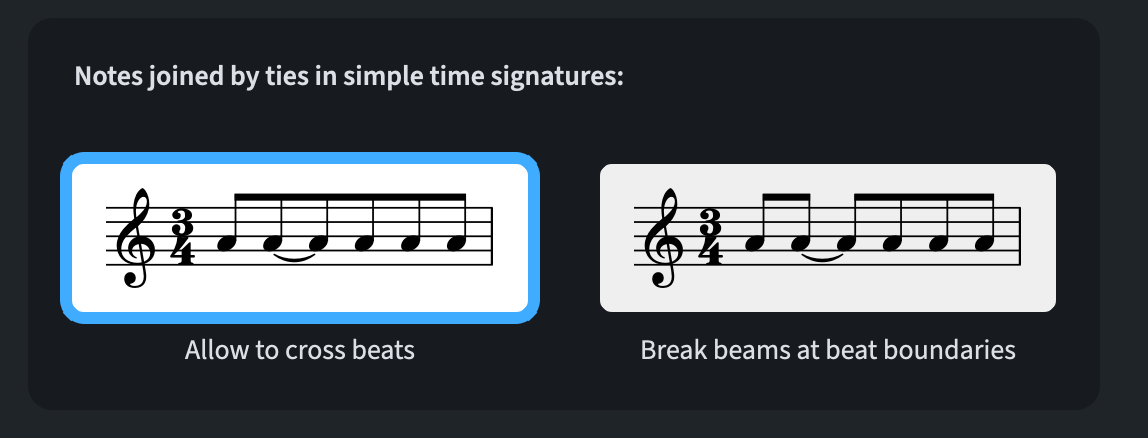
By default, Dorico breaks beams between tied noteheads that would otherwise be joined if they were separate notes. However, this is not a universal practice, so a new option has been added to Notation Options ▶︎ Note Grouping ▶︎ Simple Time Signatures With or Without a Half-bar:
Chord symbols
Several improvements were made to Chord symbols in Dorico 6.
Selection
Before version 6, selecting chord symbols required to start the selection using the mouse. Two new commands have now been added to improve on this, both of which can be invoked via the Jump bar or by assigning key commands to them:
- Select Chord Symbols: starting from a range selection within the staves, this commands clears the existing selection and selects all chord symbols within that range.
- Add Chord Symbols to Selection: same as before, but without clearing the selection
It is now also possible to select a range of chord symbols by selecting one of them, holding down Shift, and then selecting another one. Similarly, holding down Cmd/Ctrl selects only the chosen ones, allowing theEdit ▶︎ Select More (Cmd/Ctrl-Shift-A) command to select all intervening ones.
Additionally now, when selecting a chord symbol and when the Keyboard panel is shown, the relative pitches will be shown on the keyboard (and in the status bar as well).
Alignment
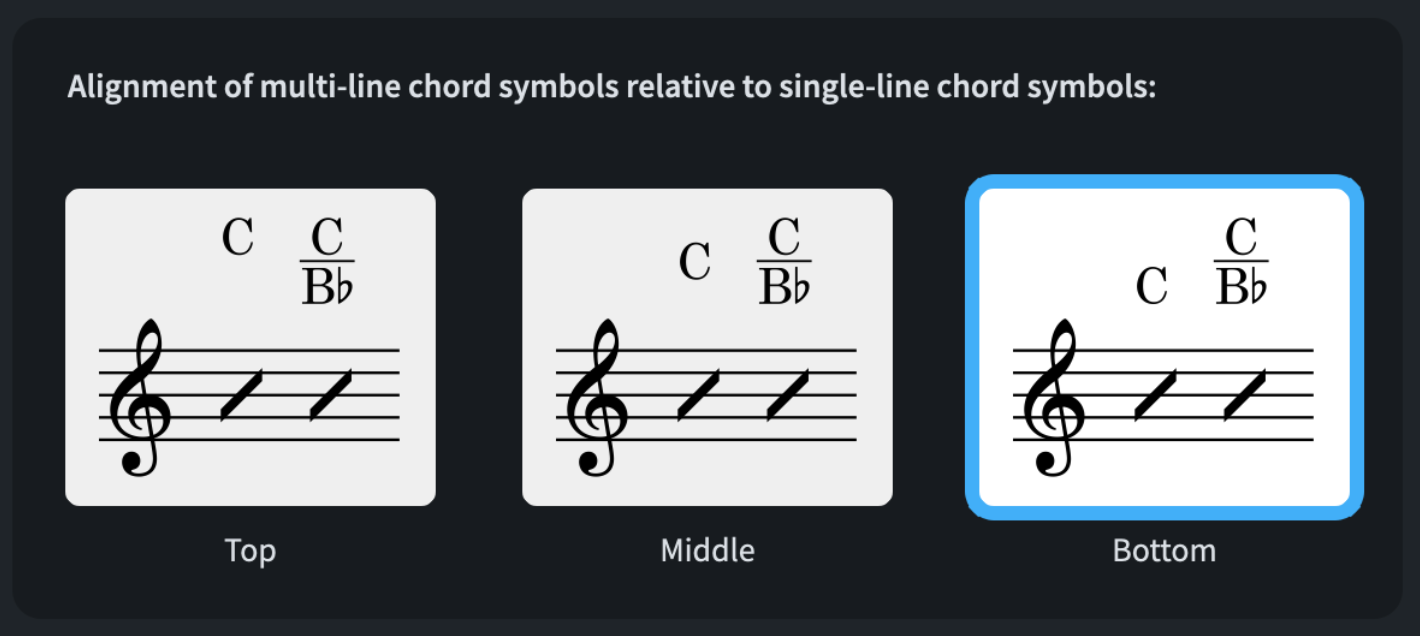
When multiple chord symbols are present in the same system and not all of them have a single line—for example because of different roots—aligning them properly could be a pain. It is therefore now possible to specify how to align them in Engraving Options ▶︎ Chord Symbols ▶︎ Positions:
Root notes
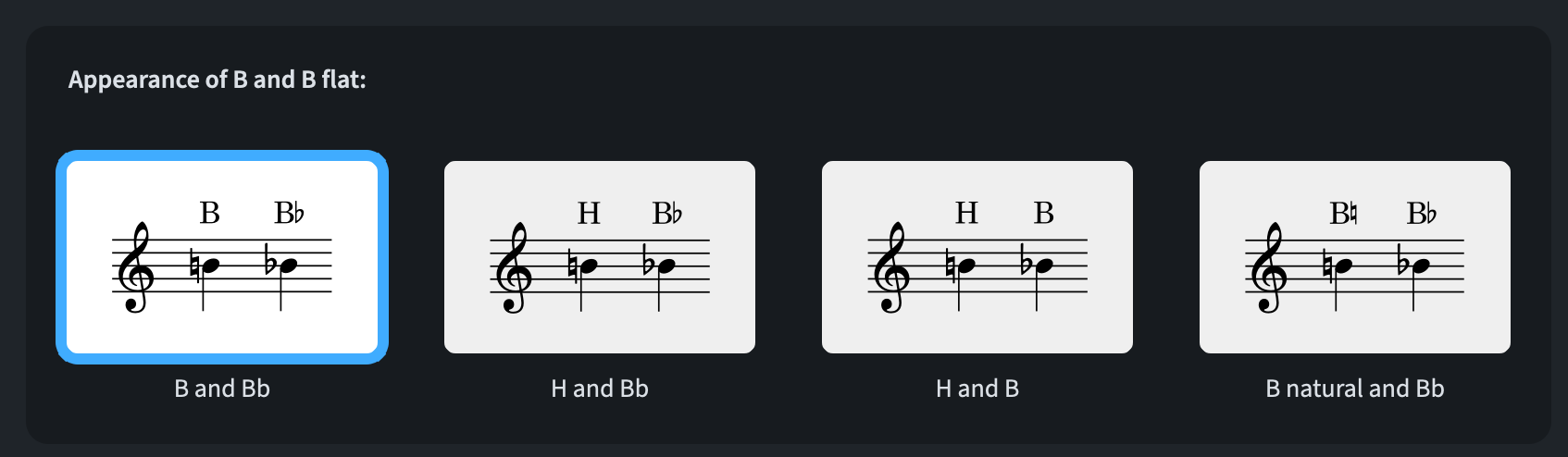
To avoid confusion in German-speaking countries where B-flat is B and B-natural is H (what a great idea, right?!) there is a new setting available in Engraving Options ▶︎ Chord Symbols ▶︎ Chord Root:
Chord appearance
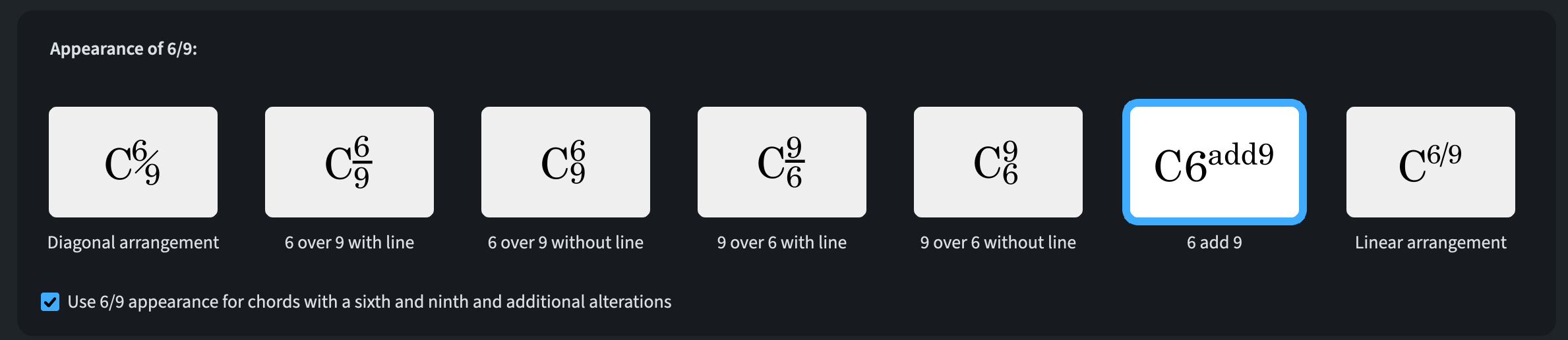
There are two new options added to the Engraving Options ▶︎ Chord Symbols ▶︎ Intervals ▶︎ Appearance of 6/9 page:
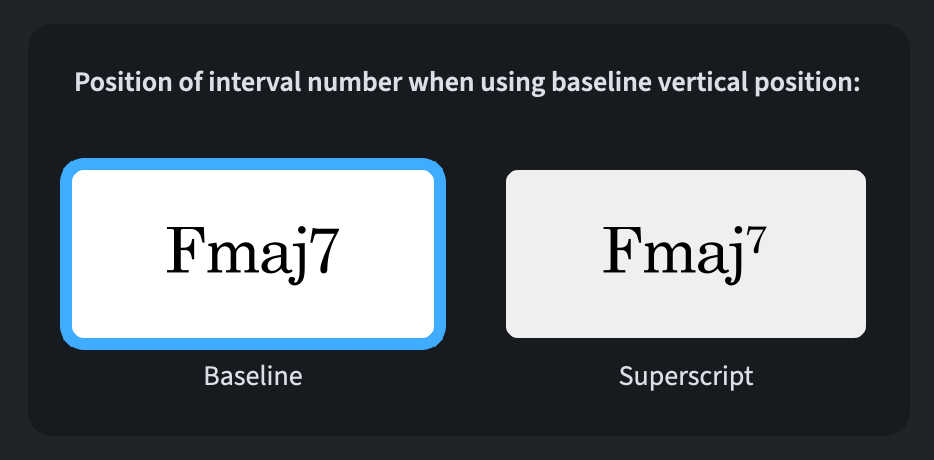
For major sevenths, to accomodate the standard used by certain major publishers, it is now possible to show “maj” as baseline and “7” as superscript by going to Engraving Options ▶︎ Chord Symbols ▶︎ Intervals, just above the 6/9 options:
Minor 7th chords vs 6th chords in inversion
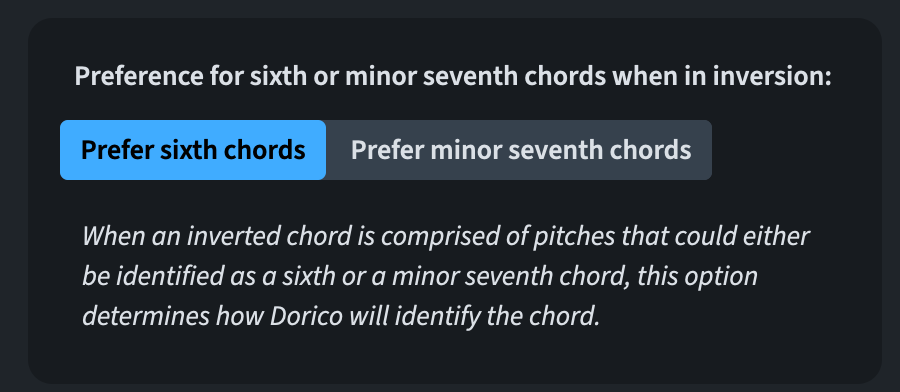
When inputting chord symbols via a MIDI keyboard, Dorico has always had to make certain assumptions for chords that could be interpreted as either 6th (e.g., ‘G6’) or 7th chords (Em7). When there is an inversion, this could become problematic, and a new choice has been added to Note Input Options ▶︎ Chord Symbols:
Boston preset
This preset, which has the goal of replicating the conventions taught at the Berklee College of Music, has been slightly refined.
Dynamics
Ever since Dorico 1, to write something like “dolce” under a note, we had to write “P dolce” and then hide the dynamic intensity marking. While this could be replaced by a dedicated paragraph style, one would have lost the playback effect or risked duplicating the number of things to do to achieve the same result in a satisfactory way. After hiding the dynamic intensity marking, the prefix/suffix would be again centred under the note, requiring an extra change in the Properties panel. It is now possible to set a new option called Alignment of text dynamics with intensity mark hidden in Engraving Options ▶︎ Dynamics ▶︎ Horizontal Position:
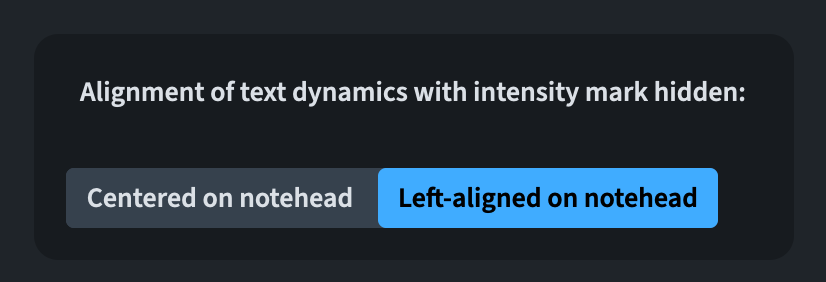
This will be changed by default in new projects, but it will stay unchanged in existing ones.
Graphic slices
It is now possible to define properties for how graphic slices should be exported and then tap on the new Save as Default button. These settings will apply to all future graphic slices in all projects. Additionally, slice sorting in the panel now follow a natural sort order, instead of the previous lexicographic one (e.g., 1, 10, 2, 35, 4 will now be ordered as 1, 2, 4, 10, 35). Finally, as soon as you create a slice, the name field in the panel is automatically opened and in focus.
Library and Instruments
Instrument editor
It is now possible to have rich text formatting specified in the Edit Instrument Names dialogue from within the Library ▶︎ Instruments panel persist when an instrument is saved to the user library.
Manager
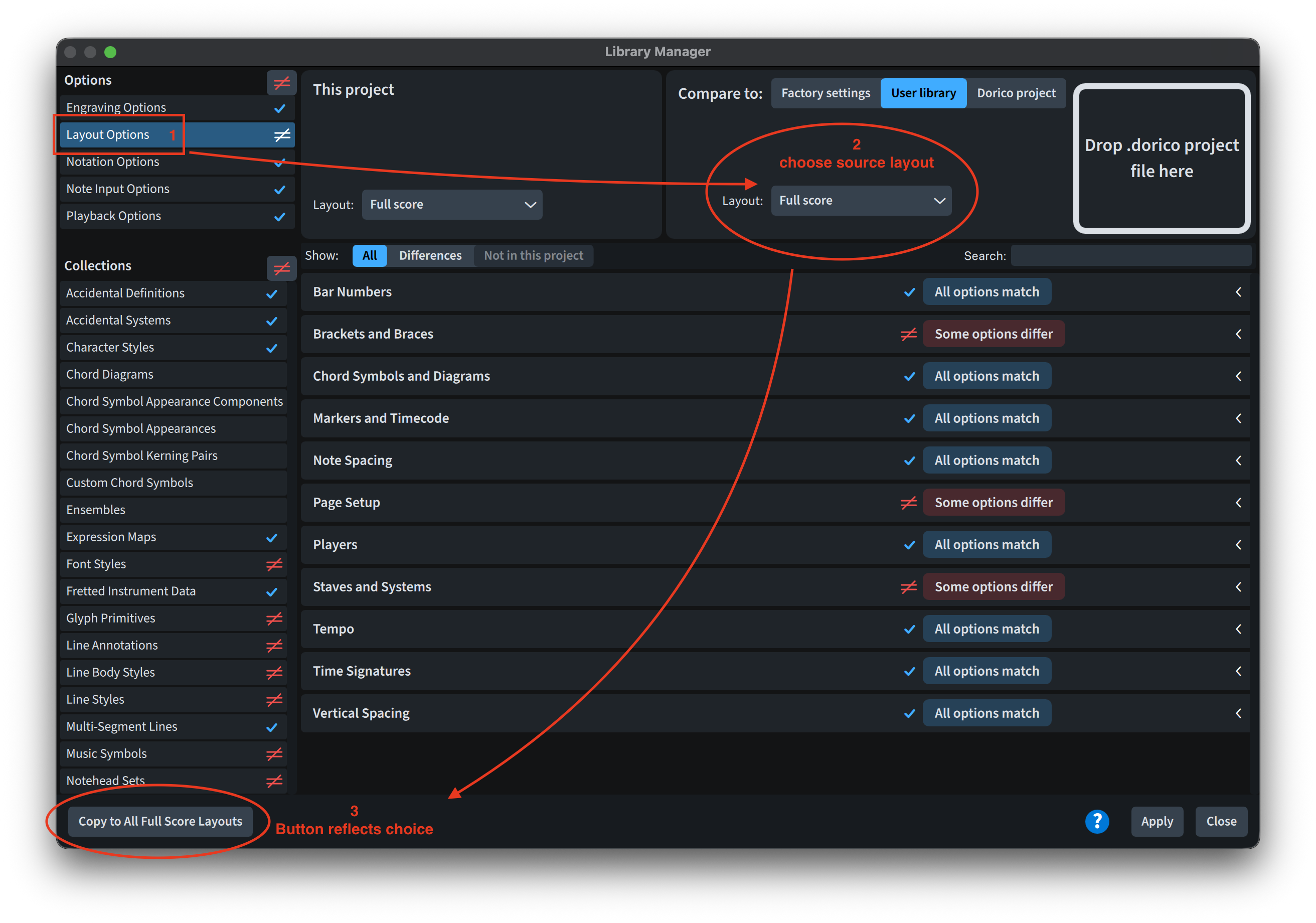
It is now possible to import layout and notation options into all layouts and flows in the project using the Library Manager. When selecting Layout Options in the left-hand side, a new button appears in the bottom-left corner of the window, reflecting the type of layout chosen in the drop-down menu.
If you select Notation Options, instead, the button reads “Copy to All Flows”.
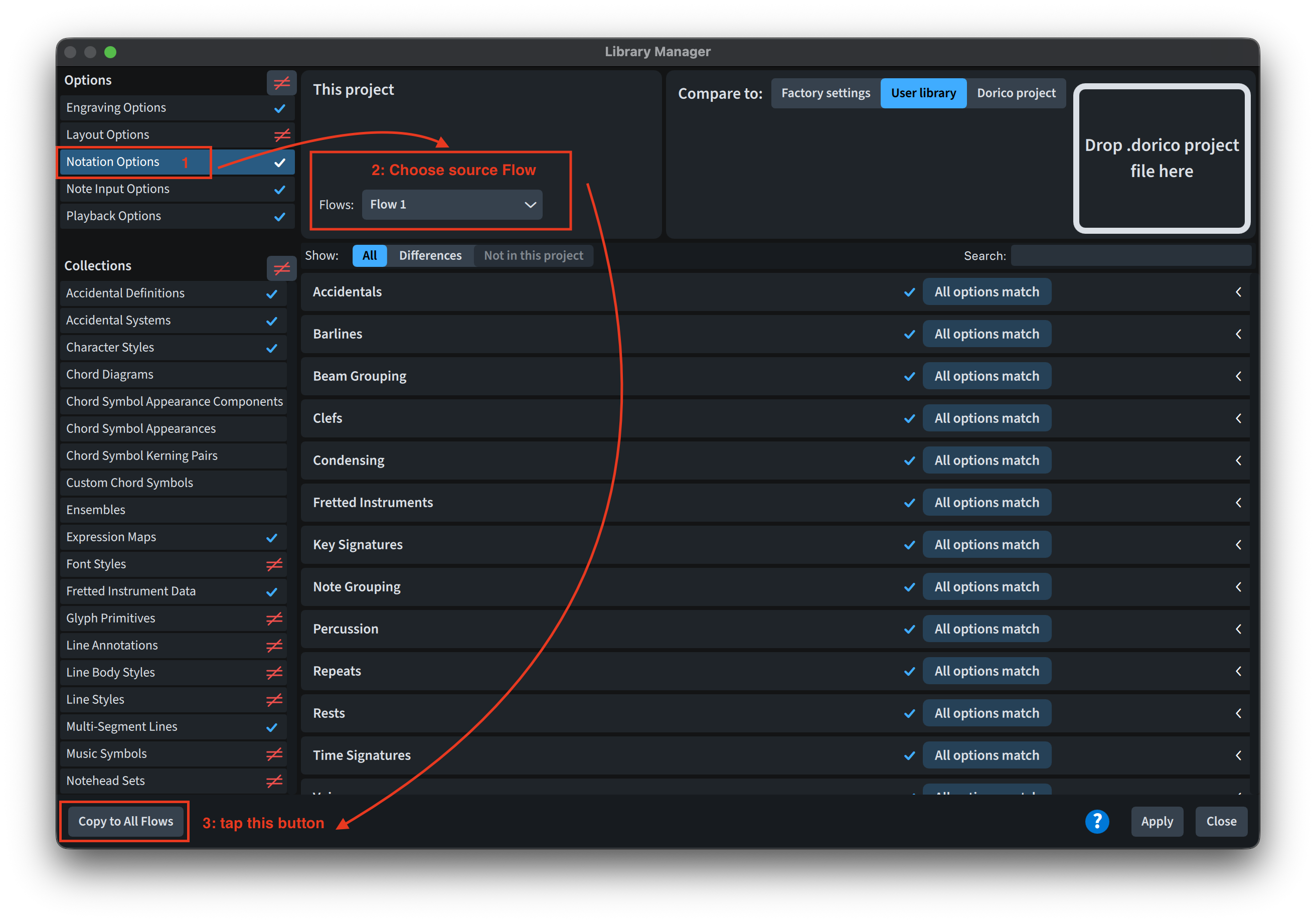
Clicking either of these buttons, you will be prompted to confirm your choice. It is still possible to undo the changes via the Edit menu.
The amount of time saved by this feature should not be underestimated!
Bottom Line
That’s it for today! Come back next week for the second part of this walkthrough of all additional improvements to Dorico 6.
If you enjoyed this post, please leave it a like, subscribe to get notified of upcoming articles, and don’t forget to do the same for Anthony’s video and for the Dorico YouTube channel.
Should you be interested in my other activities, please visit my website and consider joining my mailing list, where you will be able to follow my journey through music notation and independent music publishing.
Thank you for your time, and see you here in the next episode.
 Music Preparation Services
2 thoughts on “There’s more!”