

How to create trills with accidentals
PART 2 – TRILLS WITH ACCIDENTALS
We finally come to the core of this lesson. As stated yesterday, if nothing is specified, one would play the upper diatonic note, including any accidental from the key signature. If we want to add an accidental, we can either create a dedicated trill symbol or use a small note in brackets, similar to the tremolo notation we saw before. There are three main ways of showing this accidental:
- Next to the TR glyph, to its right
- As superscript, but not too small
- Above the TR glyph
We will now look at how to create each one of them.
Beside the TR
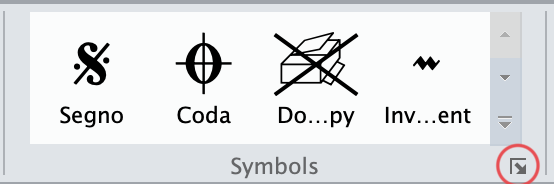
From within Sibelius, go to the Notations tab in the ribbon and expand the symbols dialogue by clicking on the small arrow at the bottom right of the Symbols section.
In the bottom left of the Symbol dialogue that appears, tap on the New… button to proceed to the next step. The “New symbol” text field in the top-left corner will be highlighted, and it is good practice to immediately change it to something you will remember, such as “TRILL-beside-sharp”. Remember that the symbols browser groups items alphabetically, so you need to decide whether you want your custom trills to be groups by “kind of accidental” or “accidental positioning”. For this tutorial, I chose the second one.
In the bottom center there is a list of all the glyphs that will compose our symbol, showing only “Main symbol” so far.
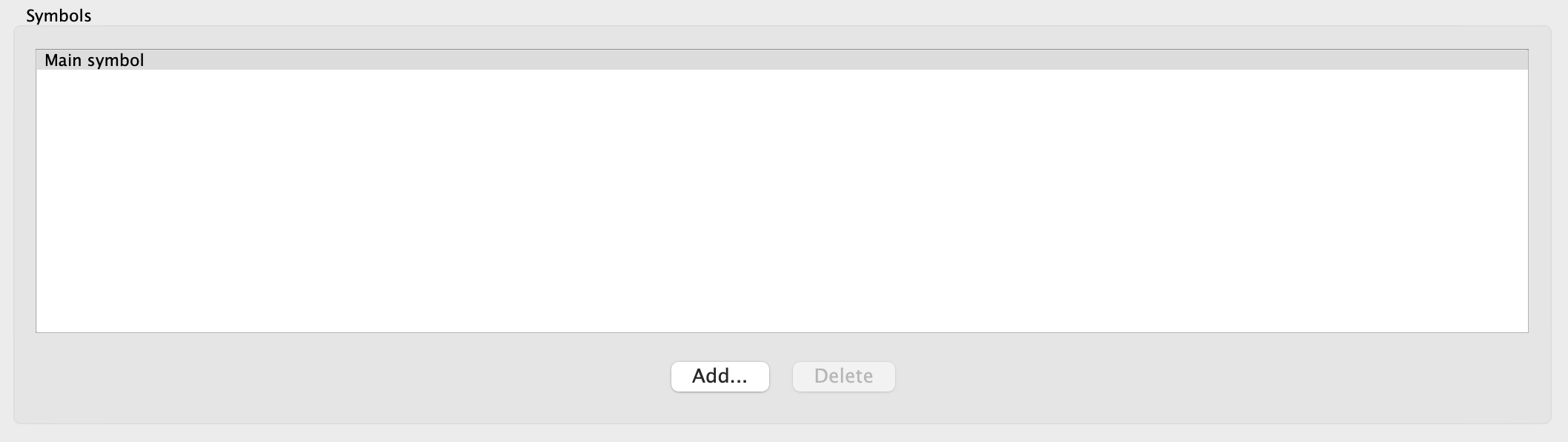
Click on the Add… button and select the ordinary trill symbol to get started (I could have modified the main symbol, but it’s a bit tricky, and we may need to use it for the accidental, so stick with me for now). Press Add… again and look for the sharp glyph. Select it and add it to the pile. You will see that it stacks above the TR glyph. Simply nudge it to the right using the directional arrows around the preview window. You should get something looking like this:
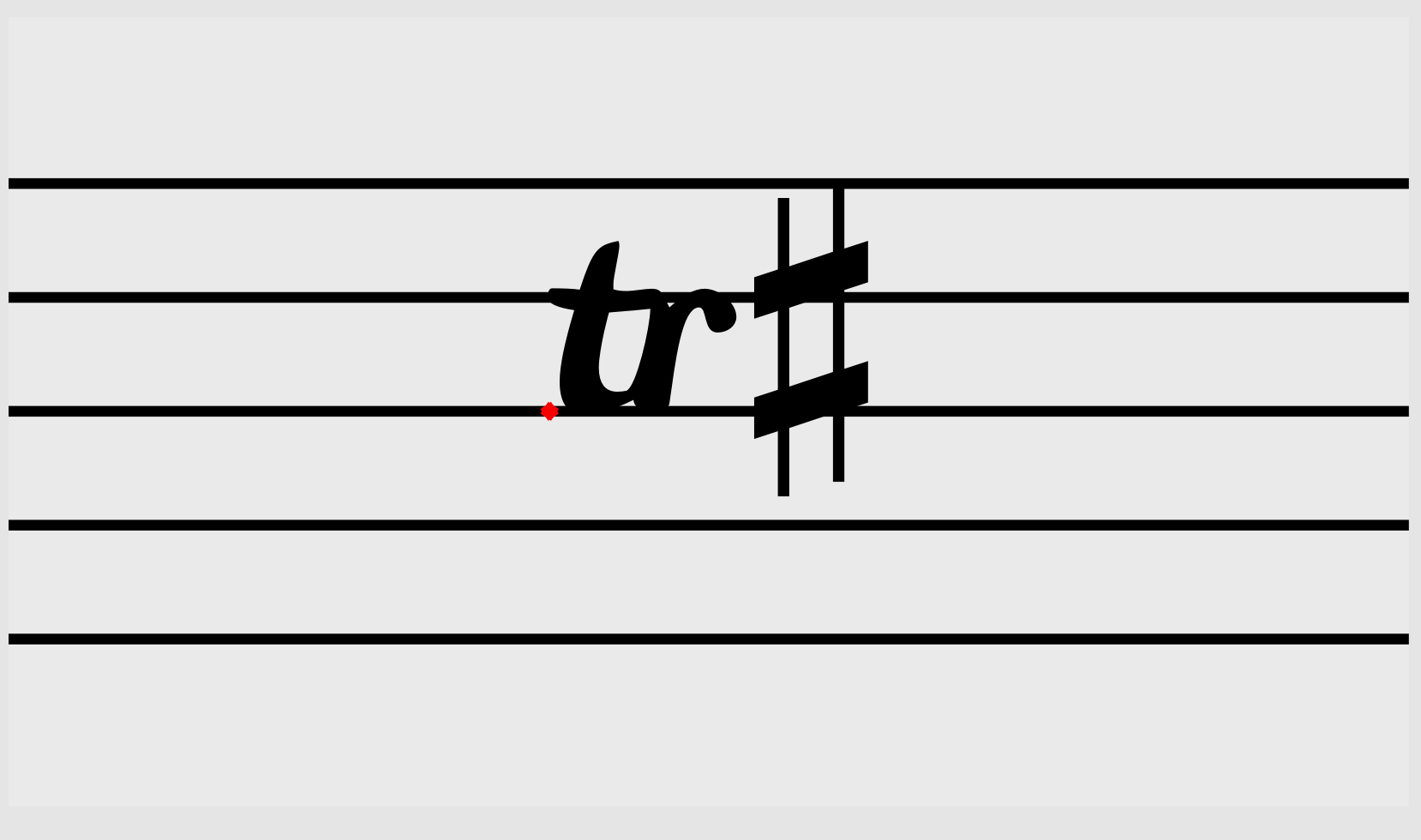
I do not like how big the sharp symbol is, and we are going to fix it now. Press OK in the creation dialogue to return to the symbols list. Find the sharp symbol and tap on Edit… In the dialogue that appears, in the left column, you will see that this symbol belongs to the “Common symbols” music font (Sibelius works with several music fonts to generate its symbols).
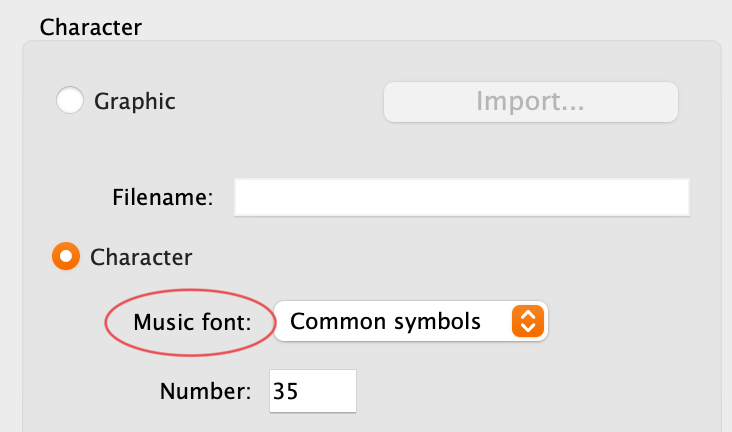
Remember this detail and close this dialogue. Select now the Music Fonts… button, look for “Common symbols” in the list and press New Text Style…, answering YES to the “are you sure?” question. Reduce the Size in score: and Size in parts: by about 20% to 16pt, and change the “(2)” in the font name to “(16pt)”. This may seem unimportant now, but it will become crucial when you will have dozens of copies of the same music font in your files. Press OK and Close.
Now scroll down to the bottom of the symbols dialogue to find the “User-defined” category. Find our newly created trill-with-sharp symbol, select it and tap Edit… (or double-tap on the symbol). From the “Symbols” list, select “Main symbol” and, from the left column, choose the new “Common symbols (16pt)” font from the dropdown menu. From the symbols below, select the sharp symbol:
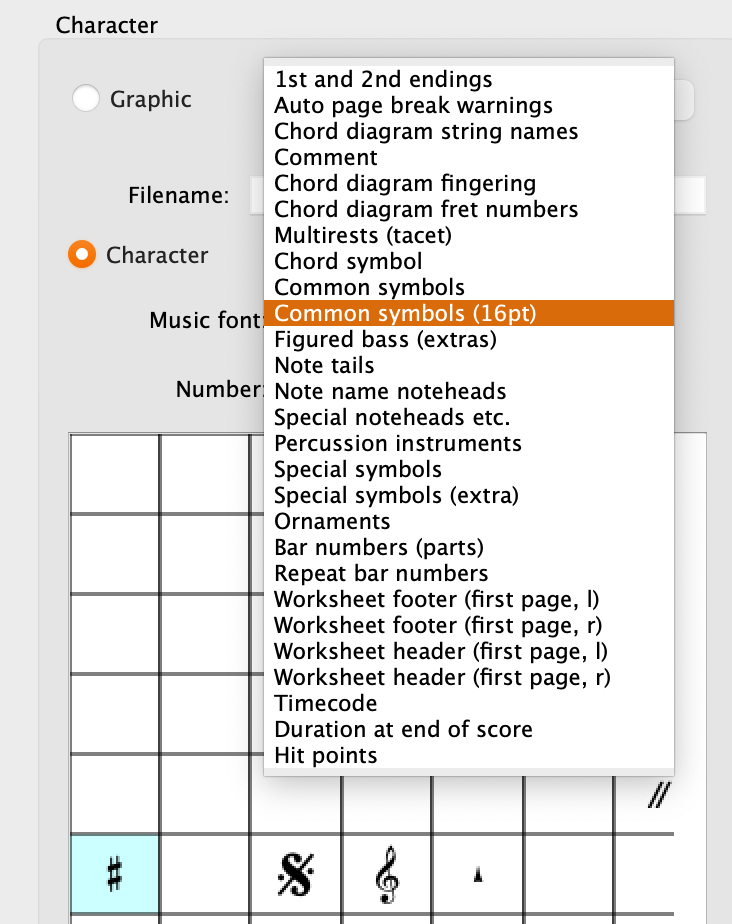
Nudge the new symbol in position, then select the “Sharp” symbol from the list and tap on Delete. Now the symbol looks exactly how I want it to:

As a personal exercise, create the other two trills with flat and natural (or add double-sharp and double-flat if you need them as well). Your final result should be similar to this:

One thing you can surely notice is how the symbol appears to be centred on the note, instead of being aligned to its left border. This is due to a general setting for symbols in Sibelius that it is better not to touch to avoid issues in other areas. It’s a pity, though, that one cannot find a local solution: if you edit your symbols and try to change the X-offset of their components so that they come a bit more to the right, you will see that it is only a temporary solution, as resetting their position will bring them back to the left.
As superscript
Now you know the drill, let’s create this version of the symbols with the accidentals shown as superscript. Trying with the same 16pt size we used before looks like this:

It may be personal, but I find the accidental to be annoyingly big. Let’s create a new copy of the Common symbols music font and reduce its size to 14pt. Then go back to the symbol you have just created and change the font of the “Main symbol” to use the 14pt one. It should look like this:

Much better, in my opinion!
Now go ahead and create all the other symbols yourself until you get here:

Above the TR
Finally, we need to create the variant for when the accidental needs to go above the TR glyph. Some prefer the accidental to be bigger, some others prefer it smaller. For this tutorial, I will use the 14pt one, but you know you can now change it at any time.
POWER TIP: if you suddenly find that all your symbols using the 14pt font are too small (or big), simply change the font to another size, and they will ALL automatically update. You may have to nudge the symbols a bit, but this is a great time-saving tip!
By now you are an expert, so go forth and create these symbols:

Bottom Line
Thank you for following me so far in this Second Part. Tomorrow we will look at how to create extension lines.
If you like what I do, please consider liking this article, sharing it with your peers and colleagues, and subscribing to this blog to be notified of upcoming articles.
If you use an iPad and would like to improve your Sibelius experience, please give a look at my viewset for MetaGrid Pro here.
I also have a newsletter that follows my publishing journey, check it out if you are interested in cello (and more) and would like to receive special gifts. You can also browse my online catalogue here.
Thank you for your time and continuous support.
See you in the next episode!
Michele
 Music Preparation Services
One thought on “Sibelius Tutorials – Episode 1 B”