

Episode 2: Drunken Tuplets
Hello there, and welcome back to the Sibelius Bugs and how to survive them! series. It’s been a long time since the last episode, so let’s get started. I have a whole series on tuplets in Sibelius and in Dorico, and I suggest you read it to get acquainted with today’s topic.
Scenario
When inputting tuplets, there are plenty of possible combinations: total duration, number or ratio, subdivision of each tuplet part, bracket or not, bracket extension, and much more.
One thing that should be taken for granted, though, is the fact that the tuplet digit (or ratio) be centred in the middle of the bracket (if present) or of the beam. When all notes are connected by a beam, the bracket may not be necessary, so the digit should be centred rhythmically.
To be honest, Sibelius does a decent job by default:
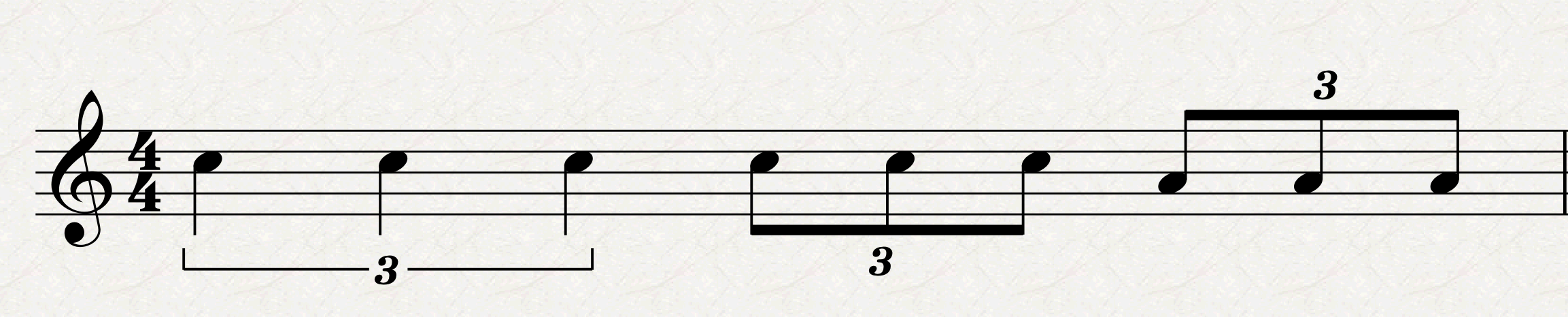
A trained eye will see that, for the last two triplets, the ‘3’ is a bit too much to the left in the downstem one and a bit too much to the right in the upstem one. This appears to be caused by this option in Engraving Rules > Tuplets:
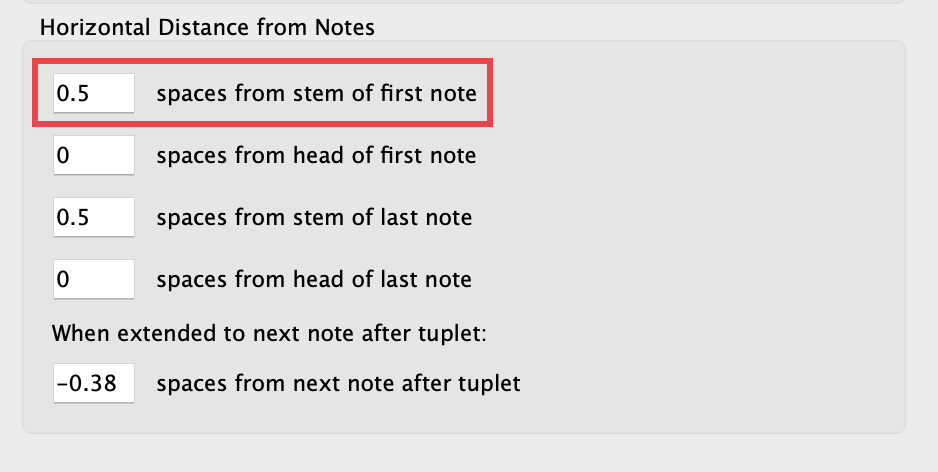
Set it to ‘0’ and you will see that the downstem quaver triplet has been fixed, but the upstem one has not. If you were quick to notice after pressing OK in the dialogue, the beginning of the bracket of the crotchet triplet moved to be flush left with the first note. So, in short, learn this:
These settings govern the starting and end position of the bracket, even if you do not see it!
In fact, try to set the third option to ‘0’ and the upstem tuplet will be fixed as well. The problem is, you may not want the bracket to be flush to the notehead so, in this case, you will be forced to move it by hand.
An increasingly evident concern in Sibelius, though, is how quickly it starts losing itself when things get a little more complicated than the very basics. Look at this:
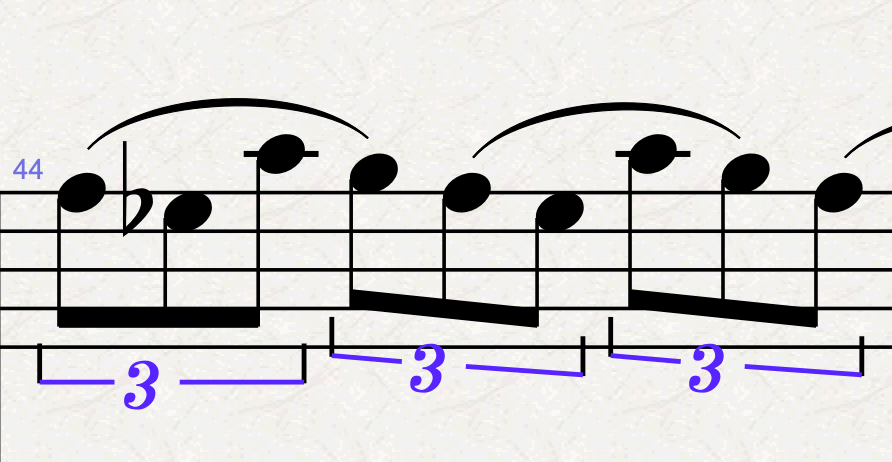
This is far from a complex example, and in theory the bracket should not be there, but I have shown it to make you aware of the issue: the tuplet’s digit is not centred in the bracket. To be more precise, it will be (kind of) correct either on the stem side or on the notehead side, but not both. The tuplet usually goes on the stem side, though, and there it is mostly wrong.
Building the starting project
You can follow my instructions here or download the test file for free from my Gumroad storefront. I am using a product as it is simpler for me to have a single place where to store everything and that you can access at will.
- Create a new project from any stock template, I will use the “Treble Staff” one.
- Add as many combinations of triplets of different note value as you can imagine, especially irregular ones.
- In the Inspector (Cmd/Ctrl-Shift-I), scroll to the bottom and, from the Bracket dropdown menu, choose Bracket. This will help us to diagnose the problem.
Reproducing the bug
Here are a few examples of what you could create, and you will find them in the file above.
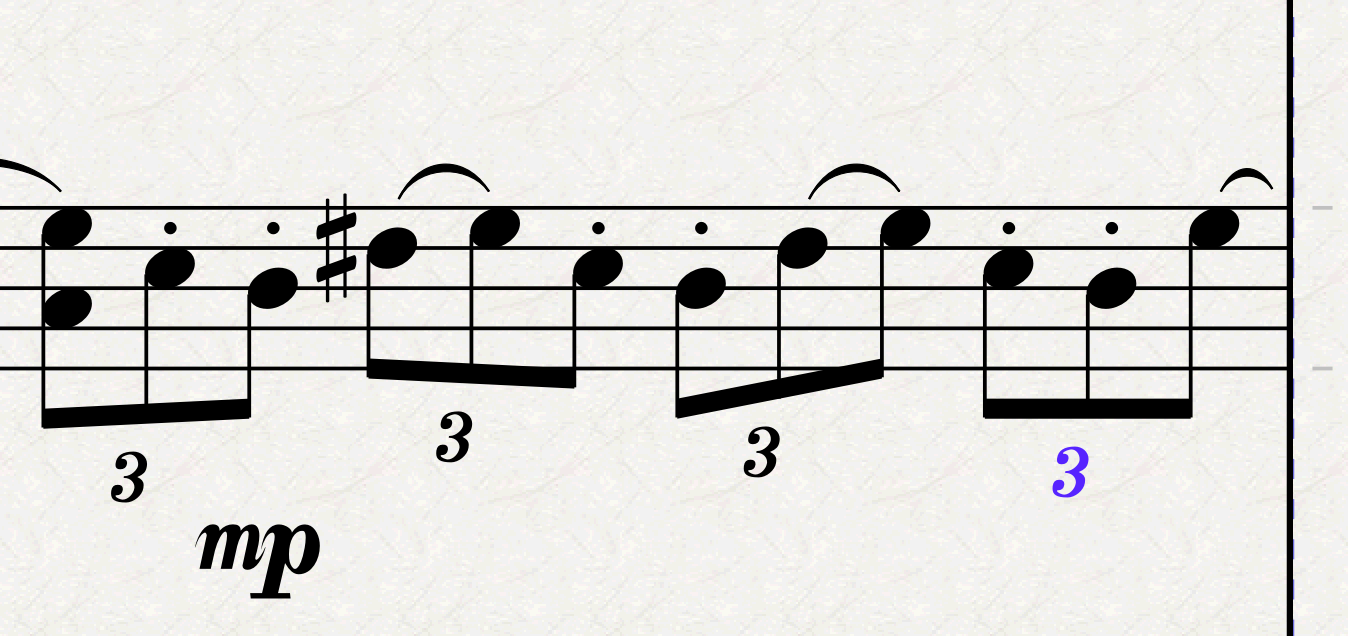
I am using the Helsinki Std music font because that is where this issue shows itself most. If you switch to Opus Std, it will be less pronounced, at least in the basic examples. To switch between music fonts in this document, go to Text > Format > Main Music font and select Helsinki Std from the dropdown menu. If we show brackets for the above example, we get this:
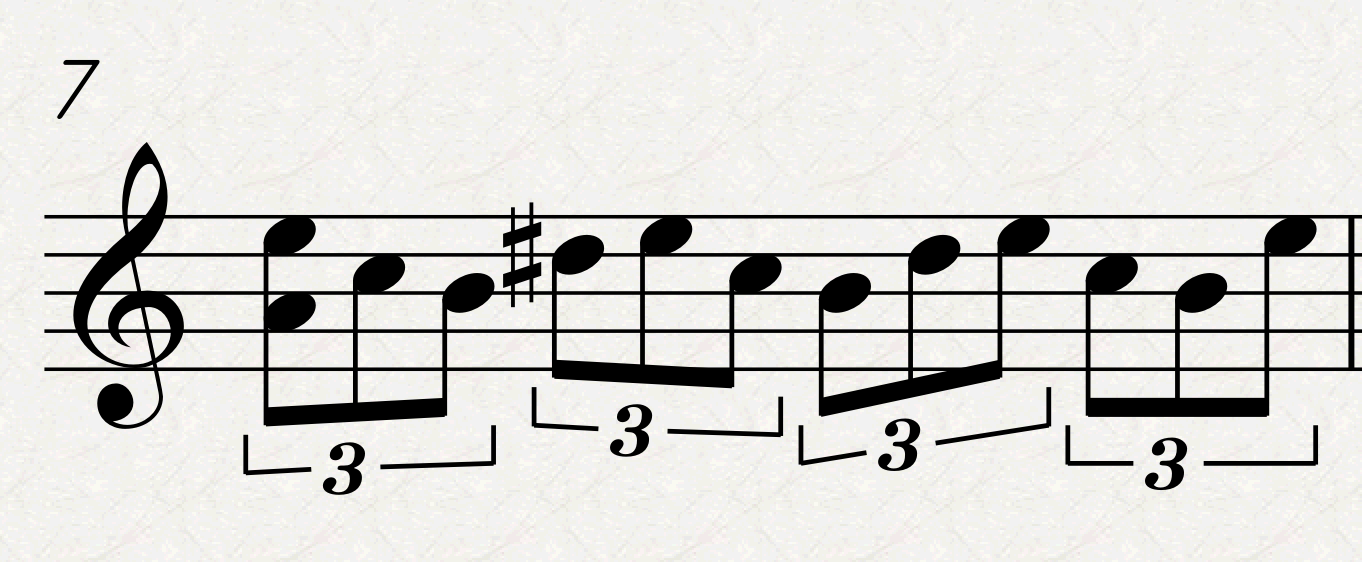
Notice how uneven the two arms of the brackets are between each other. Curiously, if we change one of the notes to a rest, the issue fixes itself:
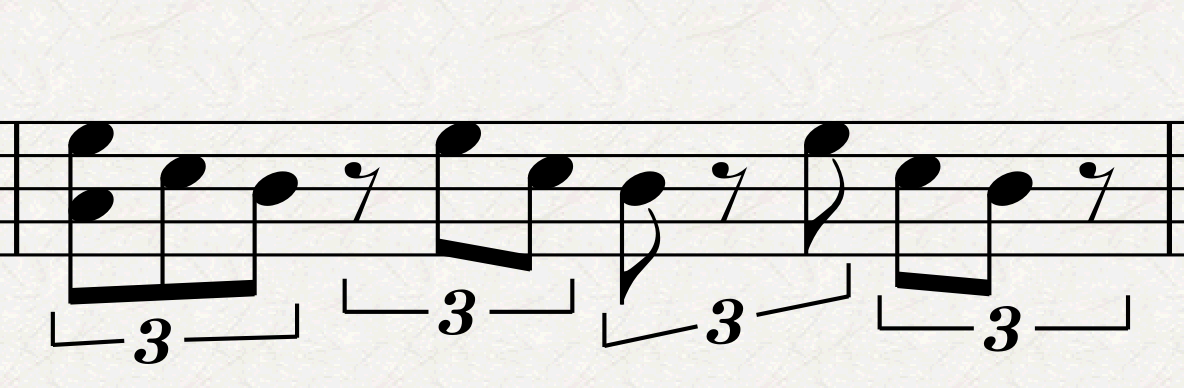
If we change the first or the second note to a crotchet (quarter-note), we also get better results overall, but we are now going to enter dangerous territory, where shorter notes kick in.
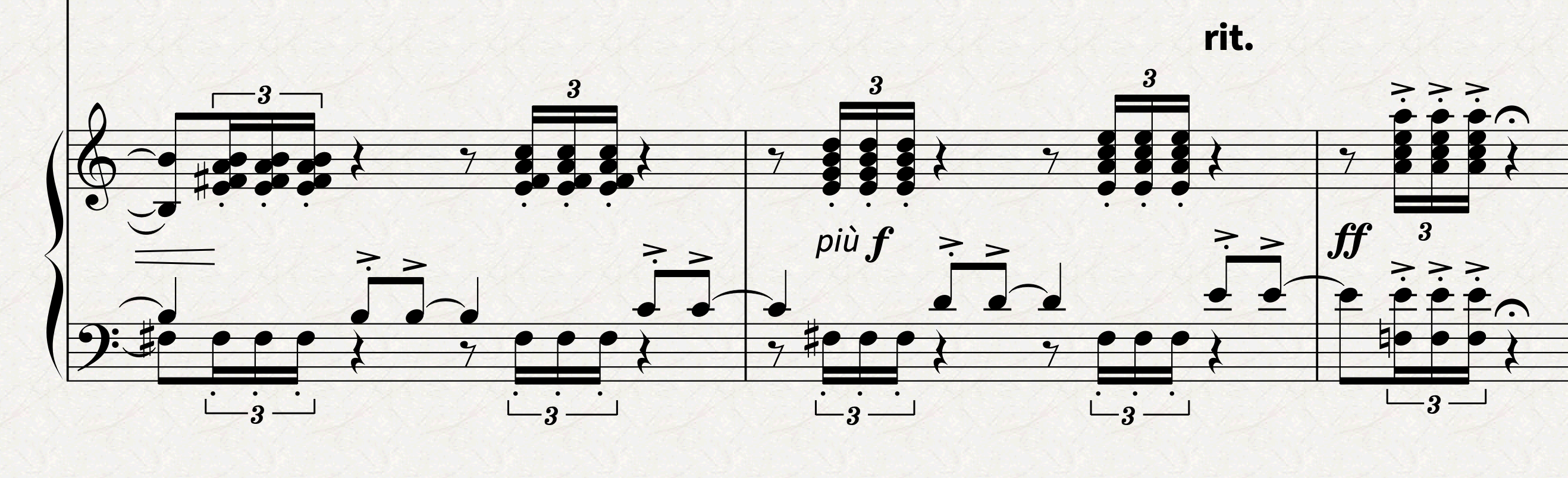
In this next example, notice how the upstem triplets are well-placed and how the downstem ones aren’t.
One final example, which I have recently encountered in a 250-pages-long score which contained literally hundreds of these examples, is when you have a sixteenth-note triplet made up of 16th + 8th note!
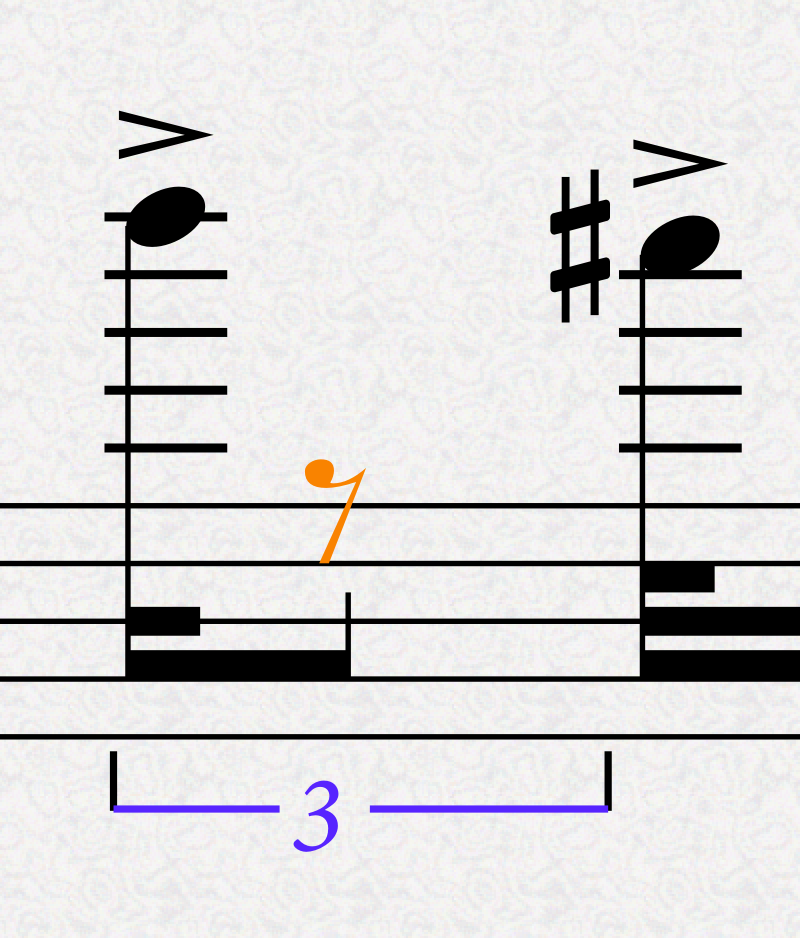
This is less evident when the bracket doesn’t have to extend up to the next note, but since this one has to, it is a punch in the eye. Let’s begin from here:
- Notice how this doesn’t look like a triplet rhythmically. Instead, it looks like a duplet of two equally long notes, with the problem that the rest is double as long as the note.

- This is how it should be, to begin with, which, through help from the Inspector, places the tuplet digit in the proper place. This, though, is a very ideal spacing.

- Let’s add beams and stemlets (as in the project I had) and—as we say in Italian—the omelette is done (“La frittata è fatta”):

This is quite unbearably bad to look at, and since there is no way to move the digit independently of the bracket, there is but one way to fix things.
How do we survive this bug?
My proposed solution consists of two parts: one that is simply the solution itself, and the other that exploits a great feature of Sibelius that, in theory, was created for an entirely different reason.
The solution
Go to Text > Format > Edit Text Styles (for me the shortcut is Cmd-Option-Shift-T), find the Tuplets text style, and hit New Text Style… and Yes at the next dialogue. Go to the Border tab and check the option to Erase Background.
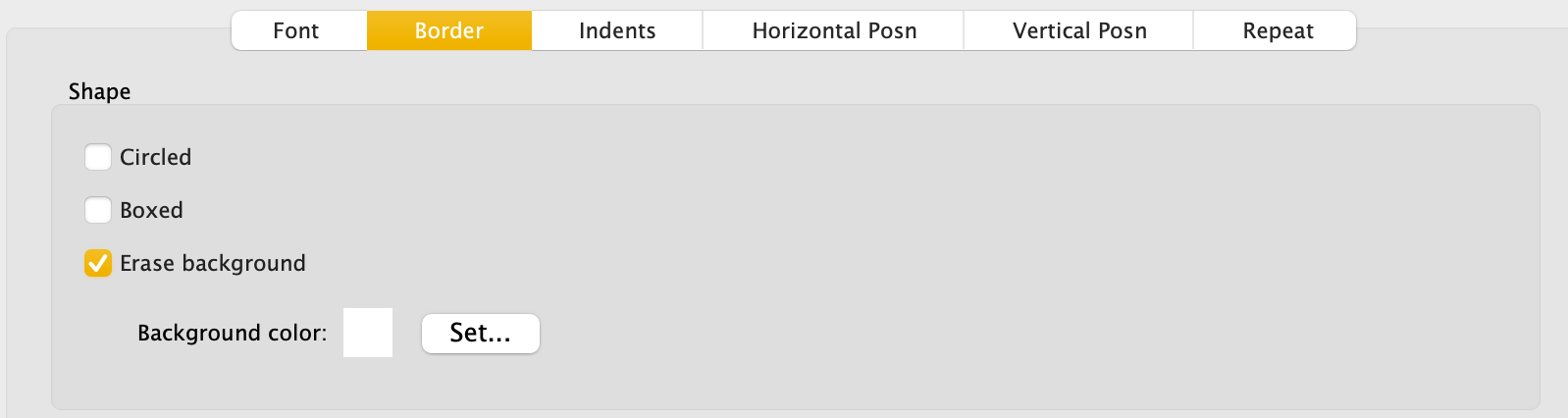
Leave everything else unchanged apart from the name of the text style, which I suggest changing to “Tuplets (erase background)” and hit OK.
Back in the score, select the first note of the offending tuplet and create a staff text object (any one, really, and I recommend using Technique Text for quick creation)1. Type ‘3’ (or the number of the tuplet ratio you need to adjust) and hit Esc (or click anywhere in an empty place).
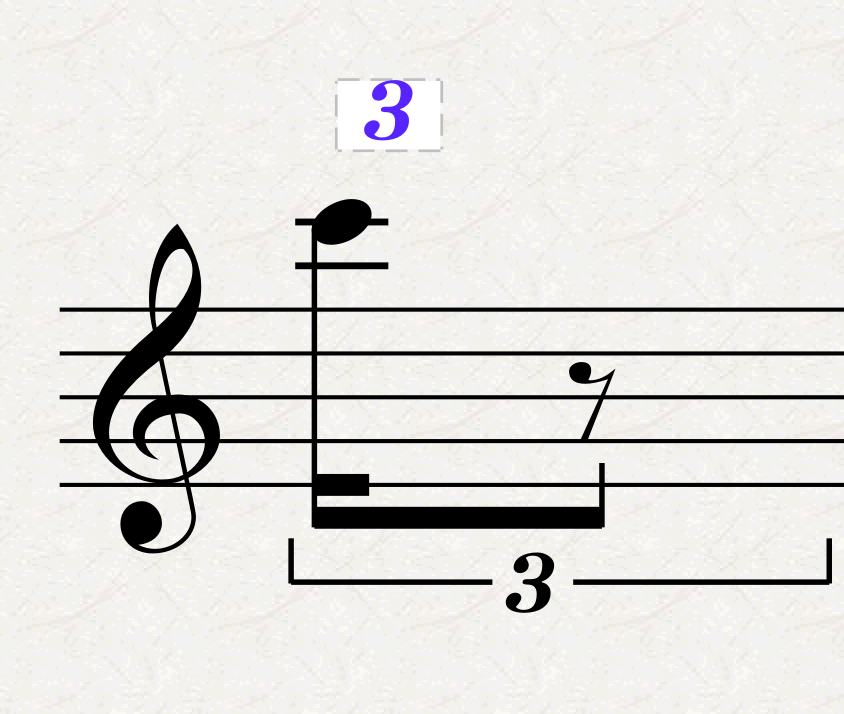
Next, select the original tuplet and, in the Inspector, set the number to be None so that only the bracket remains. Move the text object in place so that it occupies the position you want.
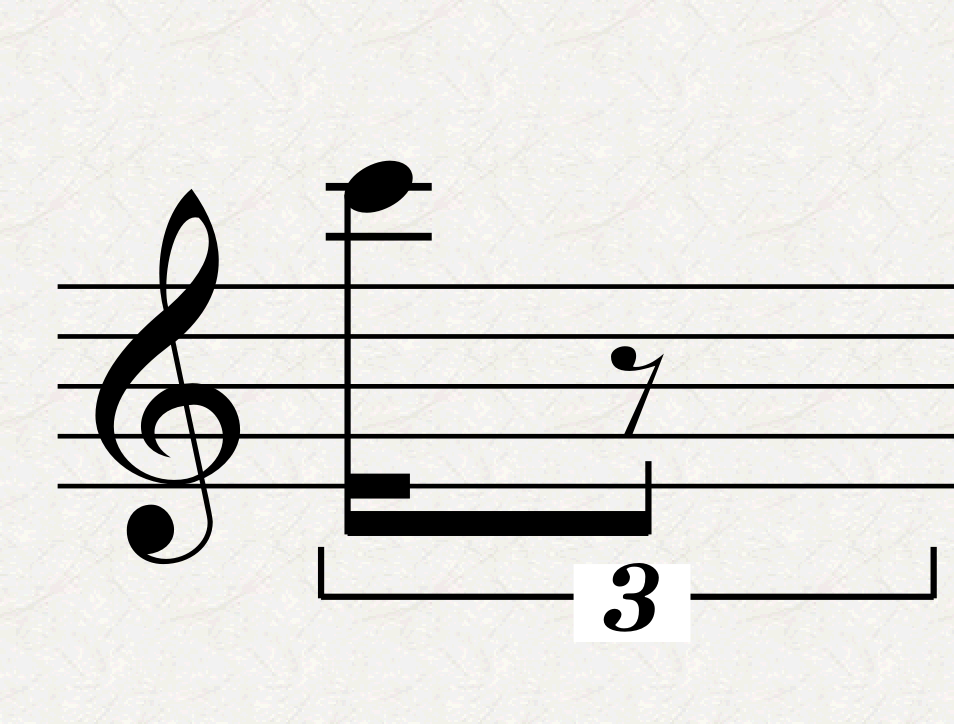
We are not done yet, though. If you select the bracket, you will see that it draws atop the text (even if it initially appeared not to), and it will do so as well when you export to PDF. To fix this, select the text object, go to the Appearance tab, and, in the Order section, select Bring to Front. Sibelius supports 32 layers, and doing this will ensure that your tuplet will always draw on top of other objects.
Now, just copy-paste and repeat the process for every tuplet that needs this treatment. Unless there is a smarter way.
The idea
I do not remember which version of Sibelius brought the Ideas feature (Cmd-Option-I), nor who was the developer who programmed it, but let me say this: he was a genius, and I wish I could hug him, and thank him for the literal hours he saved me with his (her?) invention.
The Ideas feature was created mainly to save bits of reusable music, akin to loops in a DAW. The incredible thing with it is that it captures every detail of a selection.
Once you are happy with the configuration of your tuplet digit, select it, open the Ideas Panel, and hit the Capture Idea button.

In the Score tab of the Ideas Panel, you will see a new entry, currently selected. Double-click on it, and the idea opens in a new tab of the current score, allowing you to edit it so that every new instance of it will inherit the new settings.
You can also right-click and select Edit Idea Info to add a name to this idea—there is a search box at the top of the panel.
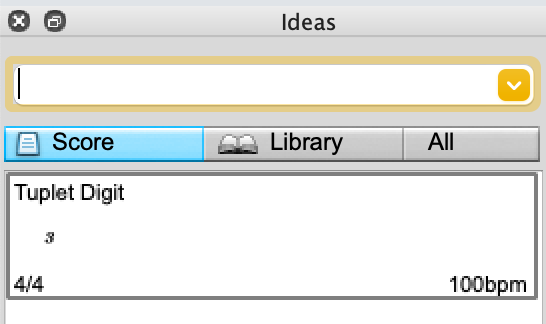
Now, with this idea selected, go back to the score and select any place where you would like to insert the tuplet digit and hit the third button from the left (Paste Idea). The newly created object will save you all the previous passages while remaining fully editable!
This is just the surface of what the idea panel can do, so I encourage you to explore this in depth on your own.
Bottom line
There you have it!
I hope you found this second episode useful and that it helped fight those drunken tuplets! Please let me know in the comment if you have any question or what other problems you encounter in your daily Sibelius journeys.
If you like what I do, please consider liking this article, sharing it with your peers and colleagues, and subscribe to this blog to be notified of upcoming articles.
If you use an iPad and would like to improve your Sibelius experience, please give a look at my view-set for MetaGrid Pro here.
I also have a newsletter that follows my publishing journey, check it out if you are interested in cello and would like to receive special gifts. You can also browse my online catalogue here.
Thank you for your time and continuous support.
See you in the next episode!
Michele
- Pro Tip: go to Preferences > Keyboard Shortcuts > Text Styles and assign a shortcut to the new text style you have just created. Then, use the shortcut to create a new text object directly in the new style. ↩
 Music Preparation Services