

A review of Dorico 6’s new Proofreading feature
This article is an expanded, paraphrased and enriched transcription of the excellent video by Anthony Hughes. Go watch it, then come back for a recap, or follow along while watching.
Introduction
Ever since Dorico was introduced, it was clear that it aimed to be more than just music notation software. Every feature has been carefully and meticulously crafted to assist engravers, composers, and arrangers in doing outstanding work. The focus has always been on creativity first (which, by the way, is Steinberg’s motto). This meant completely revolutionising the way we worked with music notation, moving from a Photoshop-like Finale to a blazing-fast but somewhat limited Sibelius. I can only speak from personal experience, and I certainly had my difficult moments with Dorico, as the switch—as with all changes!—was quite hard. I can now say that Dorico is my software of choice, and for a simple reason: reliability!
With Dorico 6, this intelligent assistant has been greatly upgraded with a massive, revolutionary new feature: Proofreading. As a passionate proofreader myself, I had my eyes struggling to stay in their sockets when I saw this and, in this article, I will do my best to walk you through this majestic breakthrough.
The idea behind the Proofreading feature
One of the main issues of working on music notation through a computer is that we lose contact with the physical instrument—and no, a MIDI keyboard is not enough. As a result, there are several things that may raise questions in a rehearsal or performance context, causing undesired and often expensive time losses.
This new framework checks your project for dozens of potential issues, orderly reporting them in the new Proofreading panel found in Write mode. Do not connect “checks” with “degraded performance” because those are run in the background only when there is no active user interaction going on.
What does Proofreading look for?
Bearing in mind that this is the least advanced this feature will ever be, the initial release of Dorico 6 will check for:
- Metrical problems, such as irregular bars that don’t match the main time signature, hidden time signatures, repeated time signatures, and more. All of these, when not caused by user oversight, are most common in XML import scenarios. For example, I recently found three repeated 6/8 time signatures within a span of a dozen bars.
- Superfluous or repeated markings, such as key signatures, clefs, dynamics, and playing techniques. This can be both a blessing and a curse because every composer has a different way of approaching dynamics frequency, especially in contemporary music.
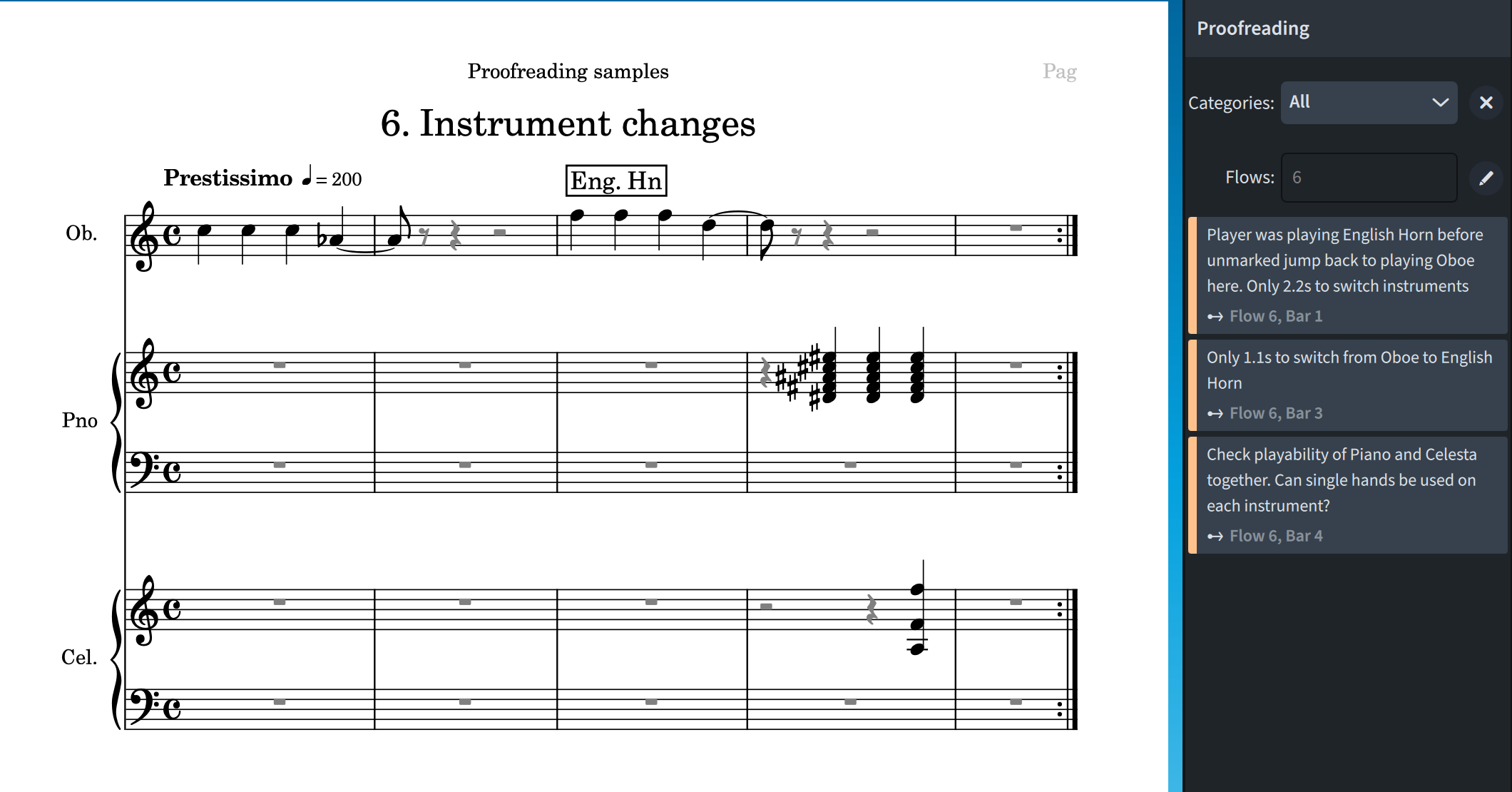
- Issues with instrument changes, including changes that are too quick to be practical. Dorico will calculate the exact amount of time the player has to switch, based on the current metronome mark.
- Playability problems in music written for stringed instruments, a true blessing for composers.
As said, this is only the tip of the iceberg, and we can expect a good deal of expansion in the coming months.
The Proofreading panel
To access this new feature, there is a new button in the toolbox on the right-hand side of the UI in Write mode.

There is a badge at the bottom indicating how many issues Dorico has found in the defined categories and flows. In large projects—such as the one used to capture the screenshot, with a hundred flows—it is useful to narrow down issues by flow or category, which Dorico allows via the Proofreading panel that opens after pressing the button. It is also possible to access it via the app’s menu through Write ▶ Panels ▶ Proofreading. Here’s how the top of the panel looks:
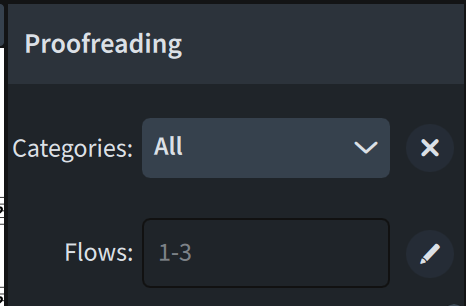
Pressing the Pencil Icon opens a list of the flows currently in the project; you can Select All or Select None using the dedicated buttons, or selectively check/uncheck desired flows. The dropdown menu next to Categories, instead, opens a list of eighteen categories that Dorico will check for you:

Again, you can check/uncheck a specific category, press Select None to work your way back from an empty list, or type into the Filter field. Pressing the x-shaped button will reset the filter, showing results from all categories once again.
Just below that we find the list of issues Dorico found, which is in chronological order, that is, from bar 1 of the first flow to the last bar of the last flow. If the issue relates to a particular instrument, this is shown in the lower-left corner of the label, with a general description accompanying the report.
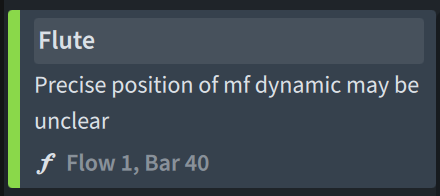
In this case, we have an issue concerning the Flute, and contains its description, the “F” music symbol signifying that this belongs to the “Dynamics” or “Suggested dynamics” category, and its location expressed in flow and bar numbers.
At the bottom of the panel, a label reads “Proofreading complete” if shown results are up-to-date; otherwise, it will show how many categories need to be checked once you stop actively working—remember: Dorico performs a proofreading check exclusively in the background.
Navigating through issues
Clicking on a result in the list brings that area into view, using an animated purple rectangle to draw your attention. If the issue concerns something missing (e.g., a missing time signature or dynamic), a purple arrow will appear instead.
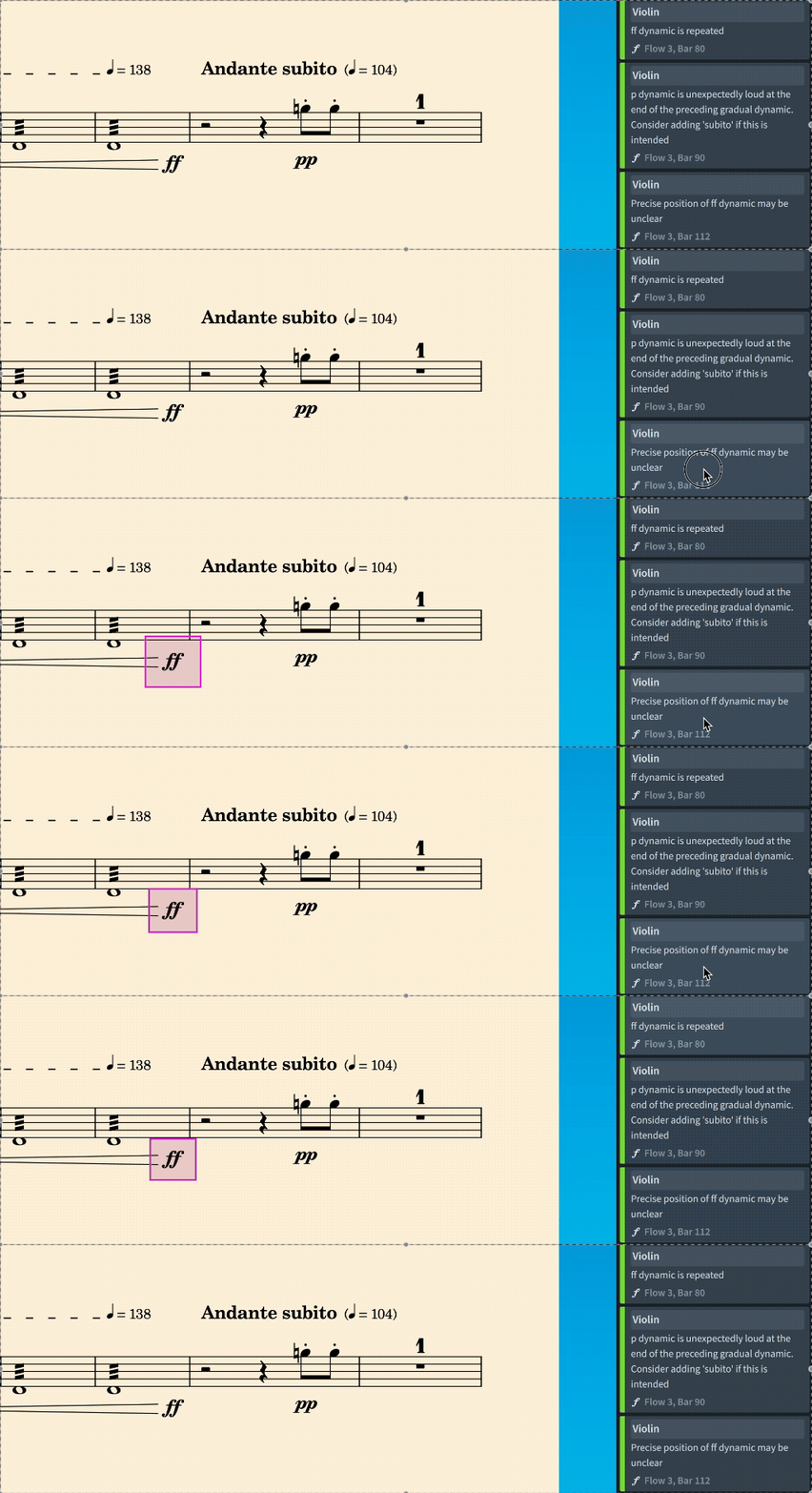
To resolve an issue, one should edit the score until the issue goes away. In the GIF shown above, I should change the rhythmic position of the FF dynamic to the first beat of the following bar and then, in the Properties panel, activate the “Before beat” property. Occasionally, you may be satisfied with two close notes both bearing the same dynamic, or with a particularly quick instrument change; in that case, simply ignore the issue, as it is not possible to manually dismiss a result. While this has already been a quite divisive matter on the public forums, there is a simple reason why Dorico behaves like it does: should you dismiss a result, and then reintroduce the issue at a later stage, you would miss a potentially helpful report. If you reach a point where hundreds of issues are reported, consider using the flow and category filters.
Disabling Proofreading
If you prefer Dorico not to run its proofreading checks, you can disable the feature. To do so, go to Preferences ▶ Proofreading and uncheck the Enable proofreading box. You can do that also from the bottom of the Proofreading panel by pressing the Power button.

Nerdy section ahead!
You now know everything you need to get started with the new Proofreading feature. What follows is a comprehensive list of everything that Dorico checks for as of version 6.0.10. I will add clarifying pictures to as many of them as possible. This article will be updated as this feature progresses through the versions.
Proofreading for meter
These are the issues with meter and time signatures that Dorico checks for you:
- Hidden time signatures: in a passage with a specified prevailing time signature (e.g., 4/4) there could be multiple bars in 5/8 time. This could often happen when importing XML files from other software.

Here’s the purple arrow in action:

- Repeated time signatures: when there are duplicate time signatures following each other—this has bitten me very recently and the Proofreading tool saved my day (in a full orchestral score I had three consecutive 6/8 objects, in different pages and separated by rehearsal marks and double barlines).

- Irregular bars: when you create a new time signature in an earlier point of a flow without activating Insert mode, this can lead to bars whose size is different from what shown in the meter. The same can happen when inadvertently deleting a barline.

In this case, I have added a 3/4 change in bar 7. Dorico complies until it encounters the meter change in bar 12. Not knowing what to do with that single crotchet, it creates a fake 1/4 bar and reports it in the Proofreading panel.
- Misaligned repeat structures: using local time signatures and local repeat barlines will cause trouble to the structure of the piece. In the example shown below, I have added a local 3/4 meter and a local end repeat barline, triggering Dorico’s protest:

- Missing double barlines: when there is a pickup at the end of a phrase, it is good custom to use a double barline to mark it. Should you forget to use one, Dorico will remind you about it.
- Jumps to different time signatures: while Dorico cannot display cautionary time signatures in repeat structures that begin and end in different meters, it can still report that this will happen, allowing you to take precautionary measures.
Proofreading for key signatures
Dorico will flag any of the following situations as potentially suspicious.
- A duplicated key signature with the same semantics (i.e., the exact same signature)
- a duplicated key signature with different semantics (i.e., same accidentals, different mode)
- A jump to a different key signature so that the end of the repeated region is in a different key than the beginning (e.g., start in D major, change to A major mid-region, then jump back without a cautionary).

Proofreading for repeated clefs
The following scenarios will be checked by Dorico:
- a duplicated clef
- a jump to a different clef

- a clef shows an octave transposition not in line with the transposition of the instrument
- an explicitly hidden clef
- a clef not normally used for the instrument
- a clef with the Octave Shift property applied to it

Proofreading for repeated dynamics
This section could be controversial because there is a massive quantity of pieces from the end of the XIX century onwards that tend to repeat the same dynamics at very short intervals. I’m thinking of Prokofjew’s Peter and the Wolf, for example, or any Stravinsky you could choose. Still, it can be a useful tool in educational contexts.
Dorico will look for repeated dynamics in the following cases:
- An immediate dynamic connected to no note, or a gradual dynamic starting/ending where no note is present.
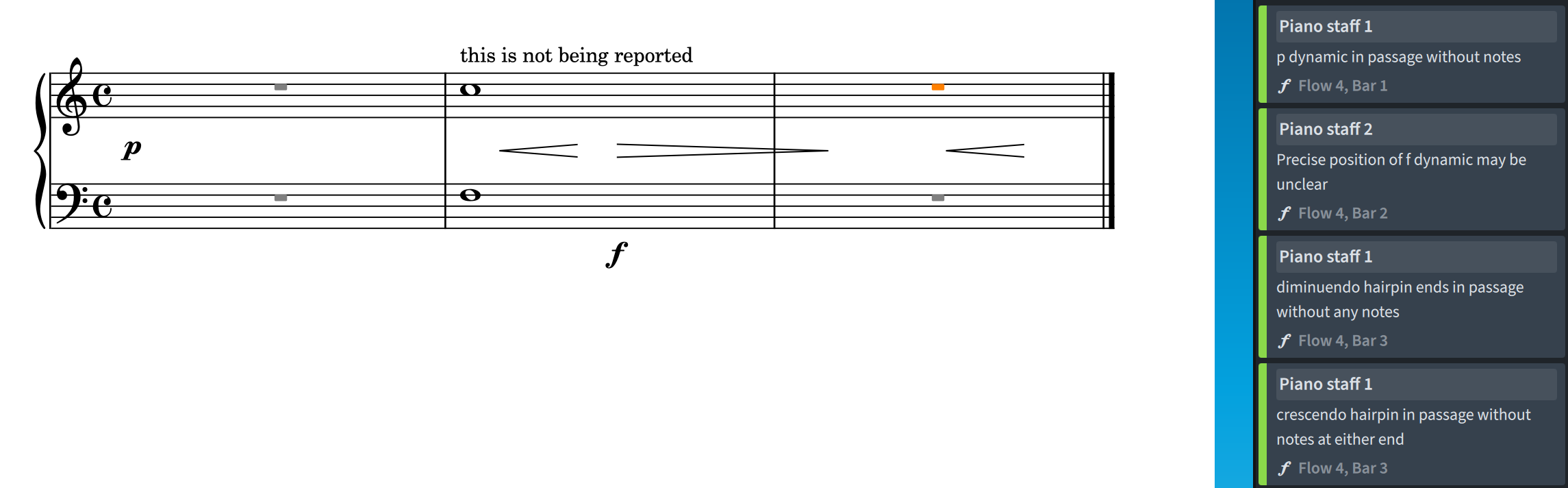
I would love if this could be improved so that even the hairpins in bar 2 were reported since it is not clear where exactly in the whole note the hairpins begin. I realise, though, that this would be useful for contemporary music and create thousands of reports in classical scores.
- Multiple dynamics at the same rhythmic position.
- Redundant dynamics, such as an F followed by another F — I would welcome an option to specify how many bars should pass before Dorico reports this. Repeated force dynamics such as FP and SFZ will automatically pass the check.

- Ambiguous dynamics at the start of repeat regions.

- Gradual dynamics (or hairpins) truncated by an immediate dynamic.
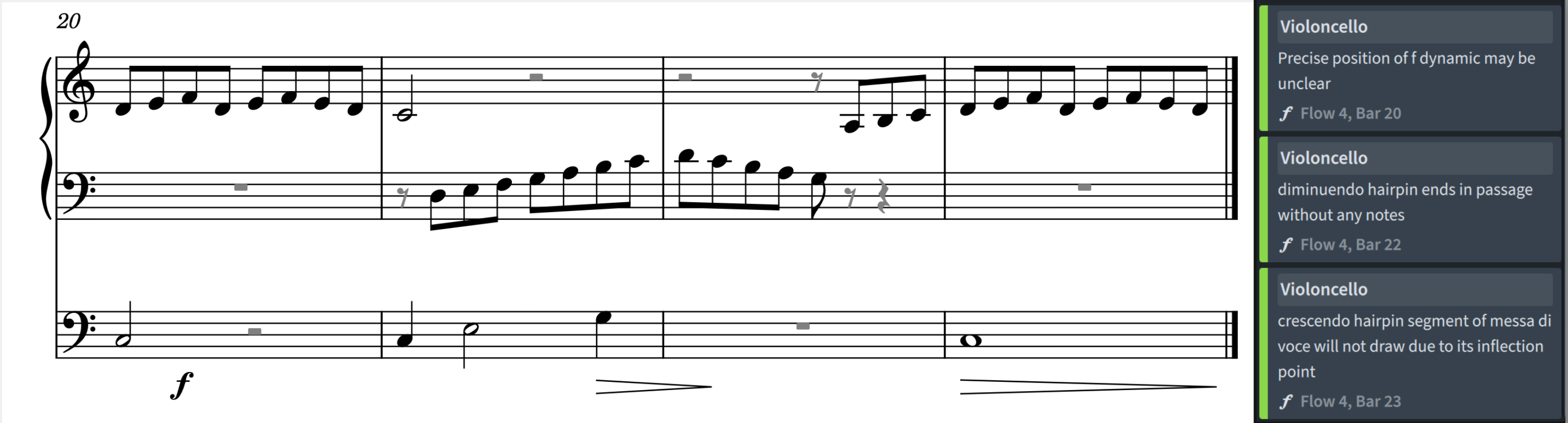
- Suspicious dynamics at the end of hairpins, for example, a diminuendo ending in a louder dynamics without a “subito” qualifier.

- A hairpin beginning or ending “dal/al niente” and with a coincident additional dynamic. Moreover, a passage following a diminuendo al niente will be marked as suspicious if there is no dynamic.
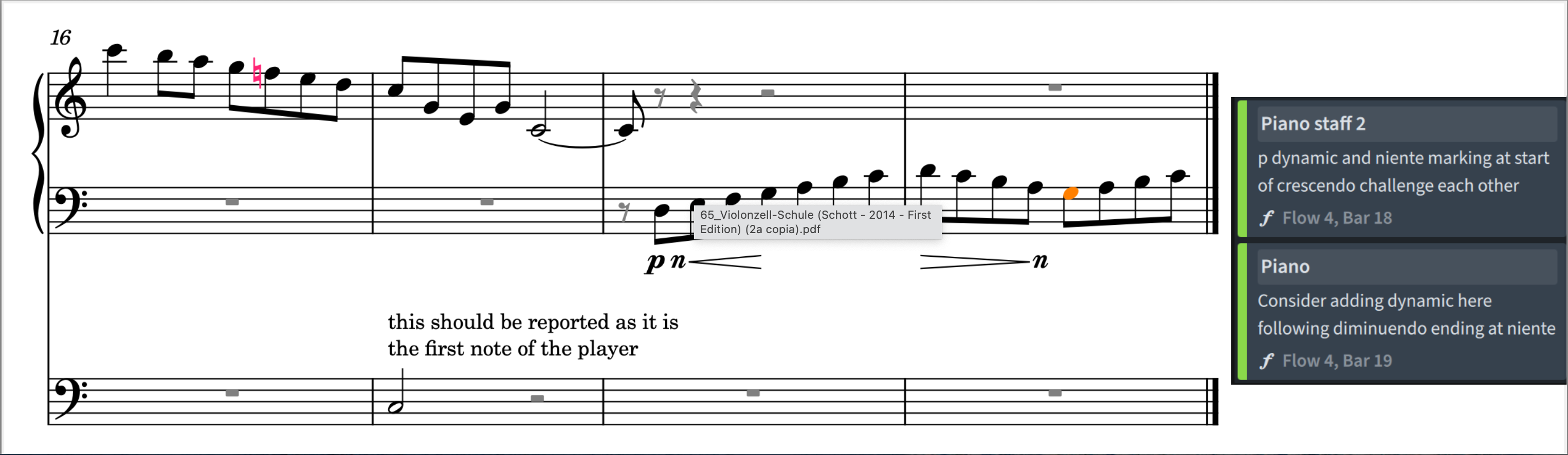
- If the music is not completely devoid of dynamics, the absence of a dynamic under the first note or chord of a player will be reported as suspicious — even though I could not reproduce it in my tests. The same will happen for the first note following an instrument change.
- There are 4+ empty bars before a new entry, and no dynamic marking is shown.
- A dynamic placed not precisely at the beginning of a note.
- A gradual dynamic or hairpin ends at a rhythmic position not coinciding with the end of a note’s duration.
- Either of a messa di voce hairpins has zero duration.
Proofreading for repeated Playing Techniques
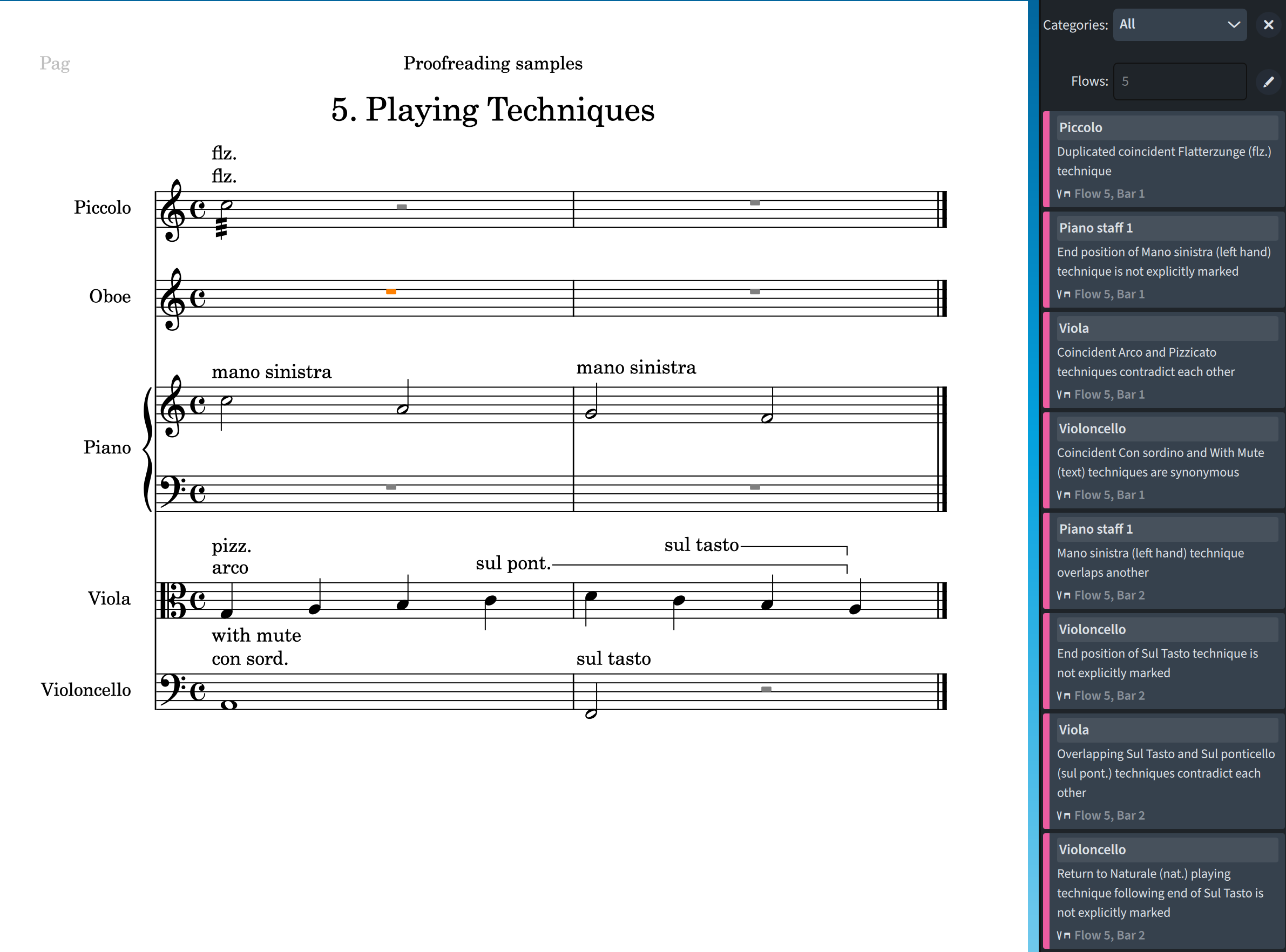
Quite similarly to the previous section, identical or contradictory playing techniques at the same rhythmic position will be reported.
- The same goes for synonymous ones, such as “con sord.” and “with mute”.
- If two identical, contradictory, or synonymous playing techniques—of which at least one has a duration—overlap, this will also trigger a check.
Other irregularities that will be reported are:
- PTs (short for Playing Techniques) with a duration but no continuation line.
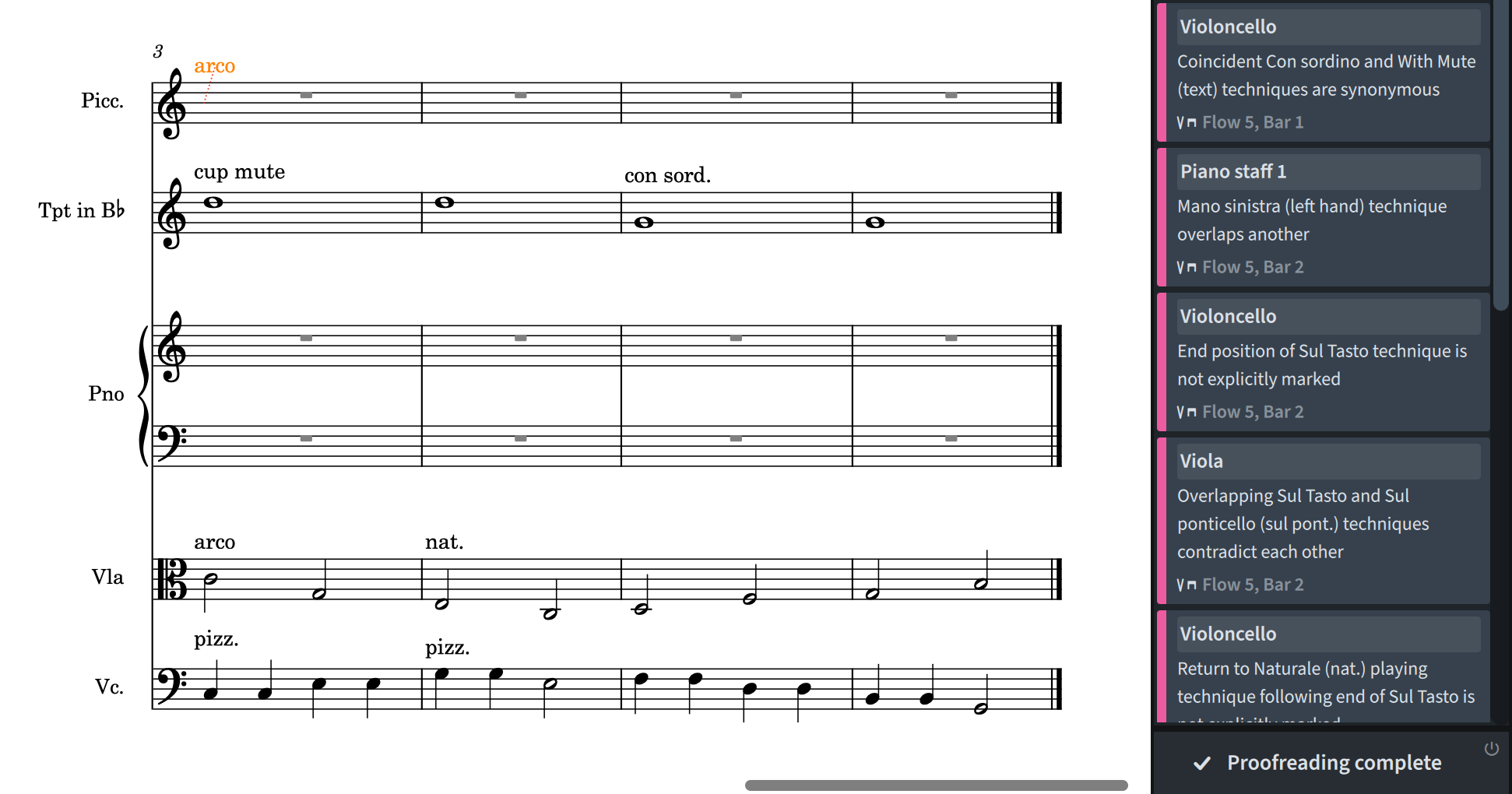
- A persistent PT needlessly repeated (e.g., “pizz.” twice in a row), or followed by a synonymous variant, or repeated with a lower degree of detail (e.g., with the brass mute type unspecified).
- If the default PT is specified unnecessarily, e.g., “arco” for strings without the previous flow ending in “pizz.”, Dorico will throw a warning. Same if the previous flow ended with a non-default PT and the default one is not specified at the beginning.
- Incompatible PTs (“arco” for wind instruments).
- Ambiguous PTs at the start of a repeat region.
- Instantaneous PTs, not coinciding with the beginning of a note.
- Either portion of a PT with a duration not coinciding with the corresponding portion of a note (start with start, etc …)

- The technique a player should use at a change of divisi is ambiguous
- NEW IN 6.0.10 (28.05.2025):
- Dorico now looks for PTs of the text kind attached to music written on a single staff belonging to a section player which, at that moment, is playing divisi. This will prevent duplicated warnings.
- Damping techniques coinciding with rests will no longer trigger a warning since that is the correct way to notate them in instruments such as the harp.
- Duplicated PTs in ossia staves will no longer throw a warning.
- Material written for marching percussion kits no longer generates warnings that the material cannot be played by a single player, since multiple musicians typically play these kits.
Proofreading for instrument changes
In this case, Dorico looks for unfeasible or highly impractical instrument changes, such as the oboe having only 2.8 seconds to switch to the English horn (it happened to me fairly recently and the composer refused to make any change!). Until now, I divided 60 by the quarter-note metronome tempo and then multiplied the result by the number of quarter-notes (decimal included) of rests the player had available. This method also worked for page turns, where a string player may need about 4 seconds to turn while a woodwind player may get away with just 2.
Another aspect Dorico considers is whether two instruments could be played at the same time (e.g., two percussion instruments). Similarly to previous cases, if a change happens during a repeated region, Dorico will check whether it is clear what instrument should be played at the start of the region.
Proofreading for stringed instruments
What the team has accomplished with this category is impressive, and it will be of great help to composers, copyists, and arrangers who are not string players themselves. Anatomical studies have been followed to calculate what kinds of chords may be uncomfortable or outright unplayable for the hand; furthermore, Dorico has been trained to understand the physical properties of the instruments, such as the fact that one cannot play on the C and A strings of the cello at the same time (or … can we?!). The instruments involved in this first round of proofreading are the basic members of the strings’ family, all guitars, the mandolin, the ukulele, and the banjo.
While Dorico does a terrific job most of the time, its warnings should be taken with a pinch of salt, and always double-checked if any doubt arises. Now, fasten your seatbelts because we are in for an adventurous ride. Here’s what Dorico will check:
- Impossible stretches, requiring fingers to stretch or contort into alien shapes! A variant of this is when the stretch is impossible on the specified strings. Chords that are at the verge of playability will be marked as such.
- Two or more notes requiring the same string, for example a low C and an F a perfect 4th above on the cello, both of which can only be played on the C string. This can become a problem as well for theoretically playable chords for whose notes the user has activated an incompatible string property. If Dorico can, it will also suggest you on what strings that chord would be playable (I mean … wow?!).
- Overcrowded chords, such as 5-note chords on a mandolin. Here, Dorico will colour the extra notes in purple.

- Impossible harmonics: this will report a harmonic sound that cannot be produced on the instrument, such as the middle C on a violin. The notehead will turn red as well. According to the documentation, Dorico should also report that the written harmonic is possible, just not on the specified string. When I tried to reproduce that, though, the String property turned OFF as soon as I switched the harmonics property ON, and it was set on Natural. The only way I found was, on the Guitar instrument, to use an artificial harmonic with a specific partial.
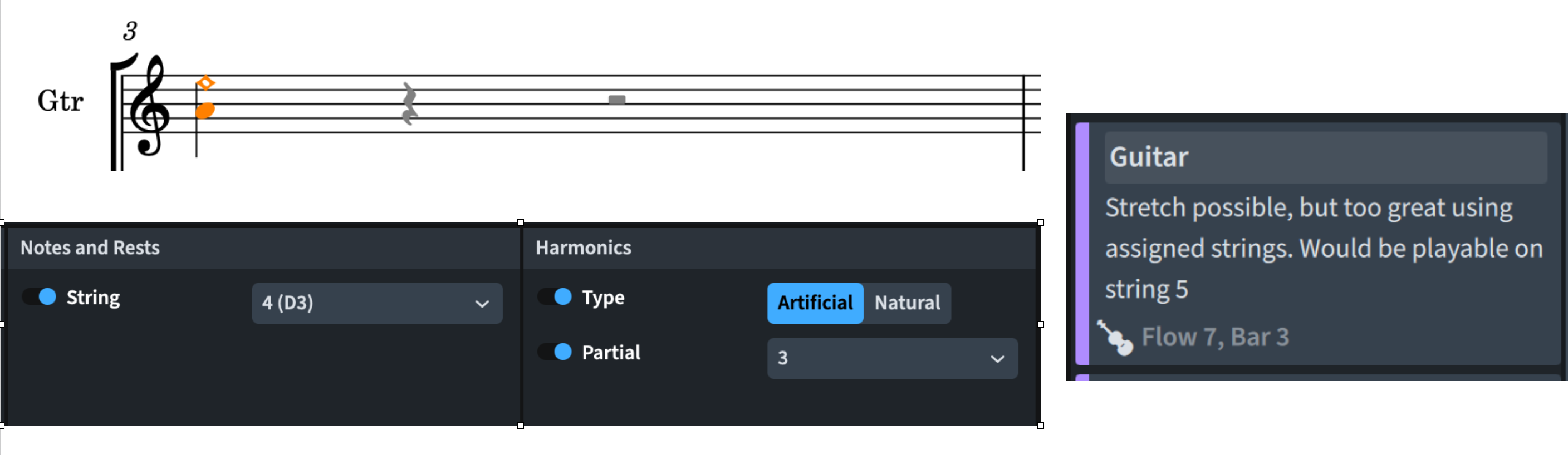
- Dubious number of natural harmonics: for example, when one has a dyad where one of the notes should be played as a natural harmonic marked with a circle. To avoid this, consider using Playing Techniques.
- Impossible fingered tremolo, which considers a tremolo as a single chord to warn about impossible stretches (the warning will be the same as the one for impossible chords, i.e., “stretch too great”).
- Thumb required: this will involve only cello and double pass lines, and Dorico warns when there may not be enough time to prepare and reposition the hand. The same if the stretch would be possible only by using the thumb.
- Snap pizzicato: this technique requires a strong pulling of the string, meaning that other techniques may not be possible at the same time. At the same time, while a snap pizzicato is technically possible on two adjacent strings, it is not suggested. Furthermore, if one specifies two non-adjacent strings, this will be reported as impossible.

- Finally, and this is the funniest one, if one is out of fingers in the left hand to perform an LH-pizz., this will be report (at least, until our species evolves!)
iPad check
This will be perhaps the briefest iPad check section I have ever written since everything works exactly as on the Pro desktop version. Simply brilliant!
Bottom line
That’s it for today!
If you enjoyed it, please leave a like to this article, subscribe to get notified of upcoming articles, and don’t forget to do the same for Anthony’s video and for the Dorico YouTube channel.
Should you be interested in my other activities, please visit my website and consider joining my mailing list, where you will be able to follow my journey through music notation and independent music publishing!
Thank you for your time, and see you here in the next episode!
 Music Preparation Services