
A review of Dorico 6’s Chord symbol improvements — Part 1
This article is an expanded, paraphrased and enriched transcription of the excellent video by Anthony Hughes. Go watch it, then come back for a recap, or follow along while watching.
Given the massive scope of this topic, this article will be split into several parts, both to keep it an enjoyable and not overwhelming reading, and to allow for a cleaner organisation of everything covered. Furthermore, this is a topic that—due to my specialisation in classical music notation—I know almost nothing about. In a way, I will be learning alongside you while I write this tutorial.
Let’s get started!
Chord symbol improvements
Introduction
The Dorico 6 update brings several improvements to the Chord Symbols feature, and they are:
- Multiple lines of chord symbols;
- Chord symbol extender lines;
- Editing chord symbol appearances
- Custom chord symbols
- Chord symbol kerning pairs
Multiple lines of chord symbols
Multiple lines of chord symbols are often found in the literature to show alternative harmonies to be played instead of the main ones.

Using the same workflow for different lyrics lines, Dorico 6 now makes it straightforward to create additional lines of chord symbols, by pressing the ↑/↓ keys to set the line number in the Chord Symbols popover (Shift-Q). This number is now indicated in the label to the right:

Changing the line for a chord symbol is done in two ways:
- Change the Chord symbol line property in the Chord Symbols group of the Properties panel;
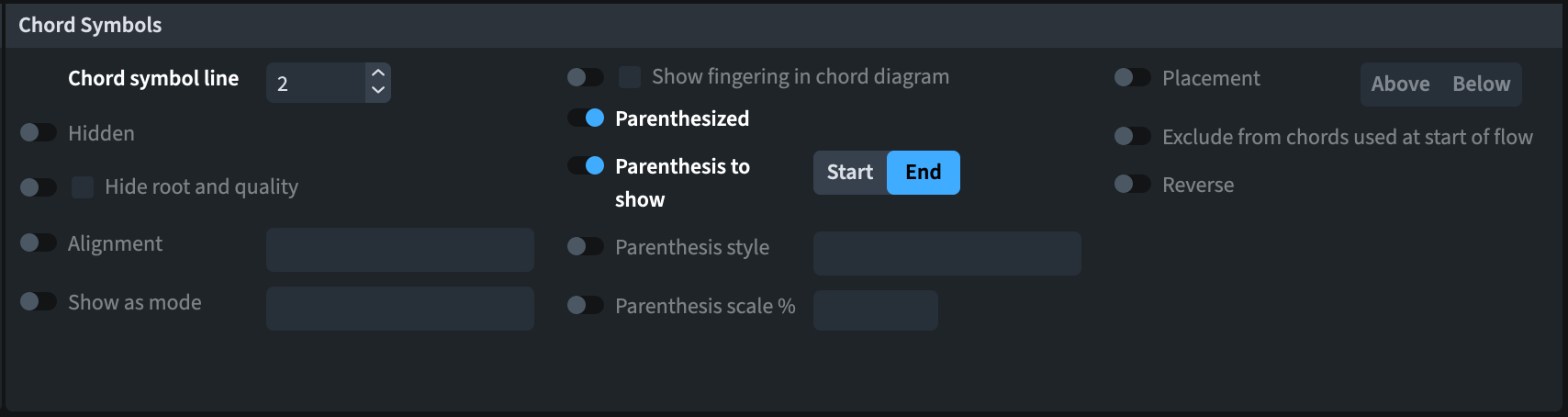
- Secondary-click on a chord and choose a line from the Chord Symbols and Diagrams submenu.

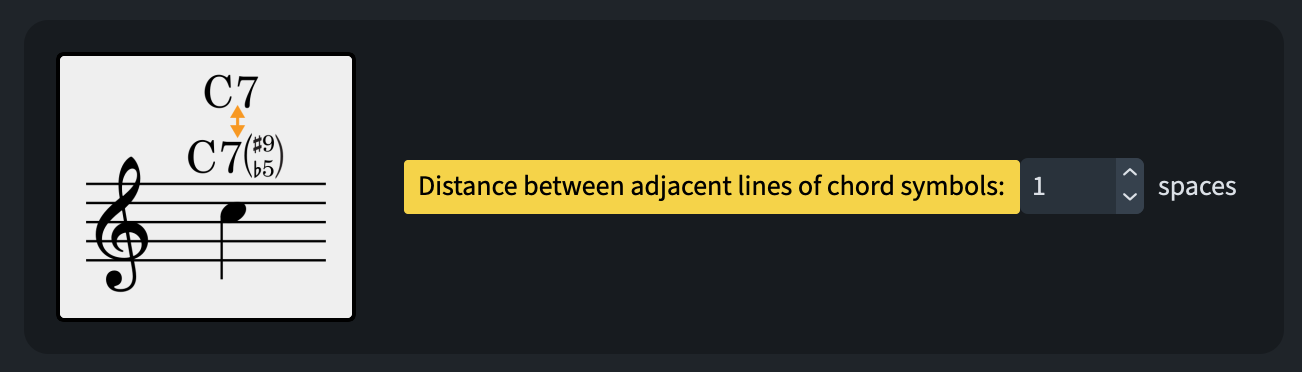
If you are not satisfied with the default distance between lines of chord symbols, you can edit that by going to Engraving Options ▶︎ Chord Symbols and, in the Position section, adjust the value in Distance between adjacent lines of chord symbols:
For now, only the first line of chords—the one closest to the staff—will appear in the Chords track in Play mode, and thus play back.
Chord symbol extender lines
Chord symbols originate without a duration. To give them one, you can now use the usual key commands for duration editing (Shift-Option/Alt-←/→). Once the symbol has a duration, you can tap to the right of the chord symbol in Write mode and drag at will:
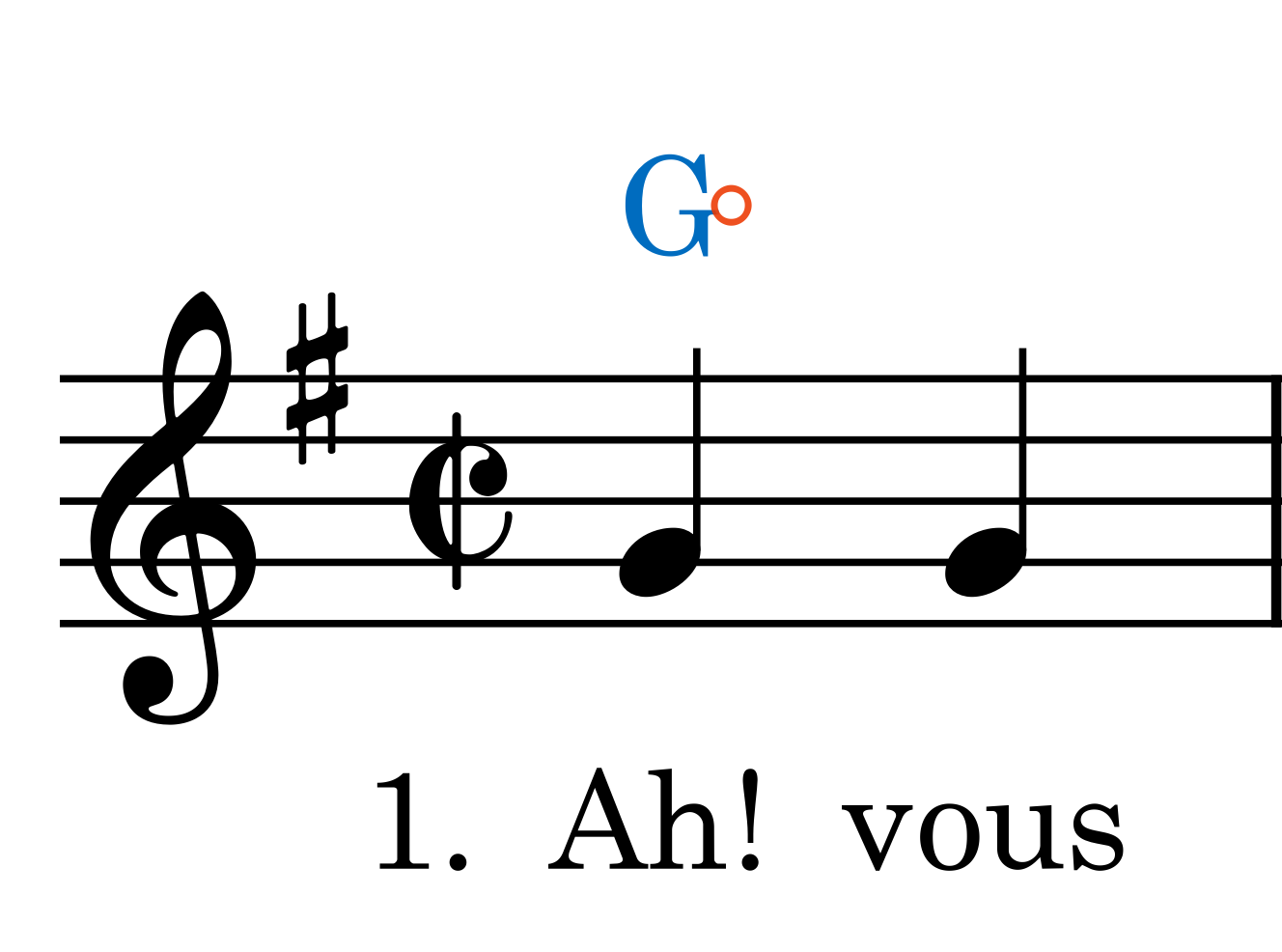
If you extend this line by dragging with the pointer, the line gets automatically stopped when it reaches the next chord symbol in the same line. If you use the keyboard shortcuts instead, the line will be allowed to extend indefinitely.
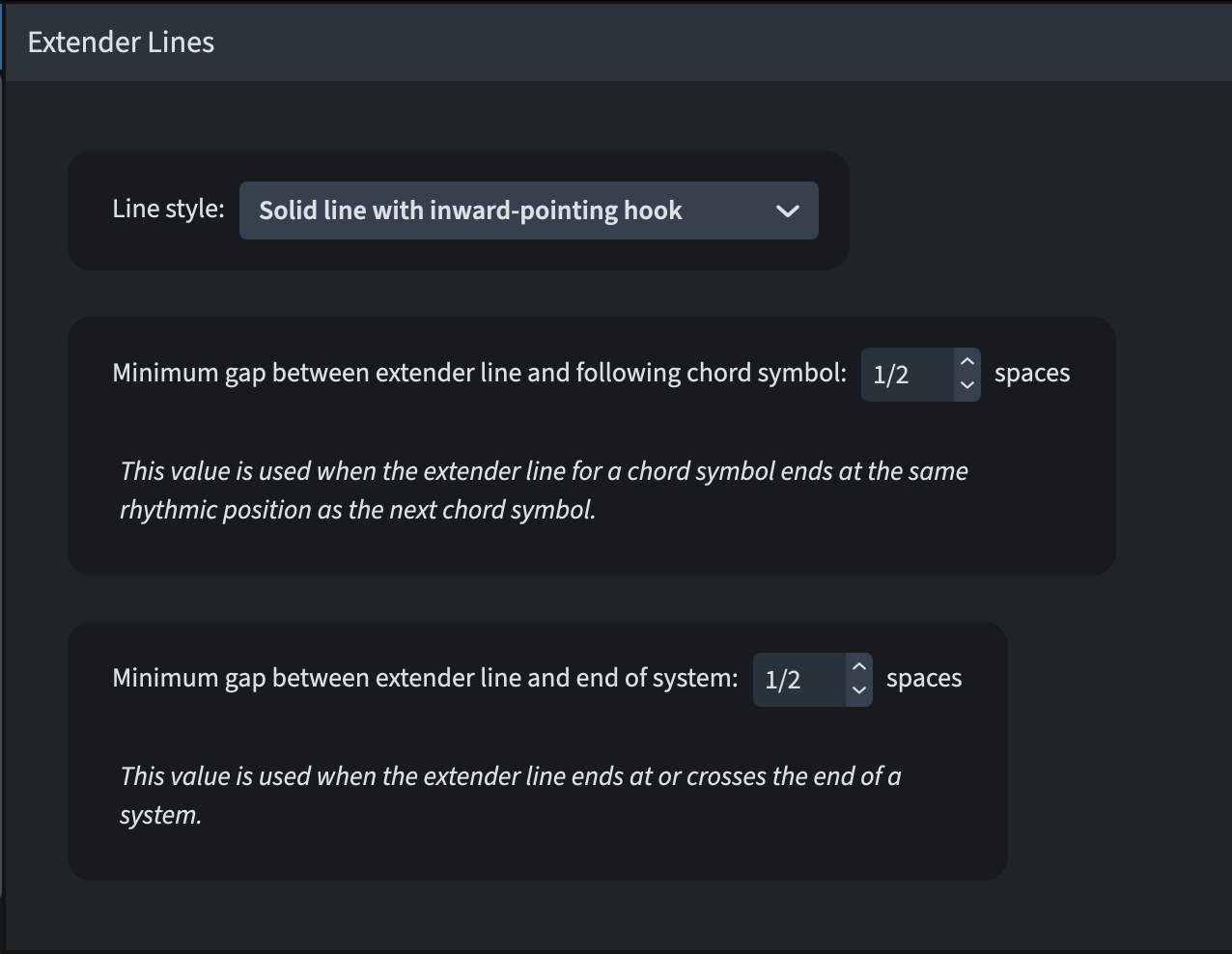
The appearance of the line defaults to a solid body and to an inward hook end but can be managed in Engraving Options ▶︎ Chord Symbols ▶︎ Extender Lines.
Should you want to change only a specific line, there’s a new property for that:

Switching to Engrave mode provides you with access to more properties to further fine-tune the positioning and appearance of these lines:

Editing chord symbol appearance
The general appearance of chord symbols can already be tweaked to a fanatical level of precision through Engraving Options ▶︎ Chord Symbols. Here’s an appetiser from the Design section:
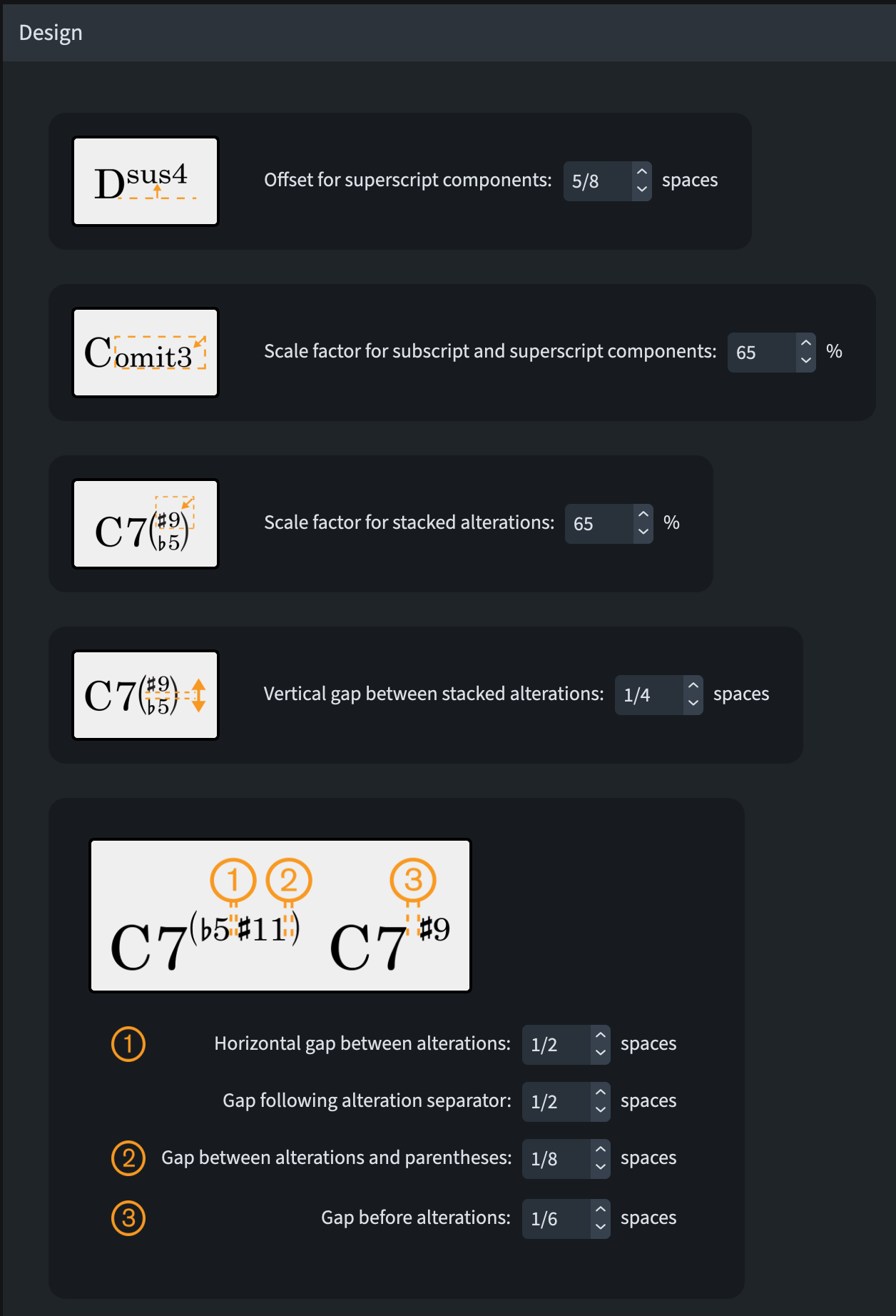
Should this not be enough for you, Dorico 6 comes to the rescue, providing new ways to customise existing chord symbols and to create entirely new custom symbols. The user guide recommends creating an empty project where to best get used to all the new options. The starting point after that would be to go to Library ▶︎ Font Styles and to edit both the Chord Symbols Font and the Chord Symbols Music Text Font styles.
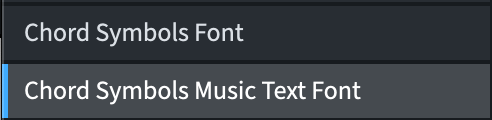
For now, I have kept them set to their defaults: Academico and Bravura Text.
What follows is a checklist of operations to perform before deciding one really needs to edit a specific chord symbol’s appearance:
- In Engraving Options ▶︎ Chord Symbols, choose a Chord symbol preset that is closest to your preferences;
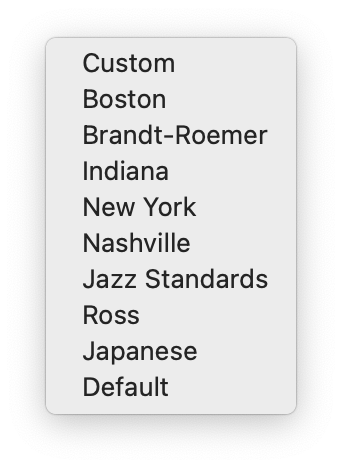
- Browse the entire page, carefully examining every option until you are sufficiently happy with the defaults; in particular, you should focus on the Design section. Should you still be unhappy with these options, you are now provided with a new Chord Symbol Kerning Pairs dialog from the Library menu (we will perform a deep dive in the next episode):
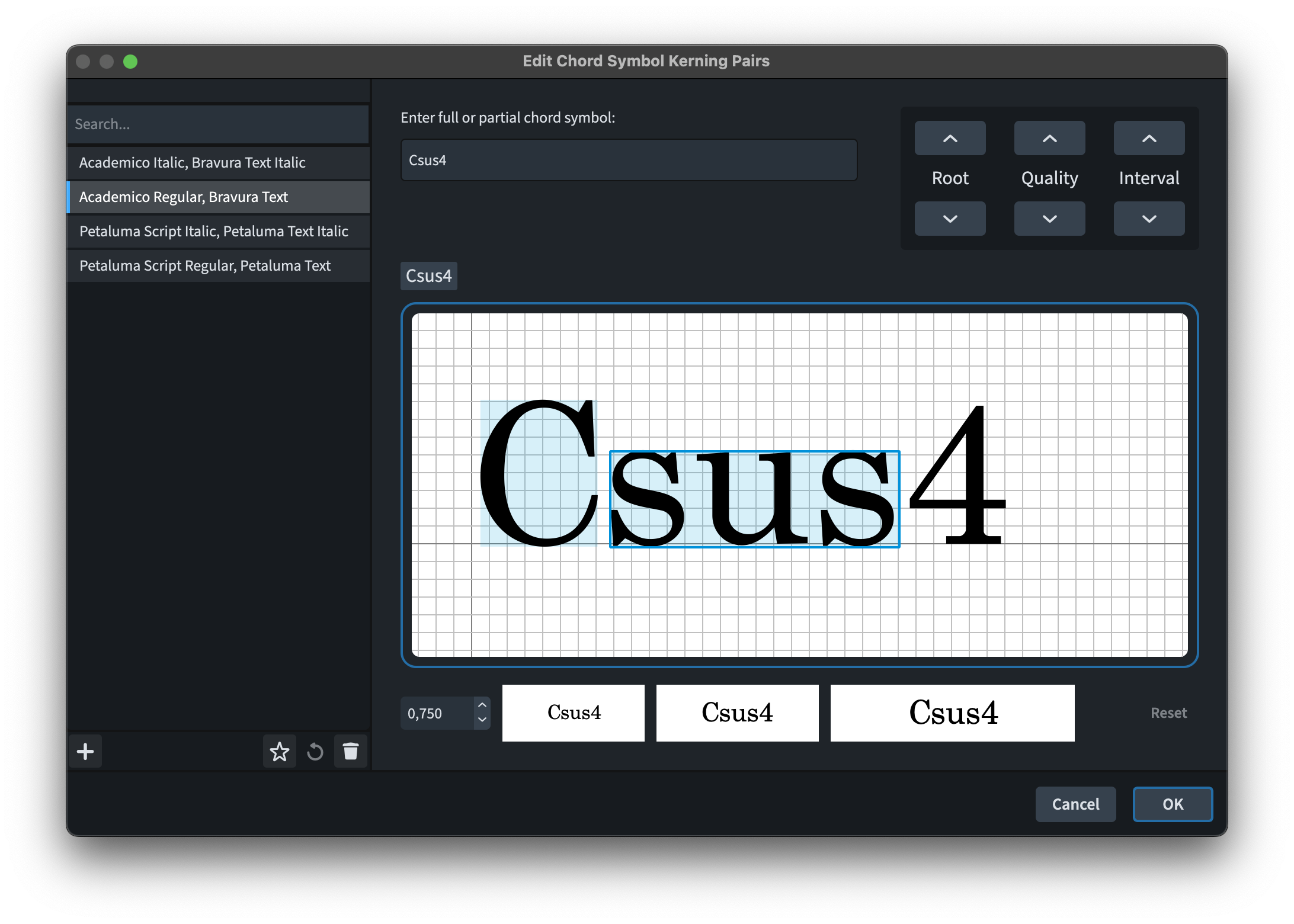
- Go to Library ▶︎ Chord Symbols to adjust either the whole chord symbol appearance, or that of its individual components (see next episode for a closer look).
- Finally, dulcis in fundo, you can now double-click a chord symbol in Engrave mode to edit the appearance of that single instance.
Actually, we are not over yet, since it is possible you may still not be completely satisfied with these many options—I wonder how!? In that case, you now have access to Custom chord symbols, which will be described in the next episode as well.
iPad Check
In Dorico for iPad, the chord input bar has gained some new features as well:

The plus and minus button allow you to change the chord line, while the arrows move you to the next note (a single chevron) or to the next bar (a double chevron).
Extension lines also work if triggered from an external keyboard by using Option/Alt and the directional arrows. I was hoping that selecting a range and adding a chord would have resulted in a longer-lasting chord.
For now, though, it is not possible to edit a chord symbol appearance on the iPad.
Bottom Line
That’s it for today! In the next episode we will delve deeper into some more technical aspects of this topic so be sure not to miss it.
If you enjoyed this post, please leave it a like, subscribe to get notified of upcoming articles, and don’t forget to do the same for Anthony’s video and for the Dorico YouTube channel.
Should you be interested in my other activities, please visit my website and consider joining my mailing list, where you will be able to follow my journey through music notation and independent music publishing!
Thank you for your time, and see you here in the next episode.
 Music Preparation Services
One thought on “Chord Symbols Improvements for Dummies!”