
A review of Dorico 6’s additional improvements
This article constitutes the second part to our extended review of all additional improvements introduced by Dorico 6. You can find the previous article here.
PART 2
Lyrics
It is now possible to edit the duration of a single lyric using the key command Shift-Option/Alt-←/→. This allows to show an extender line even if a lyric would normally not have it, or to reduce a line’s length up to its disappearance, if needed.
The keys Option/Alt-←/→ now move selected lyrics to the previous/next note instead of the previous/next rhythmic position. Use Cmd/Ctrl-Option/Alt-←/→ to move by the grid, or enjoy the new possibility of dragging lyrics with the pointer.
Music symbols editor
Several improvements have been made to the music symbols editor, such as better defaults based on context, and an information read-out for the selected component.
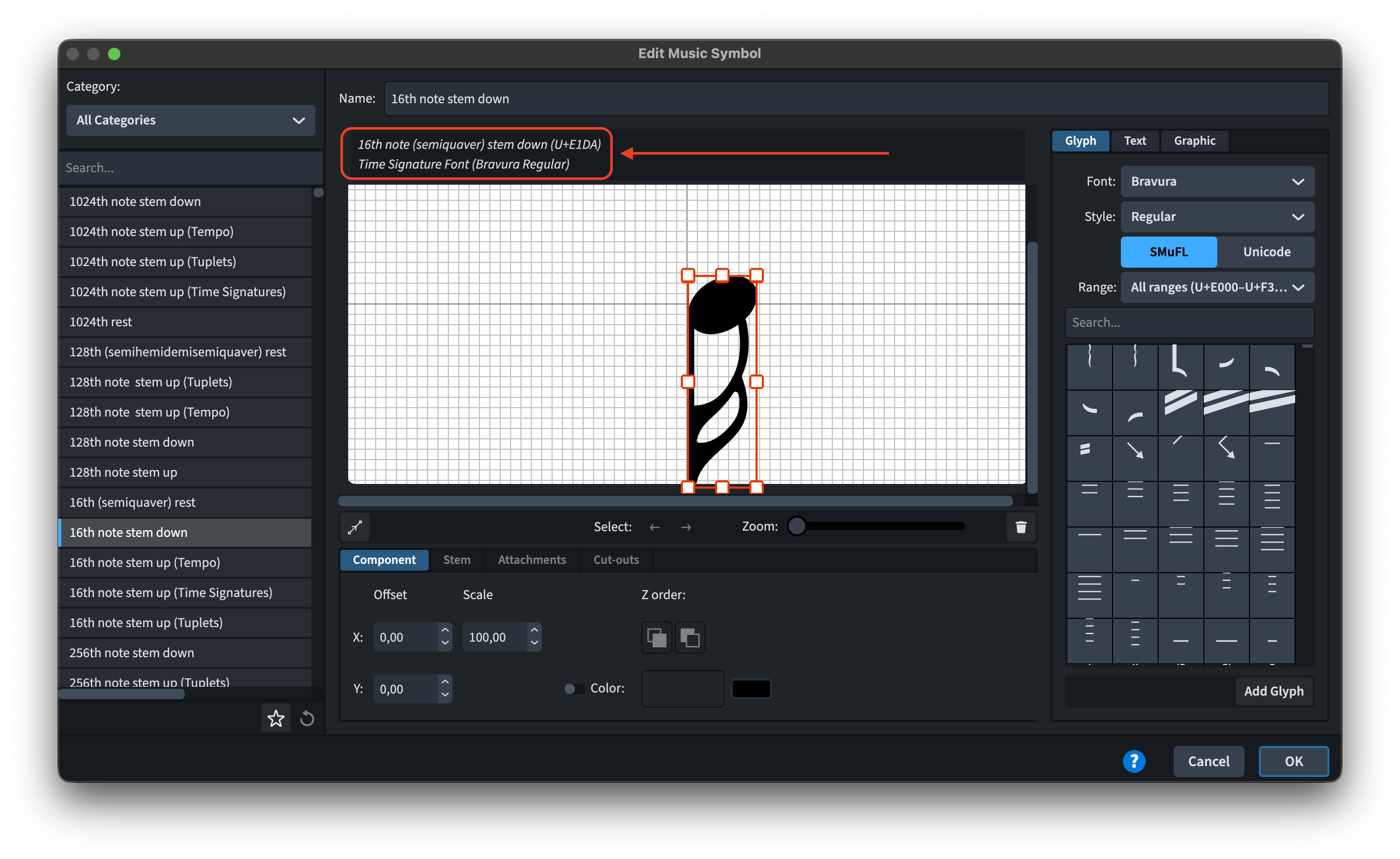
The Scale spin box has been simplified, appearing only once unless one is interacting with a graphic (which can be scaled in either direction). Filter search fields have been added to the Glyph, Text and Composite tabs, making it much quicker to find what one is looking for. The SMuFL range menu now also contains an additional filter.
It is possible to now delete unused graphic components in the Graphics tab, but since you cannot undo that, be careful with it. Finally, the appearance of items in the Text, Graphics, and Composite tabs has been reworked to be more useful than before.
Note input
Popovers improvements have been discussed in detail here.
Improvements to instrument filters, instead, are covered here.
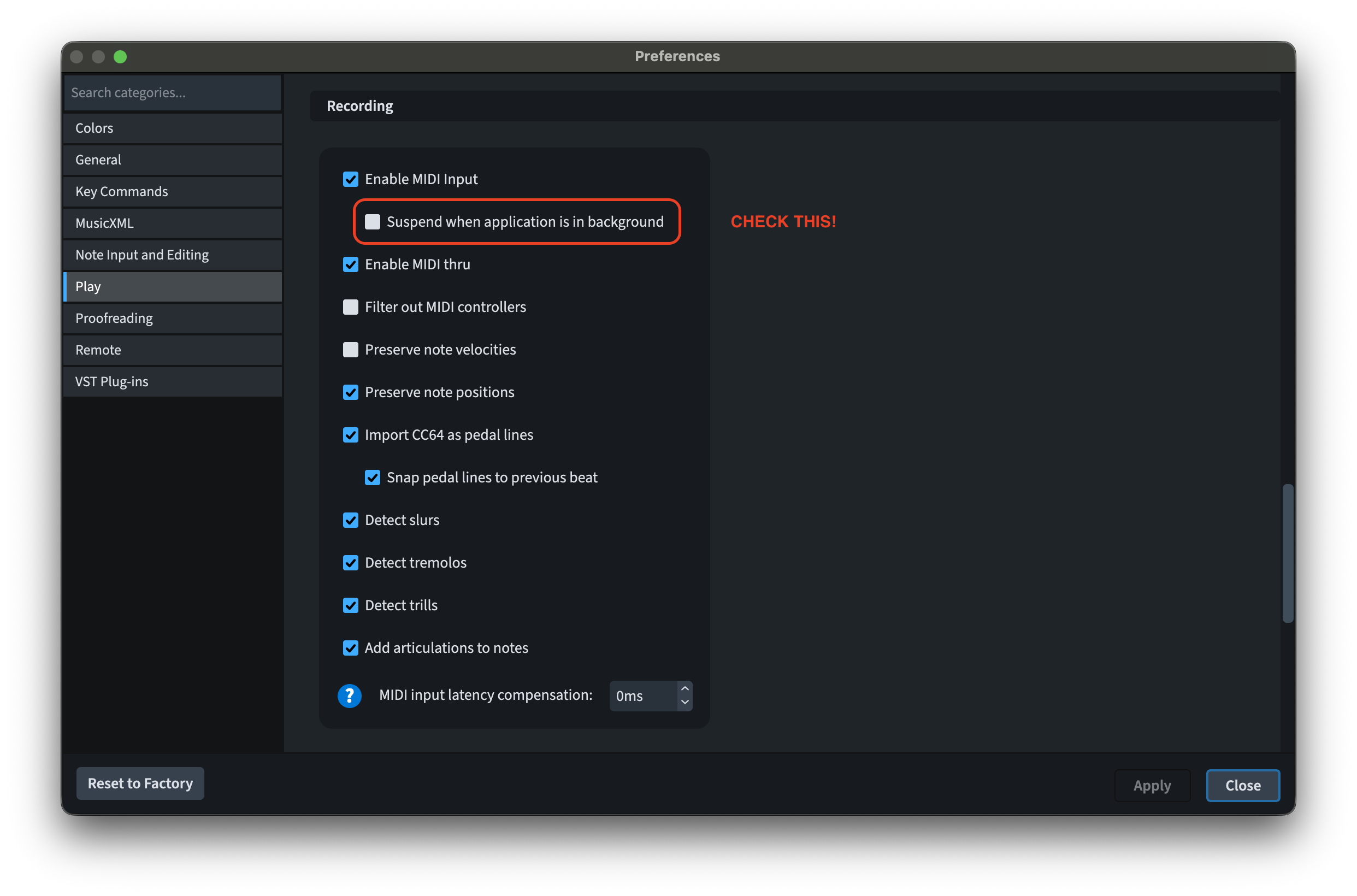
To avoid unwanted material being input in Dorico while MIDI input is active and Dorico is not the in-focus app, there is a new Suspend when in background option to be found in Preferences ▶︎ Play.
It is now possible to input additional notes to build chords when using the pitch before duration input method by moving the shadow note up/down with Option/Alt-↑/↓. To enable this, the Specify accidental, rhythm dot and articulations option in Preferences ▶︎ Note Input and Editing needs to be set to After inputting note.
Playback
All playback improvements have been described here.
In Play mode, a new command to hide (close) all VST plug-in windows has been added to the Preferences ▶︎ Key Commands ▶︎Play page.
Playing Techniques
Improvements to ‘glyph playing techniques and tied notes’, to ‘assigning key commands’ and to ‘parenthesised playing techniques’ have been described here. For key commands, if one doesn’t see what they are looking for in the list, they should make sure to have said Playing Techniques saved as a default (star button).
In previous versions, Playing Techniques were only displayed in rhythmic slash regions when the Show other voices property was active. A new option has been added to Engraving Options ▶︎ Playing Techniques ▶︎ Rhythmic Slashes to provide more flexibility:
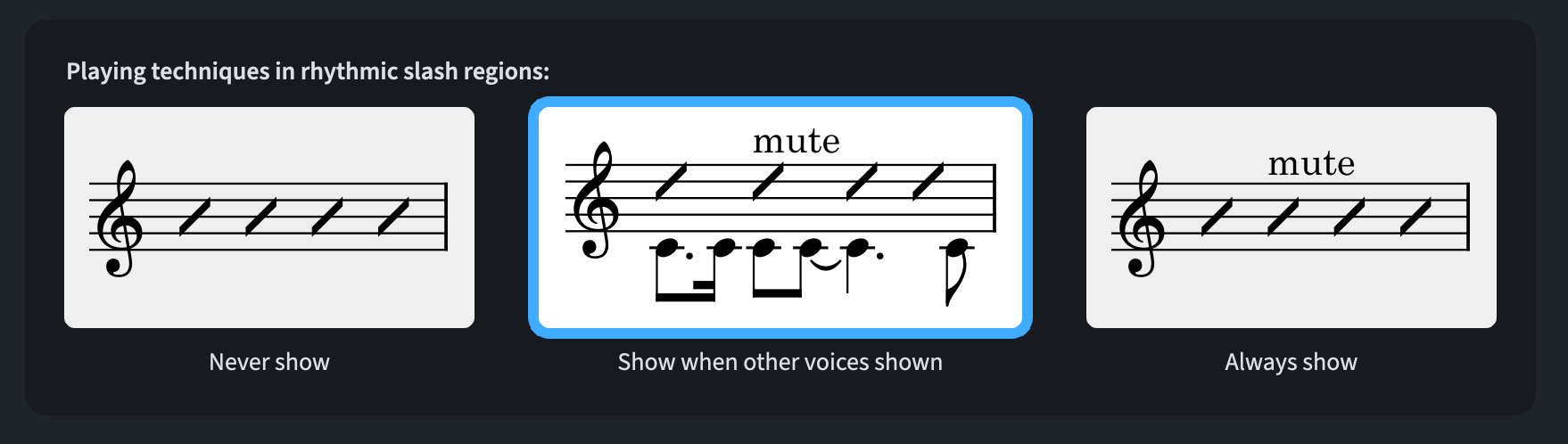
This new global option can be overridden for individual slash regions in the Properties panel.
Percussion
Two main improvements here:
- Layout Options ▶︎ Players ▶︎ Percussion: a new Show percussion legends on grids option has been added, useful when one doesn’t show staff labels at the start of each system.
- The Library ▶︎ Percussion Maps dialogue has been updated to make it simpler to use. Selected rows can now be copied, pasted, and deleted using standard keyboard shortcuts. Additionally, it is not necessary to hit Apply in the Edit Drum Kit Note section, as it now happens automatically.
Properties
Improvements to keyboard access to the Properties filter and to showing all properties for selected items have been discussed here.
Staff labels
Staff labels received a very generous update. The improvements to staff and player group labels have been described in this article; the possibility to edit labels on a double click, instead, is covered here.
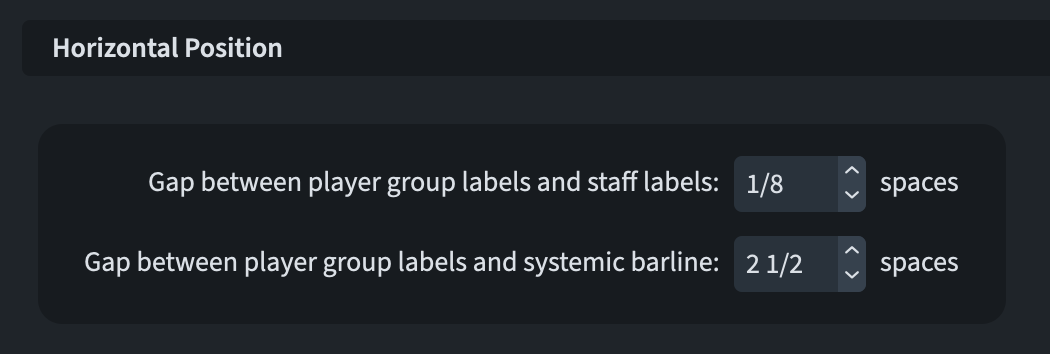
In Engraving Options ▶︎ Staff Labels, a new option called Gap between player group labels and systemic barline has been added (scroll to the very bottom). This will be used when a player group label is shown but no staff labels are visible.
Previously, it was only possible to override the property for showing staff labels at system/frame breaks. Now it is possible to do the same for player group labels.
Staff spacing
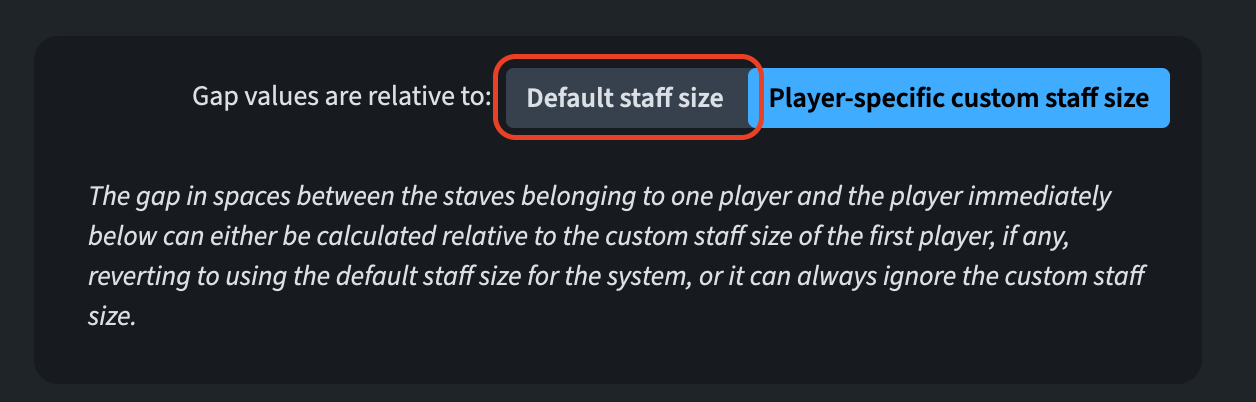
The gap between a pair of staves is calculated relative to the scale factor of the upper stave. In a solo and piano scenario, with a cue-stave scales at, say, 60%, the space is scaled proportionally. Should you not like this, there is a new option in Layout Options ▶︎ Vertical Spacing called Gap values are relative to. Set this to Default staff size to use the 100% size at all times.
These are the small things that truly make a night-and-day difference for professional engravers!
String tuning
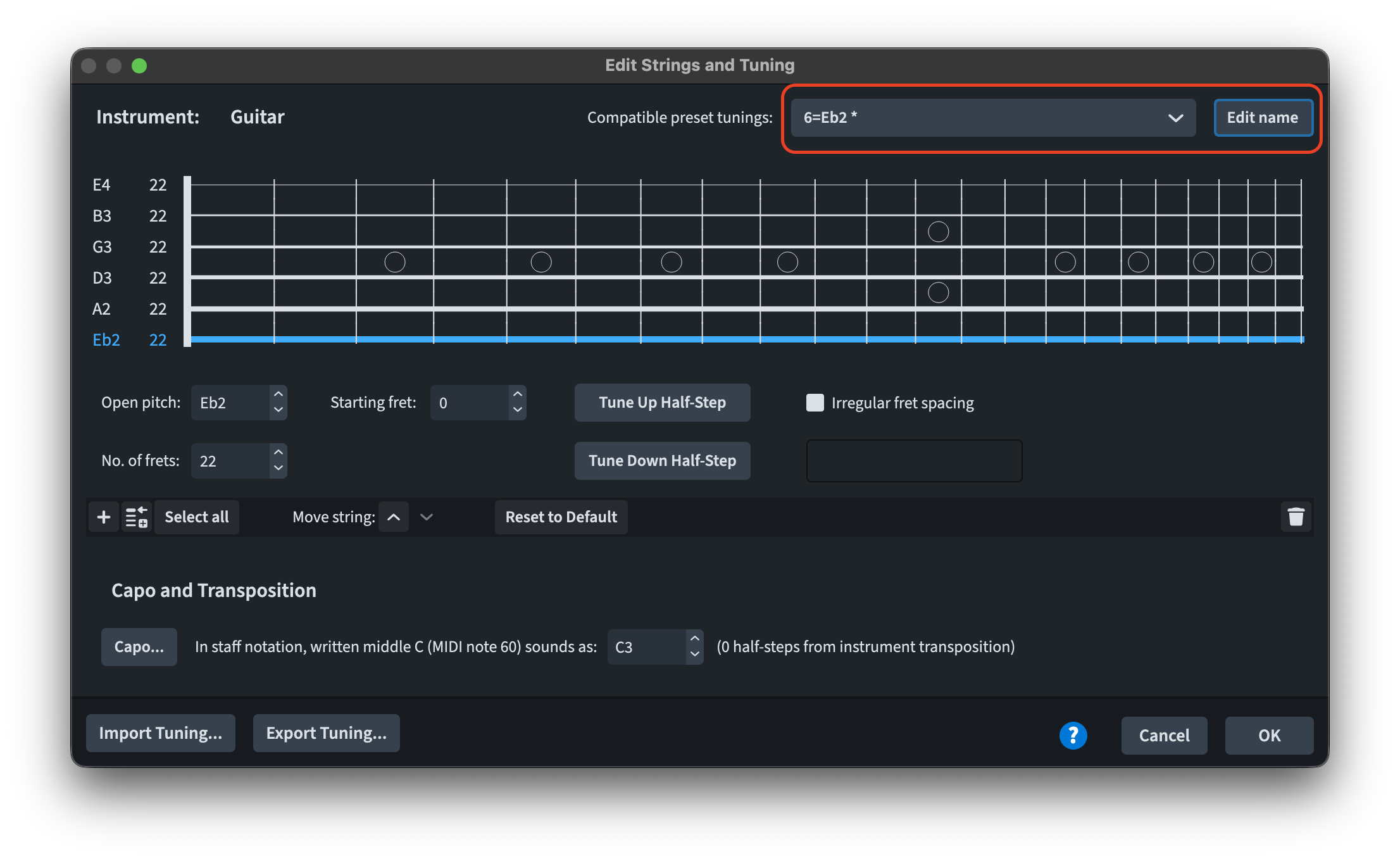
For fretted instruments, it is now possible to give a specific name for a modified or new tuning created in the Edit Strings and Tuning dialogue. The Edit Name button becomes enabled once the edit to the tuning has been completed.
Tempo
Improvements to Tempo paragraph and character styles have been described in this article.
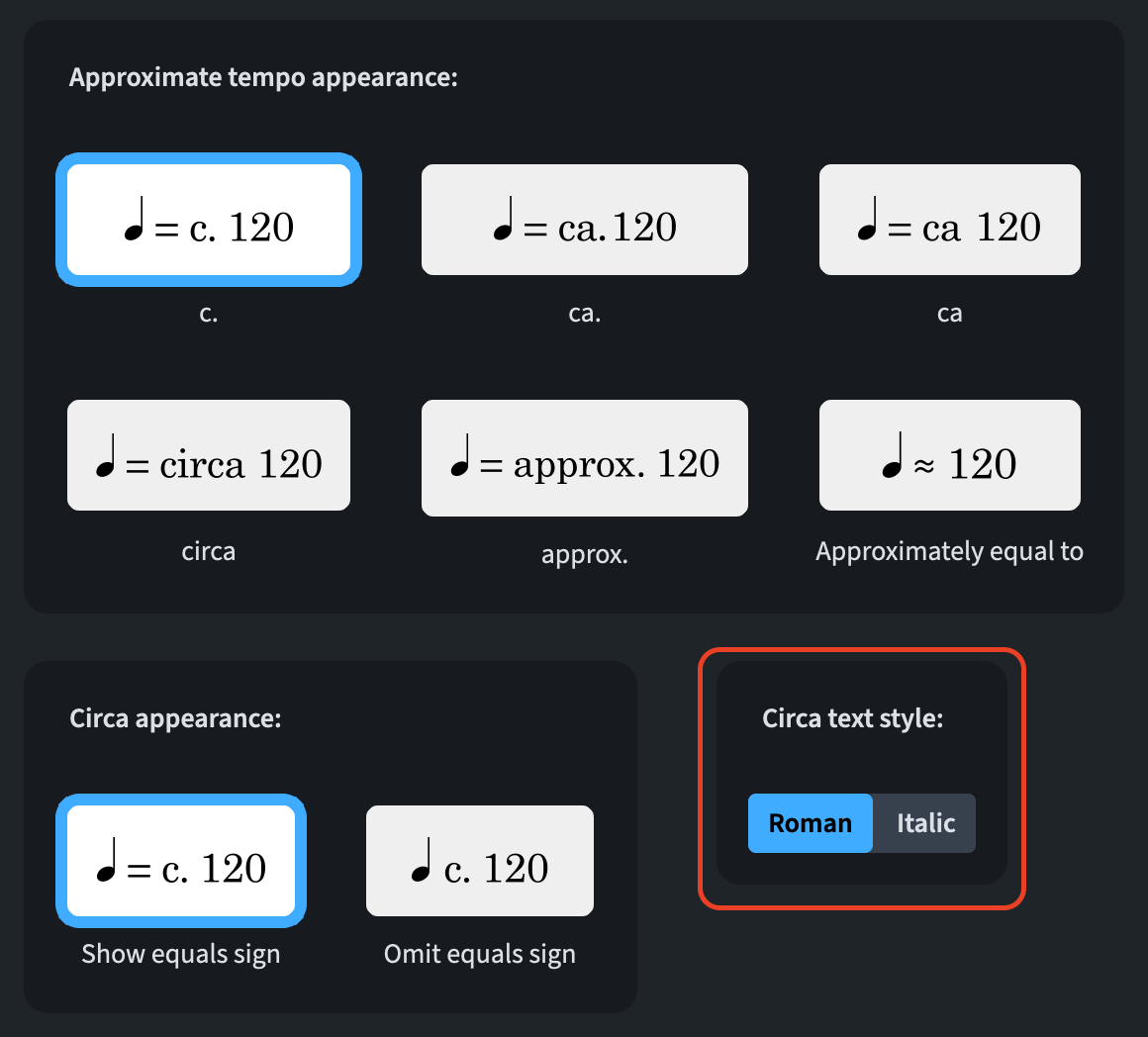
A new Circa text style option has been added to Engraving Options ▶︎ Tempo in the Absolute Changes section.
Finally, to add a hidden tempo via the Shift-T popover, you should now enclose it in square brackets (e.g., ‘[Andante]’). I’m not too enthusiastic about this because this hinders the possibility of easily creating editorial tempo marks, but one cannot have everything in life!
Text
Most improvements to handling text in Dorico 6 have been covered in this article. Improvements to text frames and tokens, instead, are here.
A new Letter spacing before accidental option has been added to Engraving Options ▶︎ Text. It is set to 0.75pt for new projects and to 0pt for existing ones.
Ties
The new option Consider ‘Hide stem’ property when positioning tie endpoints has been added to the Advanced Options section of the Avoiding Collisions section of the Ties page of Engraving Options. This allows better positioning in general for notes that have the ‘Hide stem’ property checked.

Trills
In the Trill section of Engraving Options ▶︎ Ornaments, there is a new option to allow specifying the precise horizontal placement of the TR mark relative to the notehead:

If a trill shows neither its TR mark nor its extended line, a signpost will remind you about that (assuming View ▶︎ Signposts ▶︎ Trills is activated).
Tuplets
Three main improvements found their way towards tuplets:
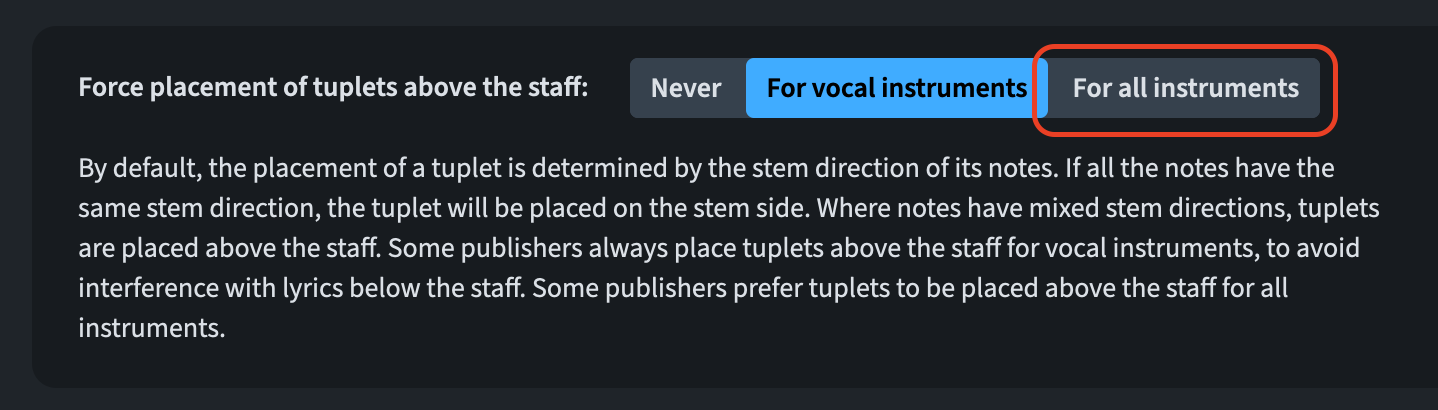
- It is now possible to specify that tuplets should always be placed above notes on every instrument (not only vocal staves). To activate this, go to the Placement section in Engraving Options ▶︎ Tuplets.
- A new Number x offset property has been added to the Tuplets group of the Property panel in Engrave mode. This allows fine positioning of the number or ratio relative to its bracket.
- It is now possible to nudge a selected tuplet bracket or number horizontally by using the Option/Alt-←/→ keys in Engrave mode.
Bottom Line
That’s it for today! Come back next week for the third and last part of this walkthrough of all additional improvements to Dorico 6.
If you enjoyed this post, please leave it a like, subscribe to get notified of upcoming articles, and don’t forget to do the same for Anthony’s video and for the Dorico YouTube channel.
Should you be interested in my other activities, please visit my website and consider joining my mailing list, where you will be able to follow my journey through music notation and independent music publishing.
Thank you for your time, and see you here in the next episode.
 Music Preparation Services
One thought on “… so much more!”