
A review of the improvements brought by Dorico 6.1 and 6.1.10
This series of articles covers the improvements introduced by the fourth and fifth patch updates to the Dorico 6 cycle, 6.1 and 6.1.10, announced and released respectively on September 26 and October 9, 2025. I will take care of updating existing articles in the broader Dorico 6 series to make sure nothing gets abandoned alongside our path.
PART 1 — Major new features
Automatic playback template
As Dorico gains new sound content, the number of factory playback templates needed to accommodate various combinations has grown, making it challenging to choose the proper template. Dorico 6.1 simplifies this by introducing a new automatic playback template which prioritises and uses all installed factory content. This ensures that each instrument in your project gets the best available sound.
When you first launch Dorico after updating to version 6.1, if the Default playback template setting on the Play page of Preferences is set to one of the existing factory templates, you will be prompted to switch to the new automatic playback template. Choosing Use Auto Playback Template will adjust the default setting for you. However, if you are using a different playback template or a third-party sound library, Dorico will not prompt you to switch. You can make this change yourself at any time in Preferences ▶︎ Play.
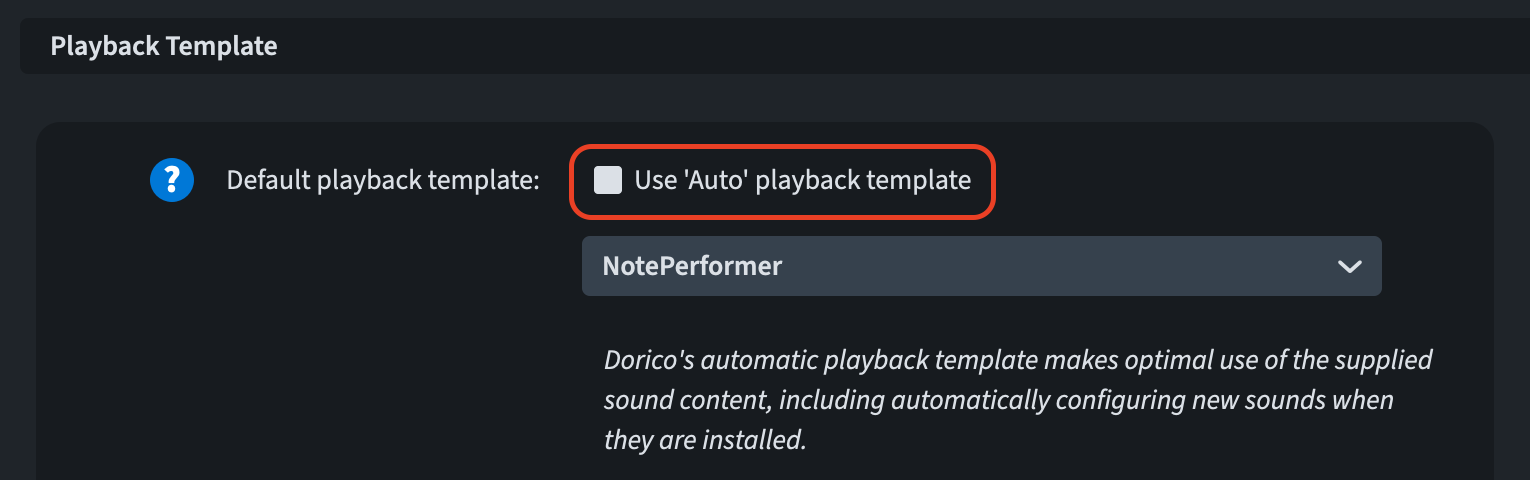
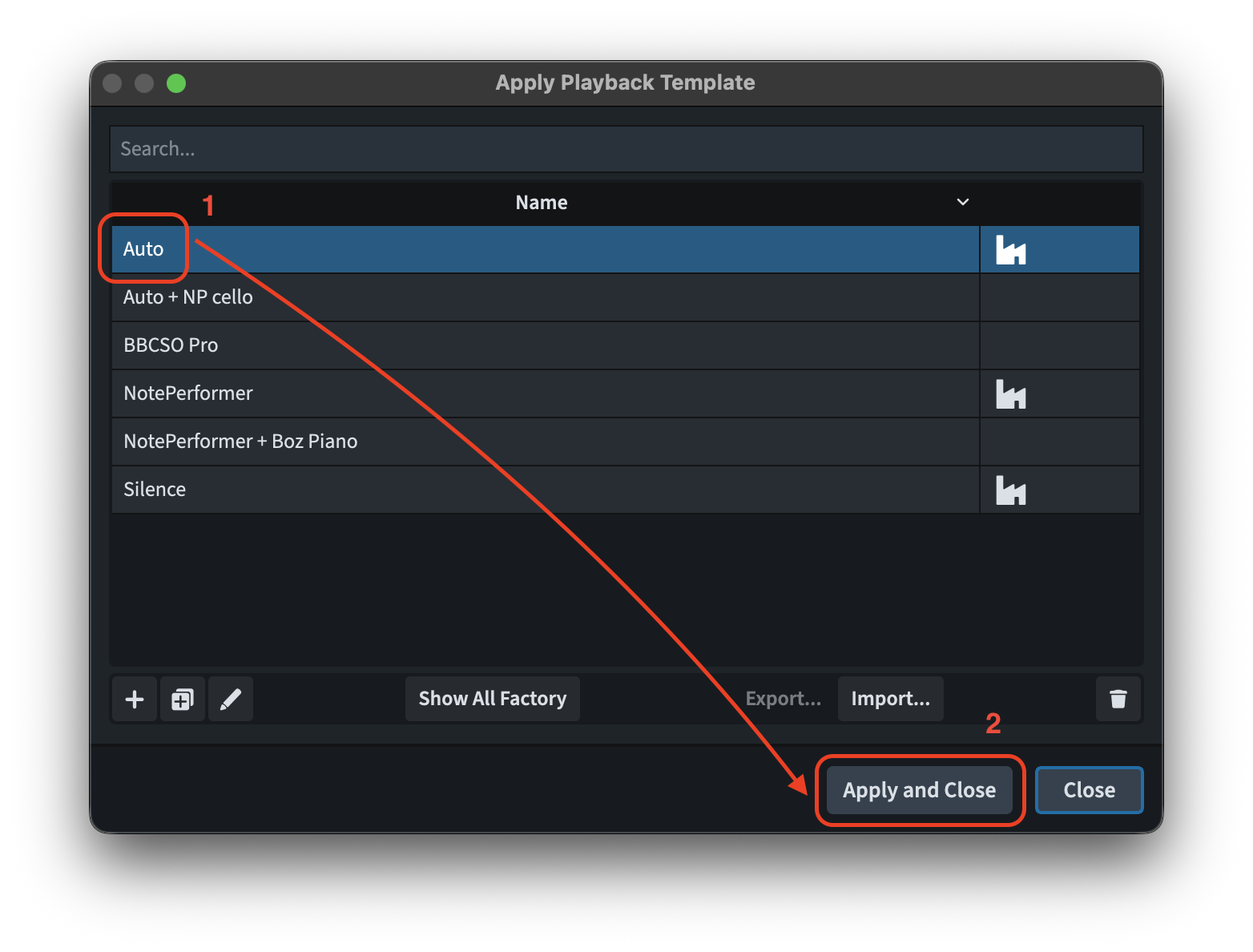
To apply the automatic playback template to an existing project, select Play ▶ Playback Template and then Auto. Finally, click Apply and Close.
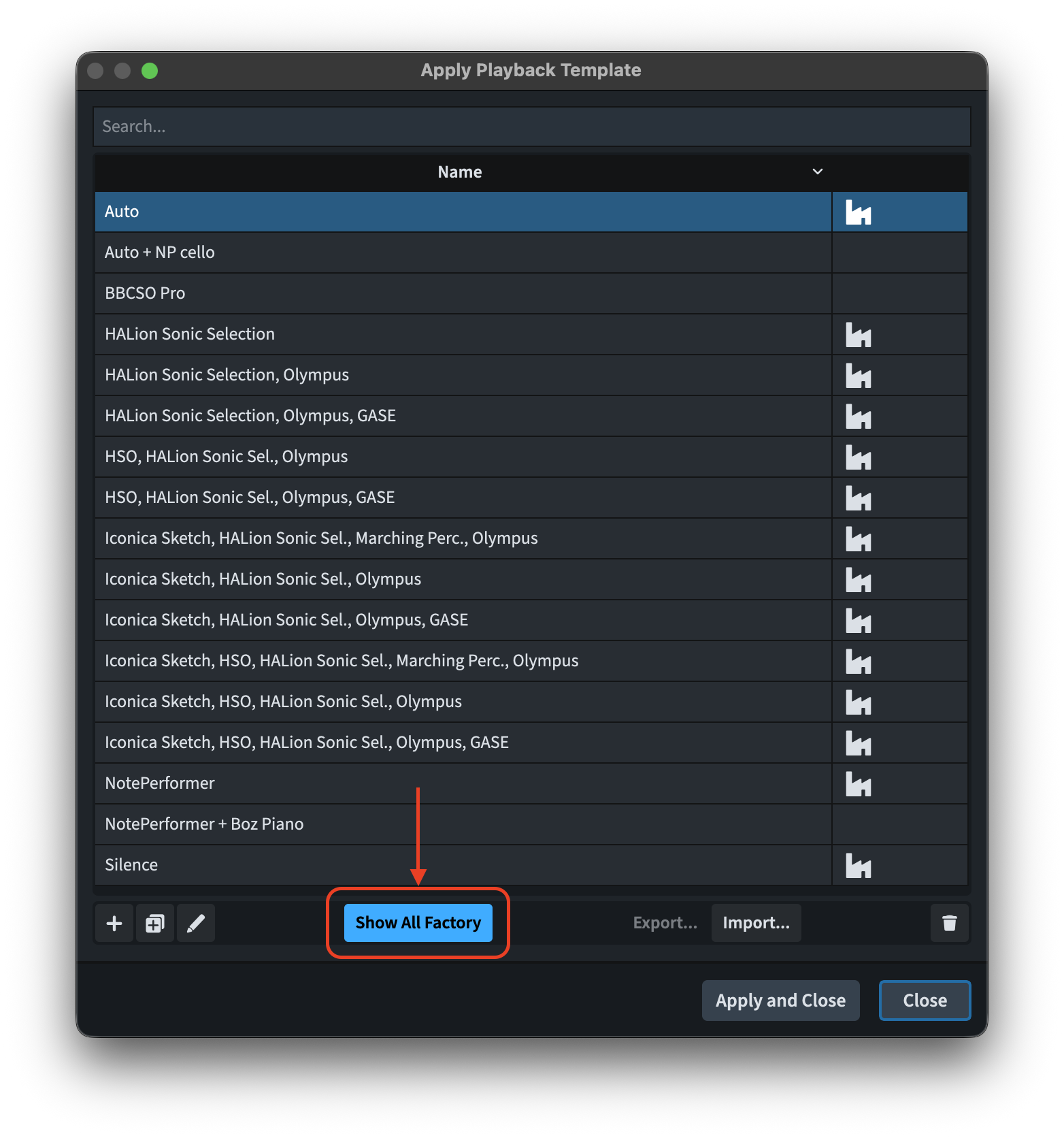
You will notice that most of the factory playback templates you are familiar with from previous versions are no longer listed. To view them, tap on the Show All Factory button in the action bar of the Apply Playback Template dialogue.
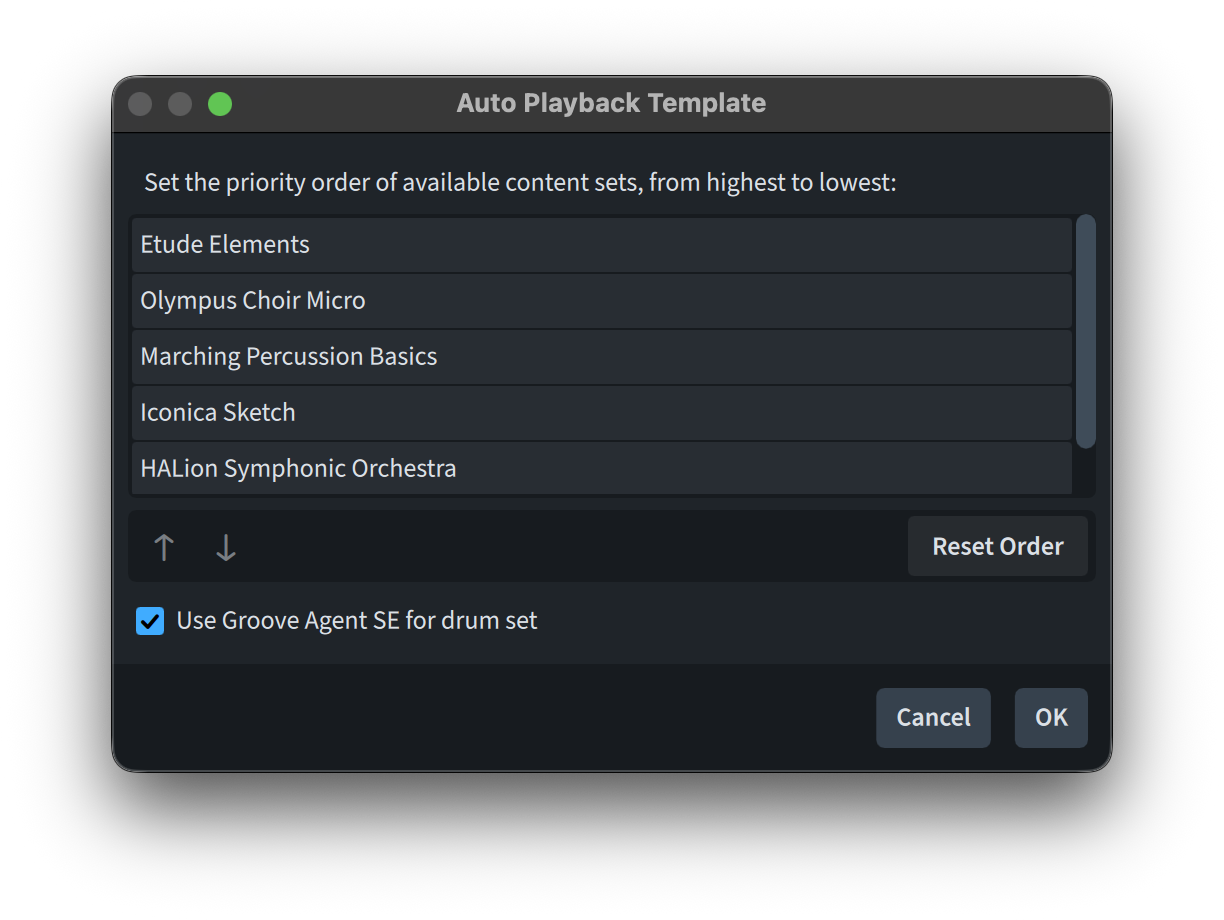
As Dorico receives further sound content, or you decide to install previously unselected content, the automatic playback template will be updated to optimise its use. To view the current content sets in your system’s automatic playback template or adjust their relative priority (which affects Dorico’s sound assignment to instruments), select Auto from the list in the Apply Playback Template dialogue and tap on the Edit Playback Template pencil button:
Condensing
Rests on condensed staves
It is now finally possible to set certain properties on rests that appear in condensed staves. This had been impossible until now, but there are a few aspects that should still be considered with care.
By default, rests in Dorico are implicit, the software automatically creating them to fill in gaps between notes. Rests only become real items—or explicit– when edited, and editing a rest in a condensed staff also makes it explicit and affects the notation of the instrument it belongs to. When you set the Rest position property on a condensed rest to adjust its vertical position, as expected, the property value applies only to the condensed staff. However, to save this property, the rest must be made explicit and stored in the musical data for the instrument. This usually causes no issues as, in most cases, the condensed music shows the same implicit or explicit rest as an existing one in one or more of the source instruments whose music is notated on the condensed staff. Since the rest in the source instrument has the same duration, adjusting its position doesn’t impact the uncondensed music which appears in the part layout or the full score when condensing is disabled. However, in certain cases, the rest that appears in the condensed staff might not align with an existing implicit or explicit rest in the uncondensed source material. Adjusting the vertical position of such a rest makes it explicit and will now appear in the uncondensed source music with that duration. This adjustment only affects the condensed music.
My personal suggestion is, when you know that you are editing condensed music—with or without rests—to have a separate Dorico window open with the full score in Galley View (and thus Write Mode) and to follow your editing progress in parallel. If, instead, you cannot bear the burden—totally understandable—make a copy of the project to work only on parts.
Instrument change warnings and labels
An extra novelty is that you can now interact with instrument change warnings and labels on condensed staves just like you can on regular uncondensed staves.
Etude Elements
Dorico Pro 6 and Dorico Elements 6 users can now access the Etude Elements sound library at no extra cost. This is an entry-level version of Steinberg’s extensive Yamaha C3X grand piano library for HALion and HALion Sonic. Carefully reduced in scope from the full 18 GB Etude library, Etude Elements offers a beautiful and expressive selection of grand piano patches. These patches significantly enhance sound quality and timbre compared to the default Yamaha S90 Piano patch included in previous Dorico versions.
If you’re using the new automatic playback template, Dorico will automatically use the Concert Grand Elements patch from Etude Elements for piano instruments in new projects. To use Etude Elements in an existing project, apply the automatic playback template or manually load one of the Etude Elements patches into HALion Sonic in Play mode.
Proofreading
Instrument ranges
Instrument ranges have been added as a new category for the Proofreading panel. When enabled, Dorico identifies notes outside an instrument’s standard and advanced ranges. These are highlighted in bright or dark red if the View ▶ Note and Rest Colours ▶ Notes Out of Range option is activated. Proofreading also checks for some special cases:
- For the flute, a warning will appear for the B below middle C (B3) indicating that not all flutes have a foot key to play this pitch.
- For the tenor trombone:
- The pitches C2 to Eb2 require an F attachment (common on classical instruments, but less so on jazz ones). Without it, they can only be played as false tones which, while possible, is not particularly easy and may compromise the instrument’s stability and tuning.
- Dorico will warn that the pitch B2 is unplayable without an F attachment.
- Similarly, Dorico will warn that the pitches E1 to Bb2 are only playable as pedal notes. This is possible but not simple and may further affect the instrument’s stability, tuning, and tone.
- For the harp:
- Dorico will warn you about notes that conflict with the current pedal settings. These notes aren’t out of range per se but are nonetheless displayed in bright red in the score if Notes Out of Range is enabled.
- Dorico will also warn you if a very low B is written. The three possible notes for the very lowest string are C flat, C natural, or C sharp, without enharmonic equivalents.
- Dorico will warn you if there are conflicting pitches on the bottom two lowest strings (C and D) or the highest string (G). Unlike all other strings on the instrument, these strings aren’t attached to pedals, and they can only be tuned using a tuning key.
- For the organ, Dorico will warn you if a note in the pedal staff is written above the G below middle C.
Dorico also considers trills and warns if a trill will result in out-of-range notes. Furthermore, Dorico will check whether trills are playable on flute, recorder, oboe, saxophone, bassoon, and trumpet, and will warn about any problematic case. If difficulties with two-note tremolos are well documented, Dorico will similarly warn about them.
Repeat structures
Dorico’s validation of repeat structures has been substantially enhanced, with checks now covering the following cases:
- Duplicate markers sharing the same appearance. For instance, when two or more segno markers with identical visual appearance (i.e. the same marker index) appear within the same flow, regardless of whether they share the same rhythmic position or occur at different ones.
- Repeat markers appearing in a questionable sequence. For instance, with two segno markers present, the one with marker index 1 should logically come before the one with marker index 2. Should their order be reversed, Dorico will raise a flag.
- Absent corresponding jump repeat markers. For instance, a segno marker exists within the flow, yet no matching D.S. marker can be located.
- Absent “intermediate” repeat markers. For instance, a coda has been designated, but no marking indicates where the jump to that coda is meant to take place.
- Absent corresponding section repeat markers. For instance, a D.S. marker exists within the flow, yet no matching segno marker can be located.
- Absent “until” (or “al”) markers. For instance, should D.C. al coda appear without a corresponding coda, Dorico will flag the issue.
Dorico will also flag the following problems:
- Repeat markers that fail to align with a barline.
- Passages that will never be heard. (For instance, positioning “D.S.” ahead of a segno marker will cause Dorico to jump forward, bypassing any bars located in between.)
- Any end repeat barlines absent from all sections of a repeat ending structure except the last one.
- Any end repeat barline found within the final section of a repeat ending structure (since this creates an endless loop), unless that same final section also contains a preceding start repeat barline.
- Any start repeat barlines lacking a corresponding end repeat barline.
- Repeat barlines that are rhythmically inconsistent. For instance, if a score is written in 4/4 and opens with a quarter-note upbeat, an end repeat barline placed to naturally align with a barline would produce an extra, unintended beat upon returning to the start. It’s more likely that the start repeat barline ought to be positioned on the barline immediately after the upbeat, or that the end repeat barline should have been placed one beat sooner.
Category filter
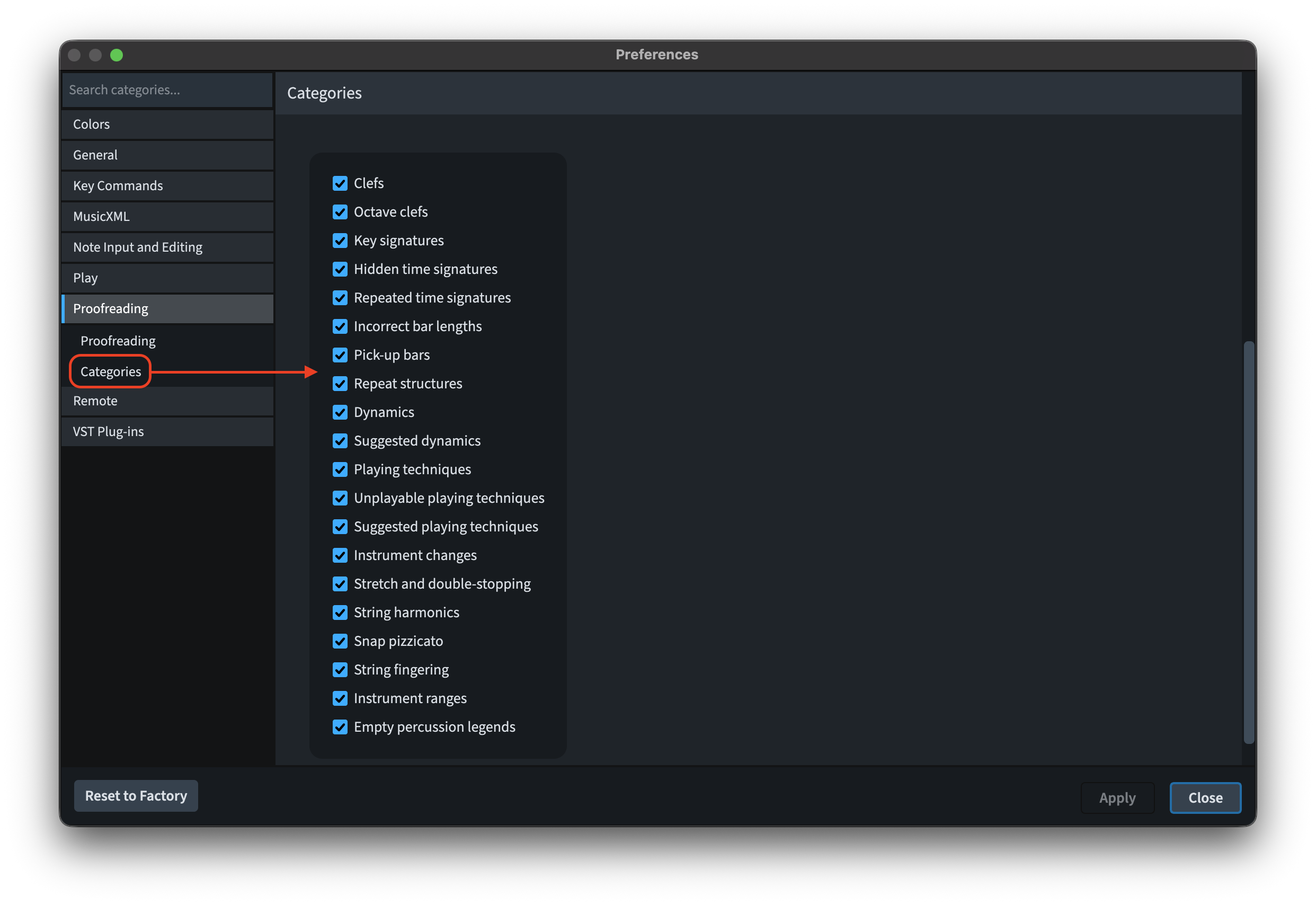
A new Categories section is now available on the Proofreading page within Preferences, where you can define which proofreading result categories appear by default in the Proofreading panel when launching a new project, or when opening a project that was last saved using Dorico 6.0 or an earlier version. After you save your project under Dorico 6.1, whatever state the Categories filter is currently in within the panel will override the default settings configured in Preferences—meaning your selection of which issue categories to display gets stored with the project itself and will be brought back the next time you open it.
Bottom line
That’s it for today! Come back next time for the continuation of this glorious series, covering all novelties introduced in Dorico 6.1.
If you enjoyed this post, please leave a like, subscribe to get notified of upcoming articles, and don’t forget to do the same for Anthony’s video and for the Dorico YouTube channel.
Should you be interested in my other activities, please visit my website and consider joining my mailing list, where you will be able to follow my journey through music notation and independent music publishing.
Thank you for your time, and see you here in the next episode.


3 thoughts on “You wouldn’t believe it!”