
This is the second article in a series covering improvements introduced by Dorico 6.2.x updates. (Read part 1 here.) I will take care of updating existing articles in the broader Dorico 6 series to make sure nothing gets abandoned alongside our path.
PART 2 — Other improvements
Episode 1 — from Audio export to Harmonics!
Audio export
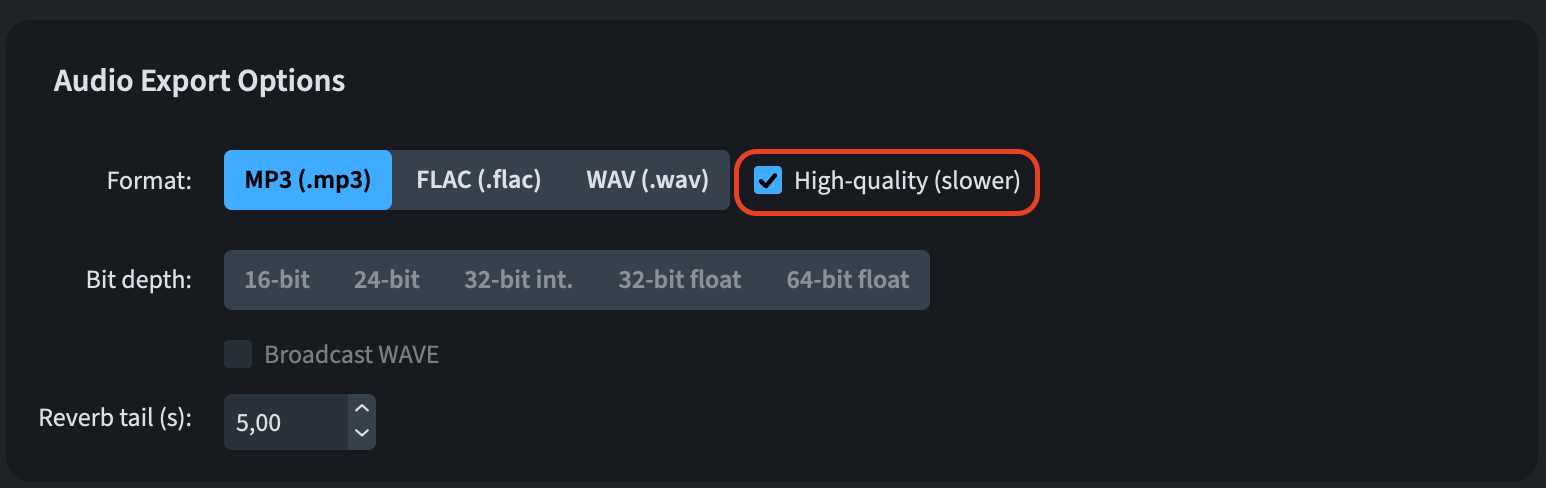
It is now possible to export audio in MP3 format using the high-quality encoding method. This influences the resampling of the audio input signal, achieving a greater sound quality for the given bit rate (currently 256kBit/s).
Barlines
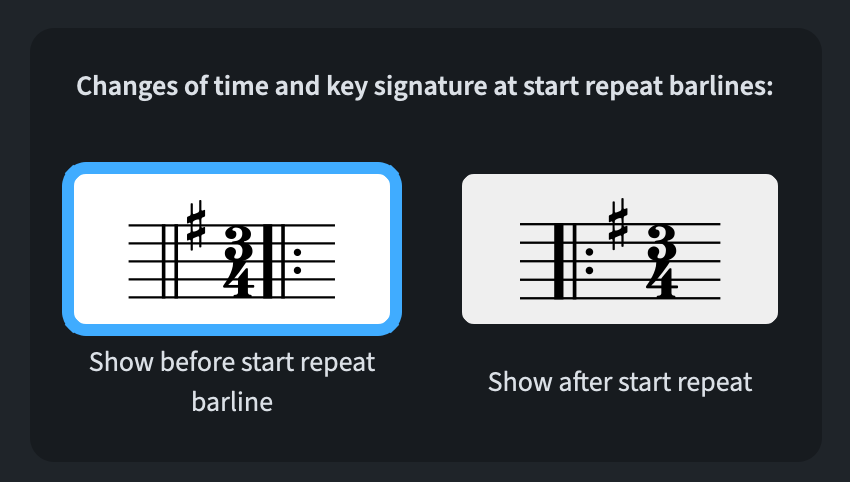
To manage whether key or time signature changes should appear to the left or right of the barline, a new option has been added to Engraving Options ▶︎ Barlines ▶︎ Repeats:
Beams
For hardcore (and a bit careless) users, a new option has been added to manage the default beam thickness and the default gap between beam lines. Since their sum should ideally be 3/4 of a space, Dorico will now show a warning label to alert you that the chosen settings will most likely result in a poor beam placement. Being extremely allergic to bad-looking beams myself, I will steer away from this option, even if I understand that certain editions (especially from the French tradition) require thicker beams. If you are brave enough, here is the option (Engraving Options ▶︎ Beams ▶︎ Appearance then expand the new Advanced Section):
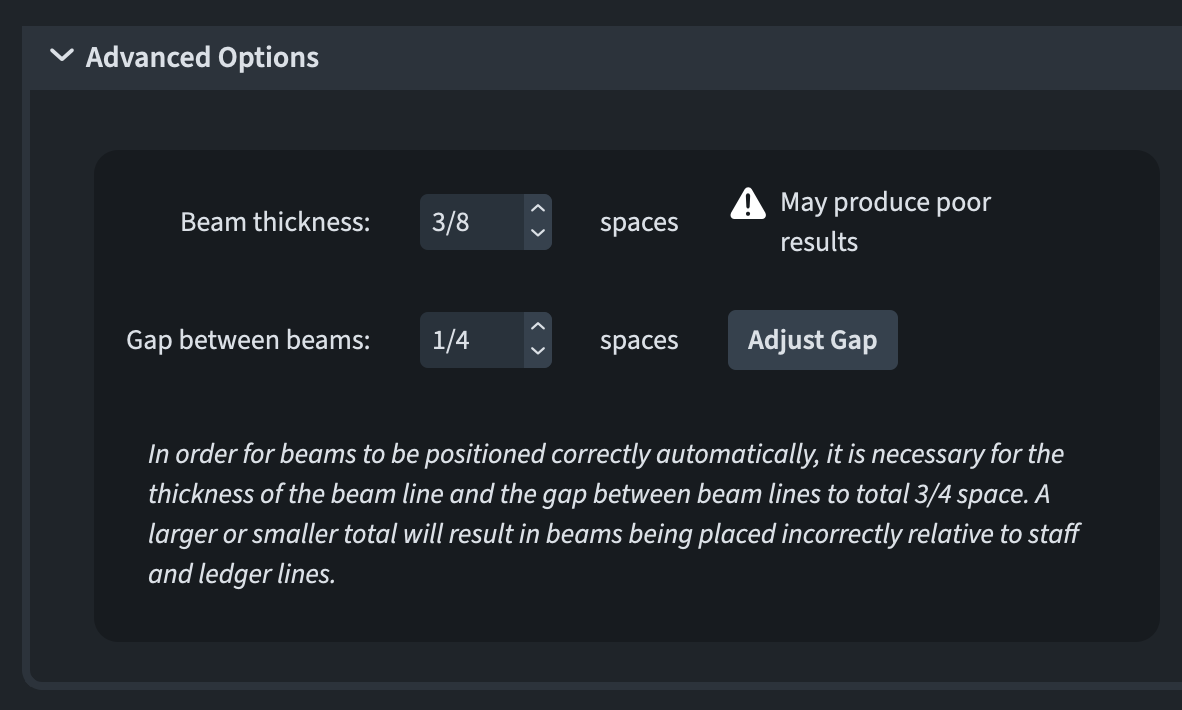
Notice also how Dorico offers a ‘redemption’ button to adjust the gap for you!
Cantai support
Automatic voice detection (6.2.20)
In Play mode, when you specify that a voice part should be played by an instance of Cantai, Dorico directly talks to the sound library for you to let it determine which voice part should it be assigned to, avoiding a tedious step. Once that’s done, the user still needs to pick the Cantai voice to be used.
Independent voice playback (6.2.30)
Possibility to enable independent voice playback for instruments routed to Cantai was added in this patch. Like for all other instruments, enter Play mode (Ctrl/Cmd-5) and click the Enable Independent Voice Playback button in the Track Inspector panel.
If you are using the Cantai playback template, this will happen automatically, but if you are managing it yourself, new instances will need to be added in the VST and MIDI panel.
Lyrics in repeated sections (6.2.20)
Various problems in this area have been solved in the 6.2.20 release.
Chord symbols (6.2.20)
Filter for chord symbol regions
A new command to allow quick filtering of chord symbol region within an existing selection has been added. It can be found via the app’s menu at Edit ▶︎ Filter ▶︎ Chord Symbol Regions.
Block selection
When performing a block selection with Shift-click, that is, a region selection over a music area, chord symbol regions are now included in the selection. As I titled one of the previous chapters of this series: ‘It’s the small things!’
Engrave mode (6.2.10)
Default paths
When exporting a page template set, Dorico now defaults to your default Dorico project location as its initial save destination, as well as the initial open location when importing one. Similarly, when exporting a library via Library ▶︎ Export Library, Dorico defaults to showing you that same path.
Personally, I would have preferred to have Dorico default to the current location of the active project, since that is where I go to save everything related to it. In the end, however, this is an extremely personal preference.
Fingering
Until now (pre-6.2), it was possible to have fingerings erase the background only when drawn within the staff. Well, no more! Thanks to the new option found in the Advanced Options section of the Engraving Options ▶︎ Fingering ▶︎ Design page, you can now select Erase background behind fingerings outside the staff. Fingerings will now erase staff lines, barlines, and slurs.
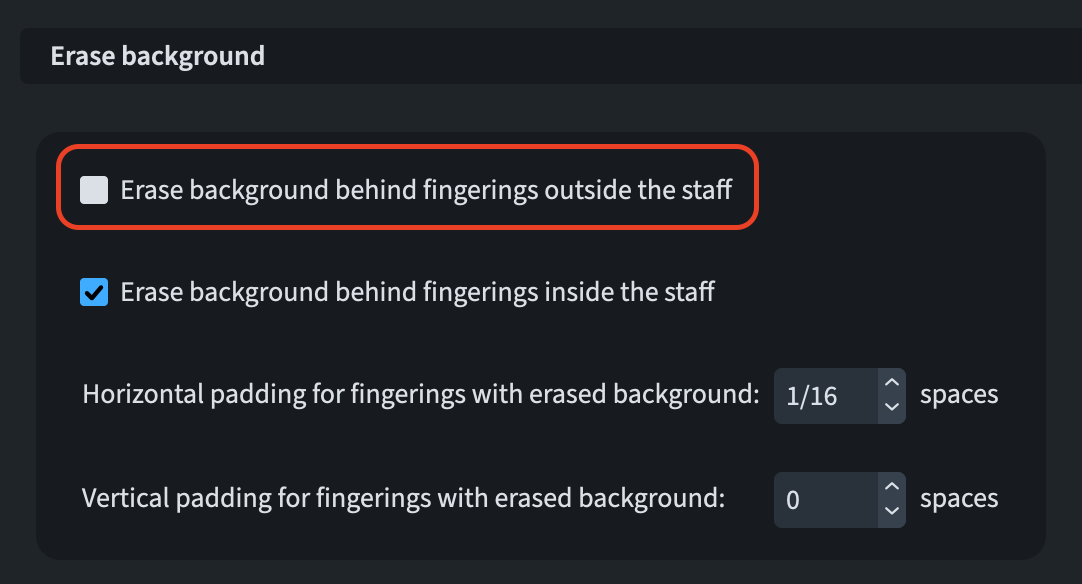
Due to this update, slurs are now also erased by other items whose Erase background property has been activated.
Fonts
The Splentino font has been updated (v 1.2), bringing improvements to diacritic characters and to font metadata for font family grouping (Windows only). The incorrect line height of the Italic style has now been fixed and a new Bold Condensed style has been added, providing a new, compelling option for tempo text and for staff labels. Nepomuk has also received an update (v 2.7) with minor kerning improvements, tweaks to characters using umlauts, and updated spacing for French guillemets (quotation marks). The font metadata for font family grouping on Windows has also been improved.
On the music font side, Sebastian has been brought to version 1.3, fixing slur positioning with up-stem flags. Improvements have been made to both Sebastian and Sebastian Text to make them easier to use as character styles. Finally, Golden Age has been updated to v 1.6, improving its rhythmic slash noteheads.
Glissando lines (6.2.30)
Custom wiggly line appearance
It is now possible to define what glyph should be used to draw wiggly glissando lines. Previously, changing the glyph used in Library ▶︎ Music Symbols had no effect and there has therefore also been an under-the-hood improvement in this area. To manage this, go to Engraving Options ▶︎ Glissando Lines ▶︎ Design and find the new Draw wiggly glissando lines using option:
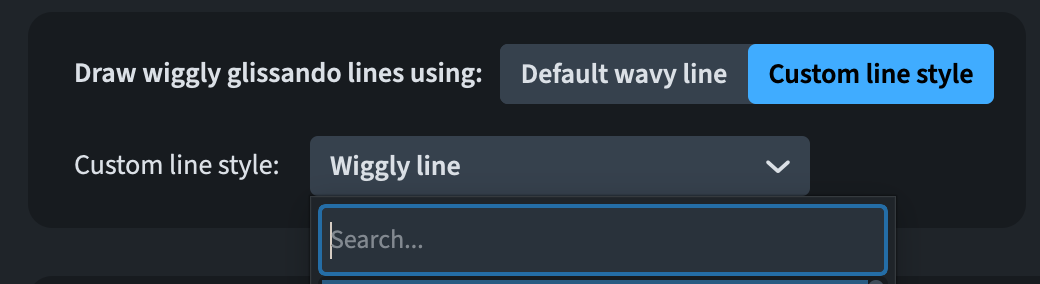
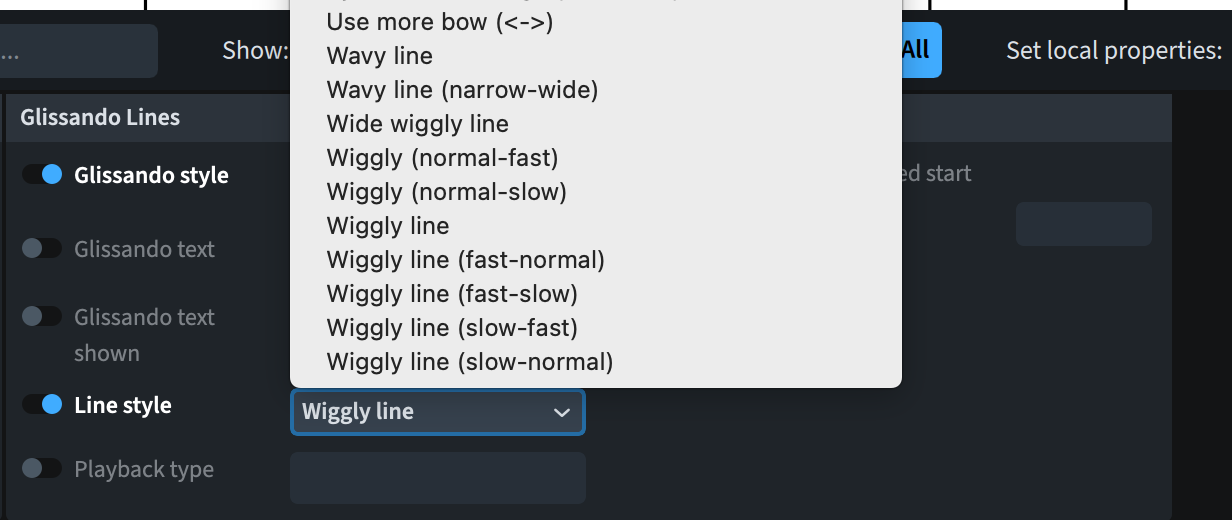
In new projects, the Wiggly line horizontal line style is set up as default choice, but existing projects will be unaffected. Additionally, a new Line style property has made its appearance in the Properties panel in the Glissando lines group:
Harmonics
Playing Techniques popover
We are now up for some of the nerdiest stuff I have ever seen in a notation software. New in Dorico version 6.2, it is possible to create harmonics using the playing technique popover (Shift-P). Begin your input with either harm, harmonic, or harmonics. After this, add further instructions separated by spaces, in the form of harm [type] [partial] [node] [style] [string] (these can appear in any order).
| Input | Result |
| Type | |
| nat or natural |
Natural harmonic |
| art or artificial | Artificial harmonic |
| Partial | |
| pn or p=n or partial=n, where 2 ≤ n ≤ 16. | Set the partial for the harmonic, that is the ‘cutting’ ratio of the string. |
| Node | |
| nn or n=n or node=n, where n is an integer. Depending on the partial there may be a minimum of 1 and a maximum of 3–4 nodes. | Set the node for the harmonic, that is the choice of which of the division producing the same pitch should be used. |
| Style | |
| circle or circleabove |
Shows the circle above the staff for a natural harmonic |
| diamond, diamondnotehead, sounding |
Shows the diamond notehead instead of the regular notehead for a natural harmonic |
| white, whitediamond, whitediamondnotehead, touched | Shows a white diamond at the touched pitch for a natural harmonic |
| normal | Shows a white diamond at the touched pitch for an artificial harmonic |
| pinch | Pinch artificial harmonic |
| singlesounding, sounding | Shows a white diamond at the sounding pitch for an artificial harmonic |
| singlestopped, stopped | Shows a white diamond at the stopped pitch for an artificial harmonic |
| String | |
| sn, s=n or string=n, where n is an integer between 1 and how many strings the instrument has. | By index, where 1 is the highest string on the instrument |
| spitch, s=pitch or string=pitch | By pitch, e.g. D3 for the D string of the cello. |
| Open string display | |
| open, noopen | Show or hide open string pitch |
| paren, noparen | Show of hide parenthesised sounding pitch. |
The Version History provides a few examples, which I have then reproduced in practice in the image below (although with mixed results):
- Basic natural harmonic:
harm - Natural harmonic, explicit partial/node/style, specific string index:
harm nat p4 n1 style=diamond s1(in the example below, Dorico has not accepted most of the input because activating the Natural property makes the Partial property unavailable (which is a pity, since one can get natural harmonics in the first half of the string); also, in this specific case,s1was refused because D3 cannot be played on the first string of the cello (see the red notehead denoting an unplayable note). Still, I would welcome the possibility to specify a partial for a natural harmonic too. - Artificial pinch harmonic, parenthesised sounding pitch, string 3:
harm art p4 n2 style=pinch s3 paren. Curiously here again, the Node property disappeared, possibly because this partial of this note on this string has only one node. The string has been set to 3, but it should be marked as impossible because no one has such an extension with their hand! Time to check with my Proofreading friend to suggest an update. - Natural white-diamond harmonic, show open string, string by note name:
harm nat style=white open s=e4. For this, I had to add a classical guitar instrument because typing this into the popover for the cello returned no result.
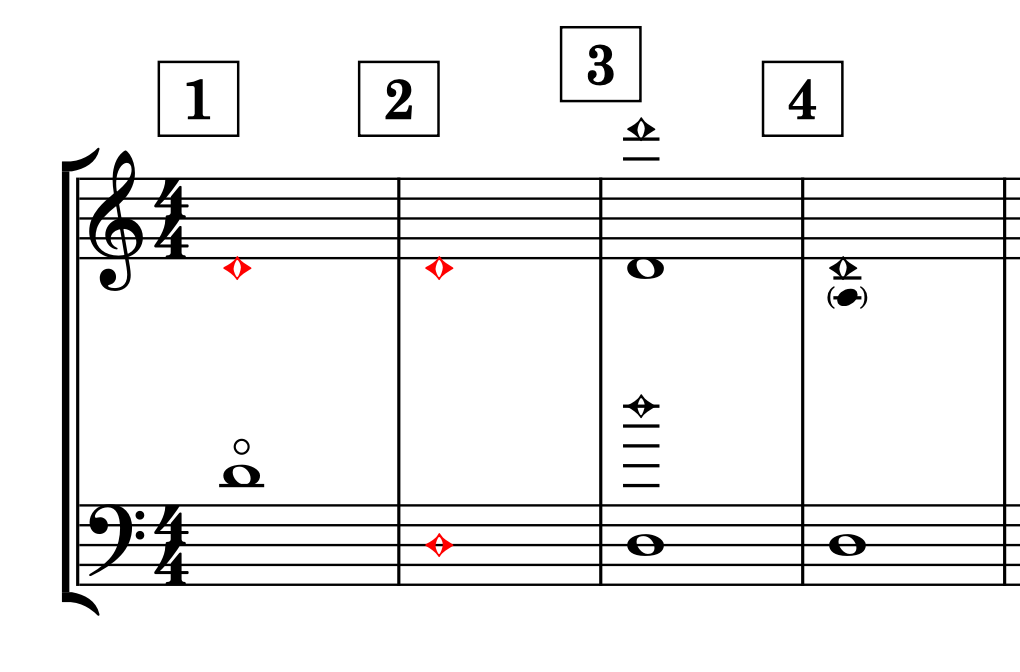
In the end, I believe that this popover is for those users who know well in advance that their token combination is going to work for the given pitches. For everyone else, the Properties panel is still there.
For a few frequently used cases, a shortened form is provided:
| Long form | Shortcut |
| harm nat | nh or hh (for “harp harmonics”) |
| harm art | ah |
| harm art style=pinch |
ph |
To remove a harmonic, use the noharm token.
Playback
At long last, we now have correct playback for natural harmonics played on fretted instruments. Do not think this was trivial, though, because strings have the nasty habit of being specular to their middle point, creating two sets of equal-sounding harmonics in different spots of the string.
Natural harmonics for stringed instruments
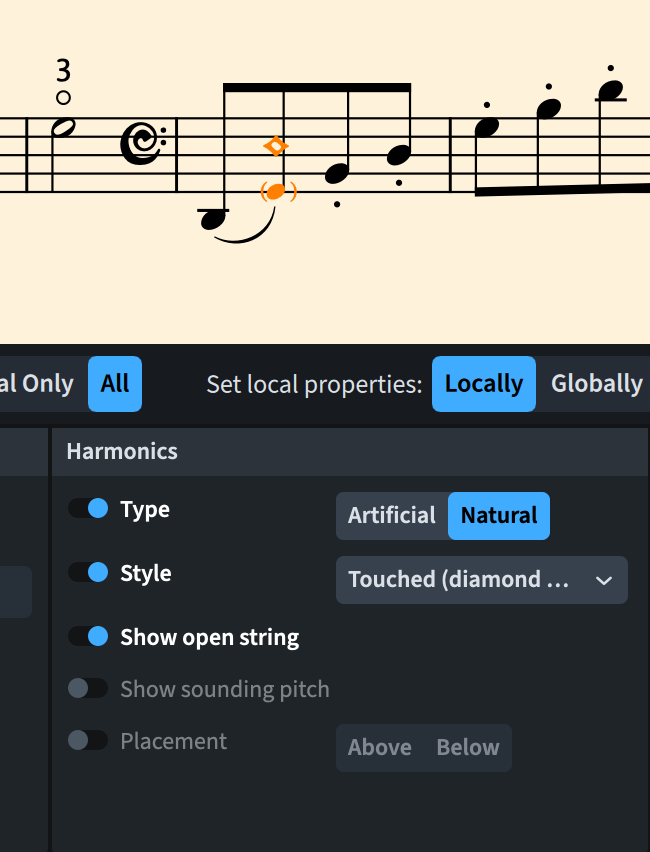
Conventions for writing natural harmonics on stringed instruments evolved wildly during the centuries—there is even an essay documenting more than 200 ways of notating a given harmonic on the guitar! In more recent times things have become slightly more standardised and harmonics between the nut and the middle of the string excluded have been rendered with a single diamond-shaped notehead. Sometimes, though, this may not be clear enough. To this end, Dorico 6.2 introduces the possibility of showing the pitch of the open string in addition to the touched pitch required to produce the sought-after harmonic. To clarify that the open string is not the pitch to be played, it is rendered as a black parenthesised notehead.
This can be activated from the Properties panel by selecting a harmonic notehead that has the Style property set to Touched (Diamond notehead).
Artificial harmonics for stringed instruments
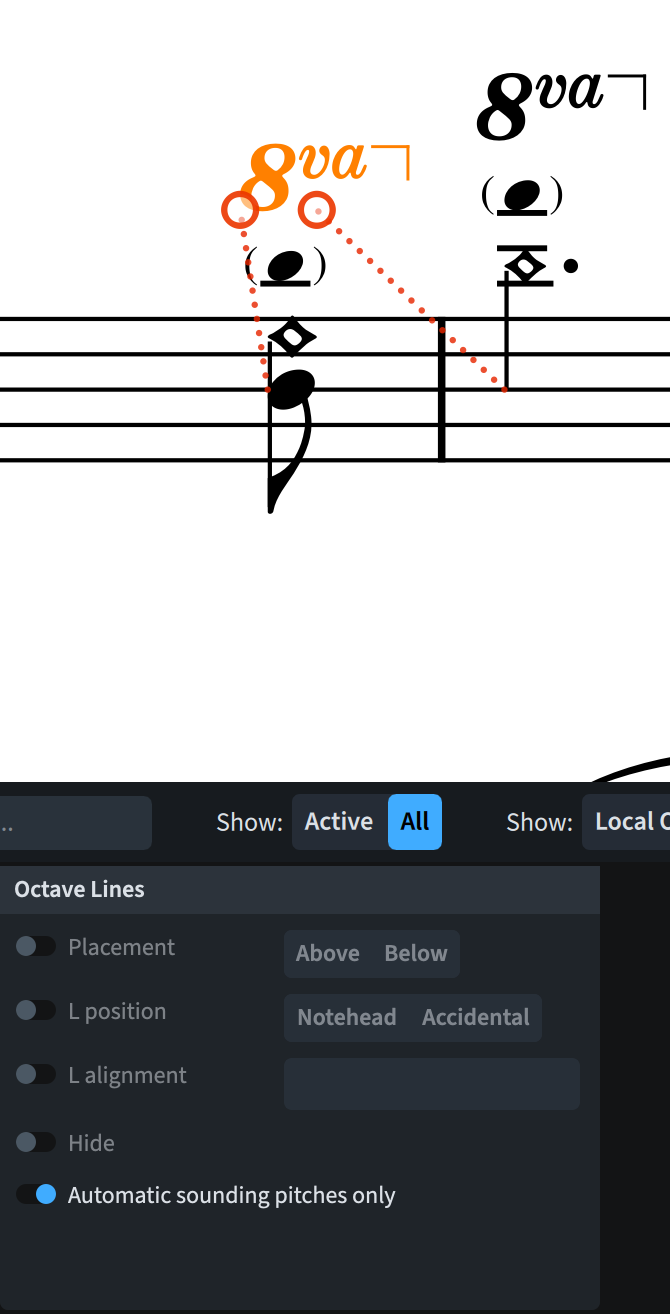
At great requests by the string playing and, especially, string engraving community, it is now possible to show the sounding pitch of a given artificial harmonic in addition to the stopped and touched pitches. If the sounding pitch requires too many ledger lines, an octave line is used as well.
To enable this new shiny gem, select an artificial harmonic in your score and, in the Properties panel, activate the new Show sounding pitch property in the Harmonics group.
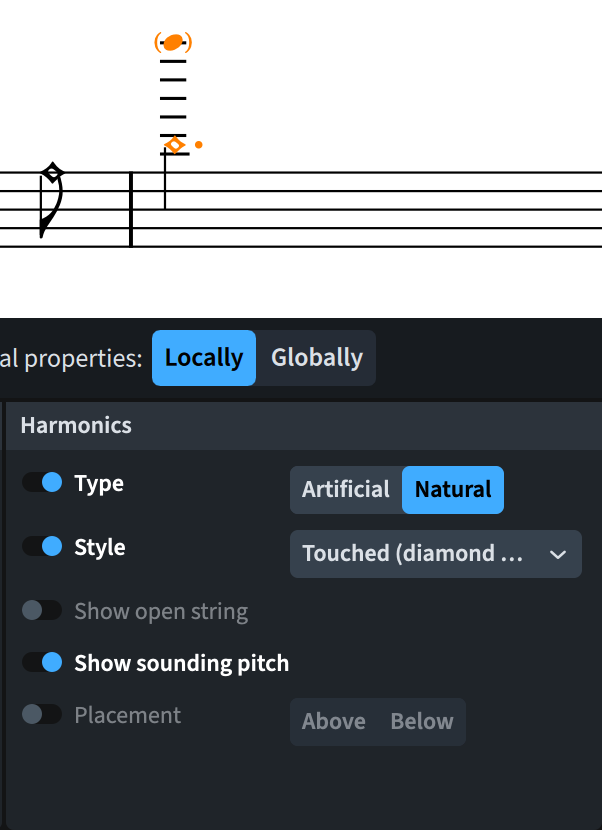
The addition of an octave line has not yet been automatised nor wired to an Engraving or Notation option, so, perhaps a bit clumsily, create a new octave line (which will also influence the played pitches), select it, and, in the Properties panel, activate the new Automatic sounding pitches only property. This will specify that the octave line should only transpose the parenthesised sounding pitch notehead.
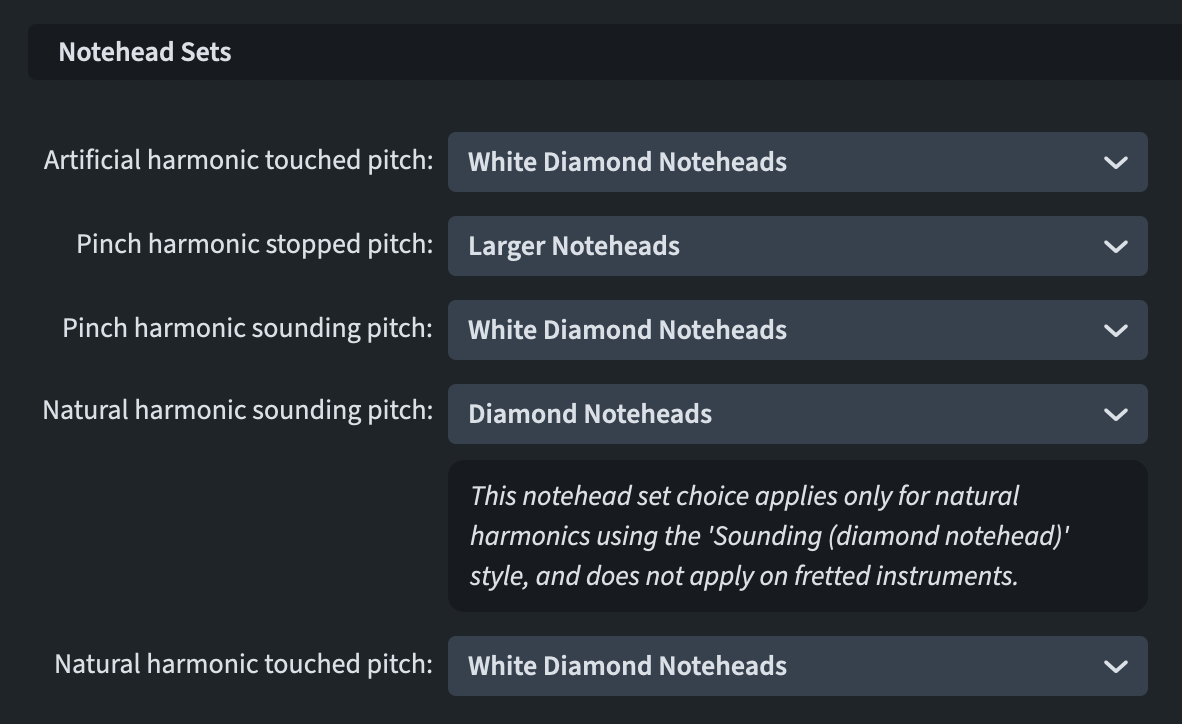
Notehead sets for harmonics
Finally, new options have been added to the Harmonics page of Engraving Options, making it possible to define the specific notehead set that should be used for touched, stopped, and sounding pitches for natural, artificial, and pinch harmonics on staff notation and in tablature.
Bottom line
That’s it for today! Come back next time for the continuation of this series covering all novelties introduced in Dorico 6.2.x.
If you enjoyed this post, please leave a like, subscribe to get notified of upcoming articles, and don’t forget to do the same for Anthony’s videos and for the Dorico YouTube channel.
Should you be interested in my other activities, please visit my website and consider joining my mailing list, where you will be able to follow my journey through music notation and independent music publishing.
Thank you for your time, and see you here in the next episode.

