
A review of the improvements brought by the Dorico 6.2.x cycle.
This is the third article in the series covering the improvements introduced by the 6.2.x updates to the Dorico 6 (find the first article here and the second one here). I will take care of updating existing articles in the broader Dorico 6 series to make sure nothing gets abandoned alongside our path.
PART 2 — Other improvements
Episode 2 — from Harp Pedalling to Playback
Harp pedalling
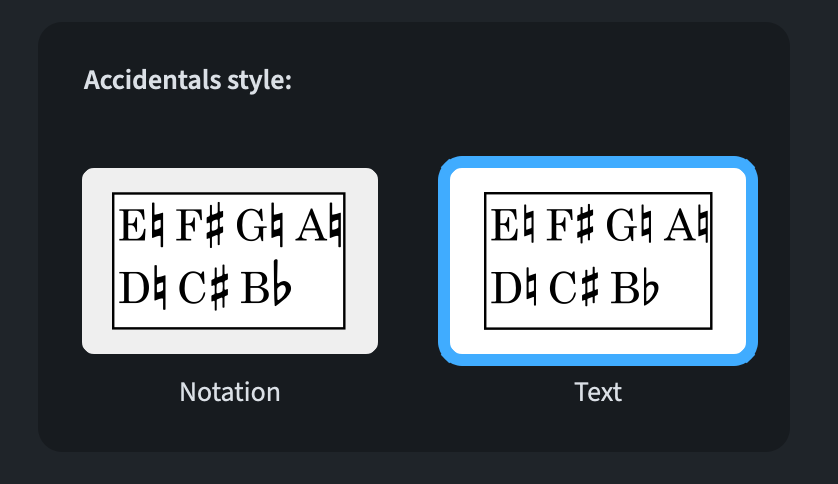
When harp pedal changes are set to show note names (in Layout Options ▶︎ Players) accidentals may have looked too big next to uppercase letters. Thanks to the new Accidentals style option in Engraving Options ▶︎ Harp Pedals it is now possible to select the Text option so that accidentals use the same appearance used for chord symbols.
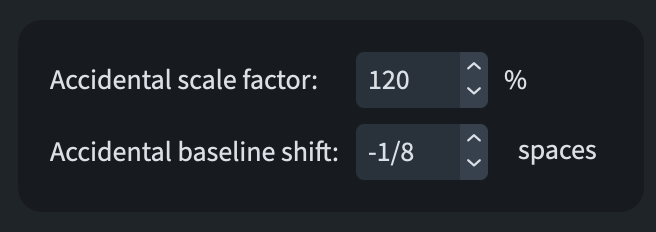
Just below that, in the Advanced Options section, there are new options to give you even more control over the accidental’s scale factor and the baseline shift.
Instrument changes (6.2.10)
Hiding warnings and labels
Who doesn’t like more hiding capabilities? I certainly do! In 6.2.10, Dorico added the possibility to hide an instrument change warning (or label) via a new Hidden property found in the Properties panel while working in Engrave mode. Signposts will now appear to show that this property has been activated or that the Custom text property has been used while containing only whitespace characters.
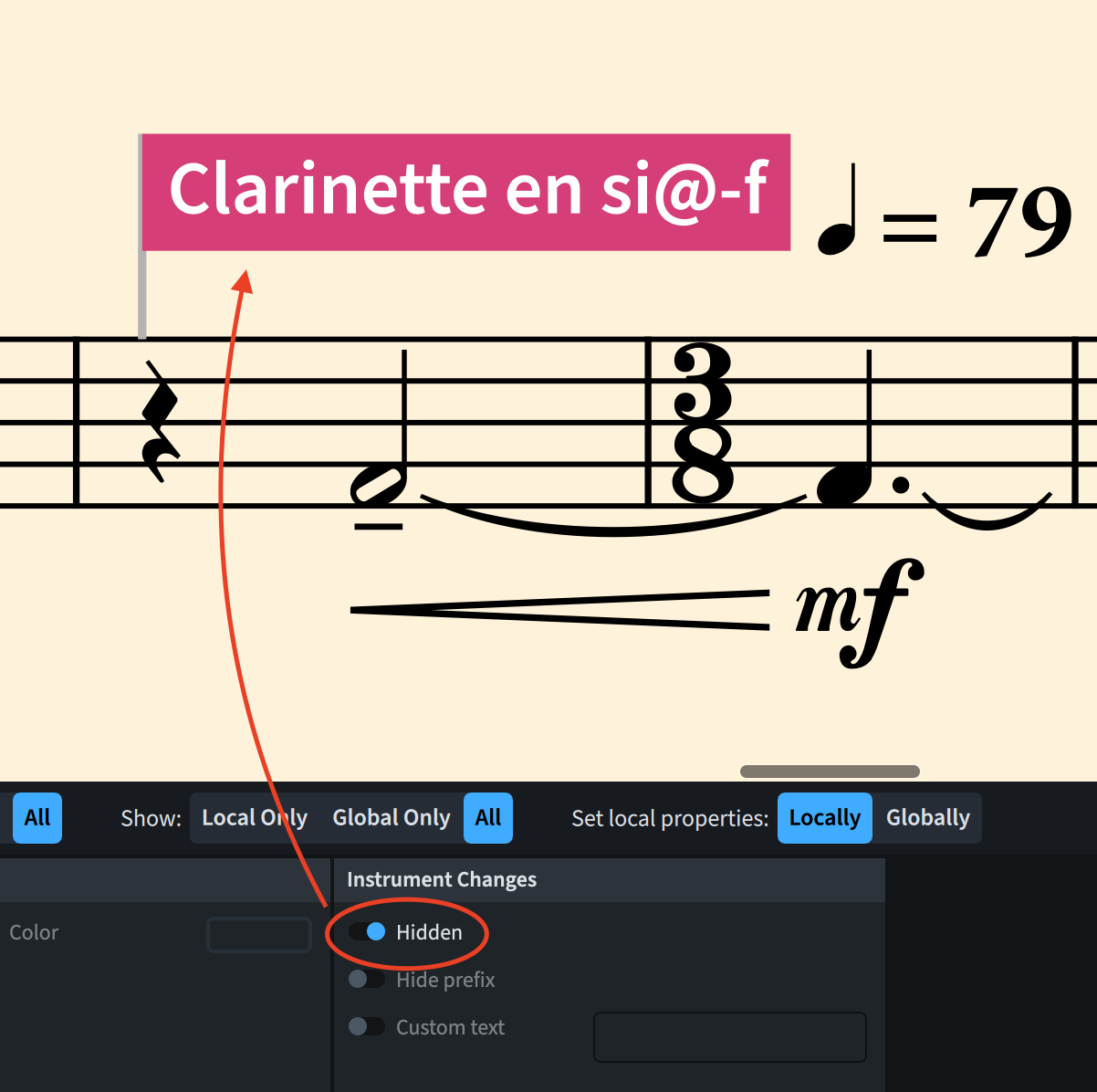
These signposts can be hidden or shown the usual way from View ▶︎ Signposts ▶︎ Instrument Changes.
Instrument filters (6.2.10)
Play only filtered instruments
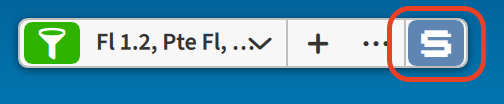
Instrument filters are a mighty tool in Dorico as they help you organise your work more efficiently. In the past, however, it was not possible to have only filtered instruments playback, as the entire score would sound anyway. In 6.2.10, pressing the Solo S button in the instrument filters bars before activating playback will make it so that only those filtered instruments sound.
Two caveats to be careful about:
- This can be activated/deactivated only before starting playback
- This can be done only in Galley view.
Localisation
Default key commands in German
German users rejoice, as new key commands have been added for you:
- Zoom In / Out: in addition to Y and X, you can now use Cmd/Ctrl-+ (plus) to zoom in and Cmd/Ctrl– (minus) to zoom out;
- The MIDI trigger region popover can now be invoked by pressing the = (equal) key;
- Hide invisibles is now invoked via Cmd/Ctrl-^.
Lyrics (6.2.20)
Select More
While in Engrave mode, using the Edit ▶︎ Select More command (Cmd/Ctrl-Shift-A) now selects only the lyric text, without including hyphens or extender lines. This change allows, among other things, to select a specific column of lyrics at the same rhythmic position in order to nudge them left or right without affecting other related items.
MusicXML export (6.2.30)
Hidden notes
Notes that are hidden in a specific layout (that is, with either or all of their hide notehead or stem properties are active) will correctly export their status. If a note requires a stem to define its duration, both properties should be set to hidden for the note to be exported as hidden. Otherwise, only the Hide notehead property needs to be activated. Now, how the receiving application will interpret this is anyone’s guess, but at least Dorico is keeping up with its part of the deal.
Pedal lines
Piano pedal lines (sustain and sostenuto) are now included in MusicXML files exported from Dorico. The MusicXML standard does not support ‘una corda’ pedal lines, so those are exported as text objects.
Tuplets
Tuplets whose brackets and digits are hidden by engraving options (be careful, not by selecting their related properties), for example when the number of consecutive repeated tuplets exceeds the threshold set in Engraving Options ▶︎ Tuplets, then their appearance will be correctly exported in the MusicXML file.
Note input and editing
Cutting regions (6.2.20)
Expanding on the functionality of cutting tied notes, it is now possible to cut both chord symbol regions and MIDI trigger regions at the caret position using the scissor tool (shortcut U).
Selecting with the mouse
Mouse selection in Dorico has often been reported as ‘problematic’: clicking on a note would select two or a whole chord; clicking near a stem would select the beam, etc. The reason for that was the selection area padding created a lower zoom levels (that is, further away from the page). This behaviour is now overridable in Preferences ▶︎ Note Input and Editing. In the Editing section there is now a new Selection priority when clicking option which allows you to choose between Prioritise noteheads (NEW!) and Prioritise beams and stems (the default).
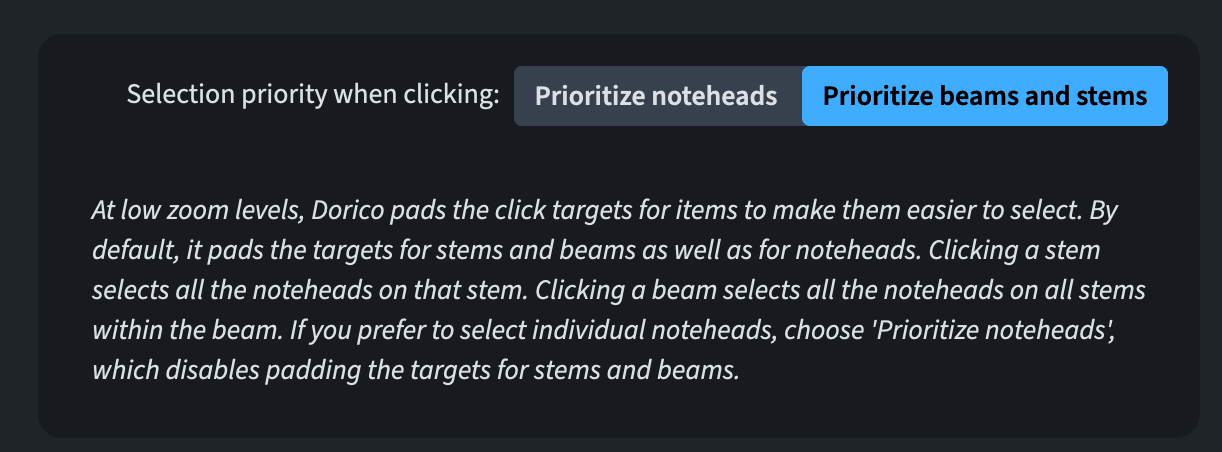
To see the effects of your new choice, close any open project, reopen them, and begin editing.
Notes
Rhythm dots
It is now possible to hide the rhythm dot of a specific note via the new Hide rhythm dot property found in the Notes and Rests group of the Properties panel (in Engrave mode only). This is useful for contemporary music projects where you need to hide noteheads and join them with a diagonal line to show a long, slow glissando, for example.
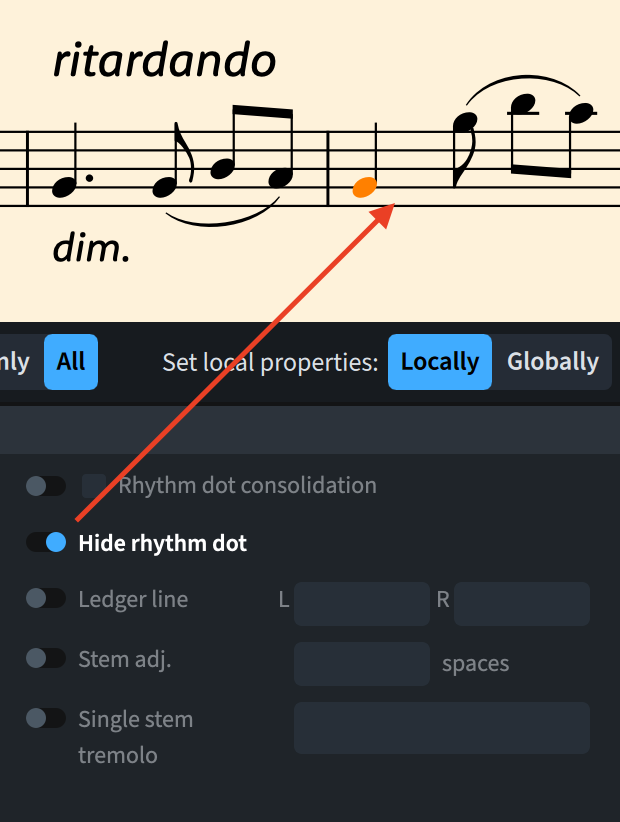
A small caveat is that, since in a chord a dot could be referring to more than a single note, this property has to be activated for each note individually.
Split stems
In order to precisely adjust the horizontal position of the notes of an altered unison rendered with a split stem, a new Split stem X offset property has been added to the Note Spacing group in the Properties panel (in Engrave mode only).
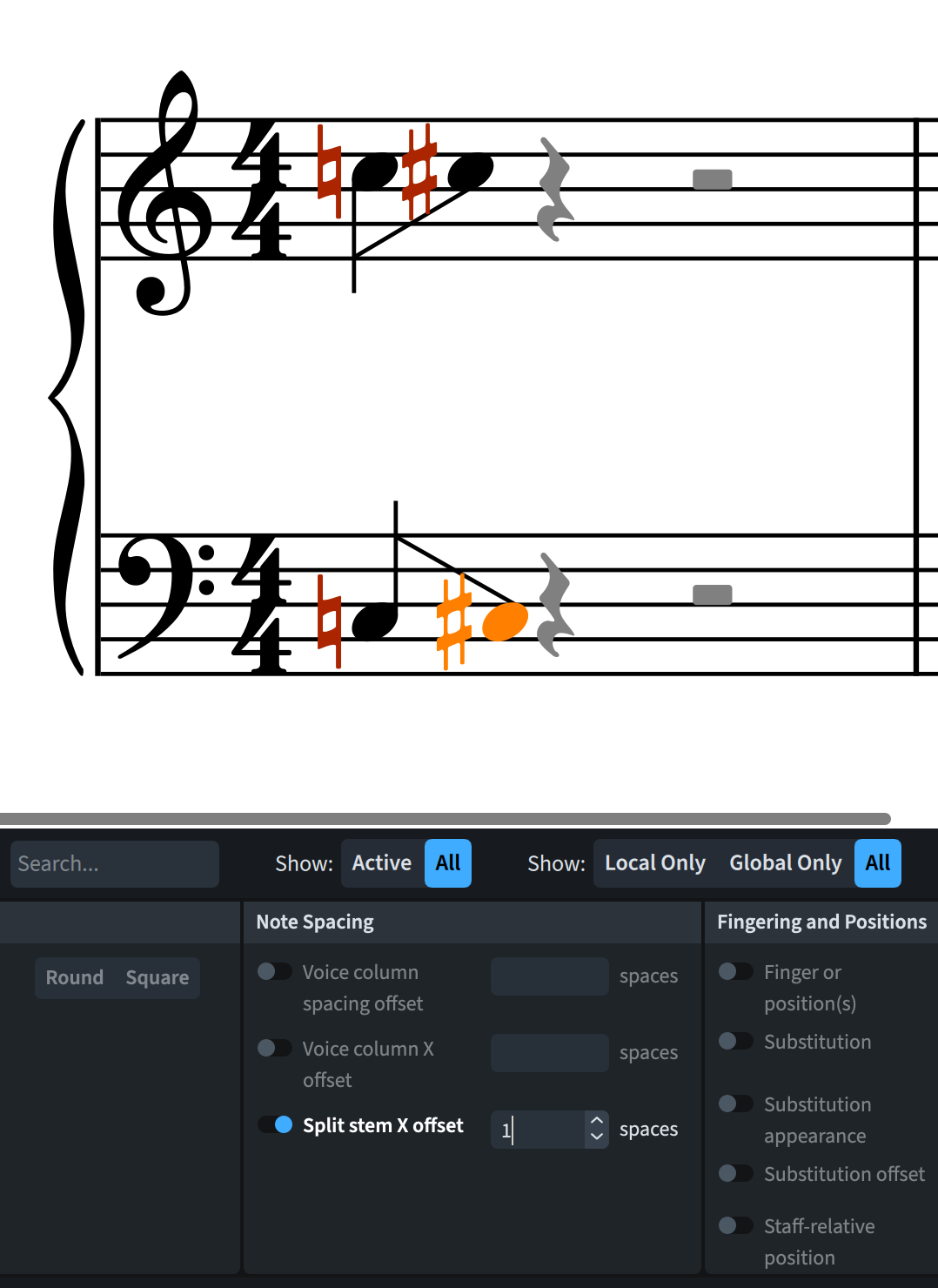
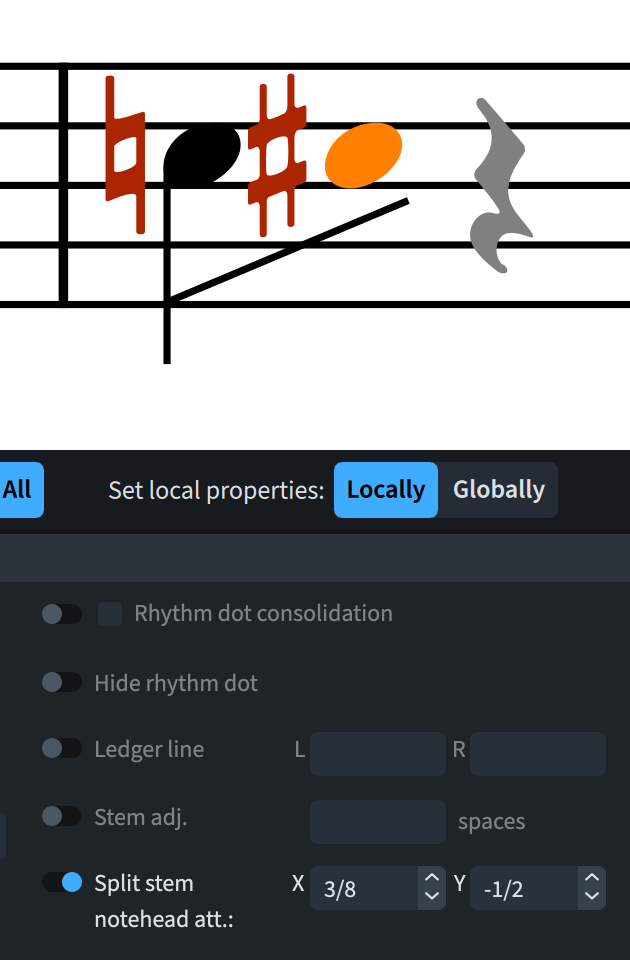
As a further improvement, version 6.2.10 added a new property available exclusively in Engrave mode called Split stem notehead att. which makes it possible to fine-tune the precise point where the angled stem joins the outermost notehead.
Pedal lines
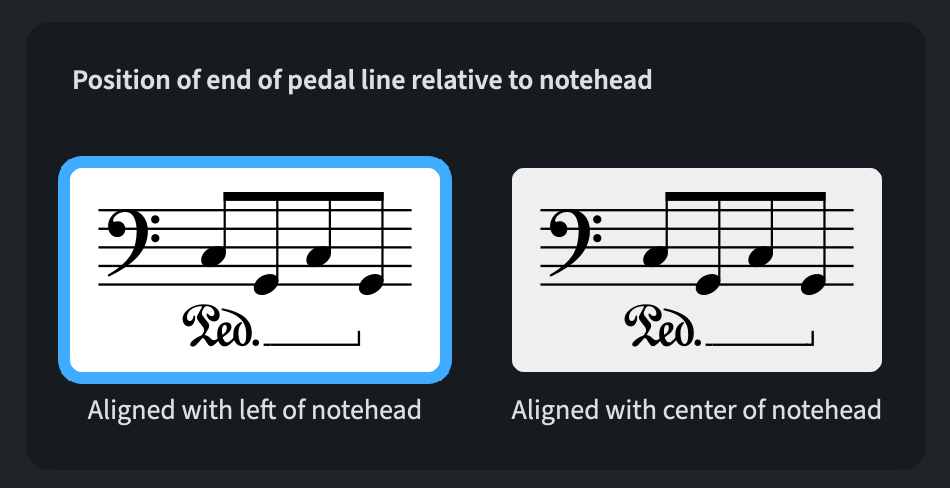
Position of pedal lift
When a pedal line ends at the position of a note or chord, two main standards exist: centre-aligning and left-aligning, both relative to the notehead. To allow for a global user choice, there is a new option available in Engraving Options ▶︎ Pedal Lines ▶︎ Horizontal Position called Position of end of pedal line relative to notehead:
Percussion
Percussion legends
It is now possible to create a percussion legend (the reminder of the names of the instruments playing the selected notes) automatically, thanks to the new command found in the Edit menu at Edit ▶︎ Notations ▶︎ Percussion ▶︎ Legend for Selected Instruments.
If instruments contained in the percussion kit at subsequently changed or removed, the existing percussion legend appears as a purple signpost. To resolve this, one needs to delete the signpost and recreate the percussion legend on a new selection of instruments. The Proofreading tool comes to the rescue, thanks to the new Percussion legends category.
Playback (+ (6.2.10))
Missing playback templates
If you open a project set up to use a playback template that is not available on your system, Dorico will now offer to apply the Auto playback template. Your choice will be between Use Auto Playback Template and Continue. If you select the latter, no change will be made to the playback configuration of your project.
At the same time, if you have set up Auto to be the default playback template in Preferences ▶︎ Play, opening a project that uses a different factory playback template will offer the user the choice to use the Auto playback template instead.
Auto playback template
If the Étude Grand Piano and Navia Harp Free instruments are installed, and the default playback template is set to Auto, Dorico will use these instruments instead of the free Étude Elements and Iconica Sketch ones. To override this decision, go to Play ▶︎ Playback Template, edit the Auto playback template, and move the Navia Harp Free instrument to the bottom of the priority list of content.
Bottom line
That’s it for today! Come back next time for the continuation of this series covering all novelties introduced in Dorico 6.2.x.
If you enjoyed this post, please leave a like, subscribe to get notified of upcoming articles, and don’t forget to do the same for Anthony’s video and for the Dorico YouTube channel.
Should you be interested in my other activities, please visit my website and consider joining my mailing list, where you will be able to follow my journey through music notation and independent music publishing.
Thank you for your time, and see you here in the next episode.

