
A review of the improvements brought by the Dorico 6.2.x cycle.
This is the fourth article in the series covering the improvements introduced by the 6.2.x updates to the Dorico 6 (find the first article here, the second one here, and the third one here). I will take care of updating existing articles in the broader Dorico 6 series to make sure nothing gets abandoned alongside our path.
PART 2 — Other improvements
Episode 3 — from Print mode to Voices
Print mode
In my contemporary music engraving journey, it has often occurred to me to be obliged to hide specific items by making them completely transparent (that is, by setting their opacity to 0%). When exporting files via the Mono option (that is, black and white) in Print mode, then, it frequently happened that a faint, very thin line would appear anyway. This has now been resolved so that the item will be excluded from the printing page if its alpha channel is either 0 or 1 (on a range of 0–255).
Proofreading
In a constant refining process, the Proofreading tool has received yet another update. Dorico now considers the playability of two-note tremolos for the following instruments: flute, oboe, clarinet, bassoon, saxophone, horn, trumpet, violin, viola, cello, and double bass.
If a horn player is expected to be using a mute and hand-stopping the instrument at the same time, Dorico now warns the user about it as it is not feasible.
Finally, with the introduction of cautionary items at repeats, Dorico checks that everything on this end looks as it should.
Rehearsal marks
Enclosures
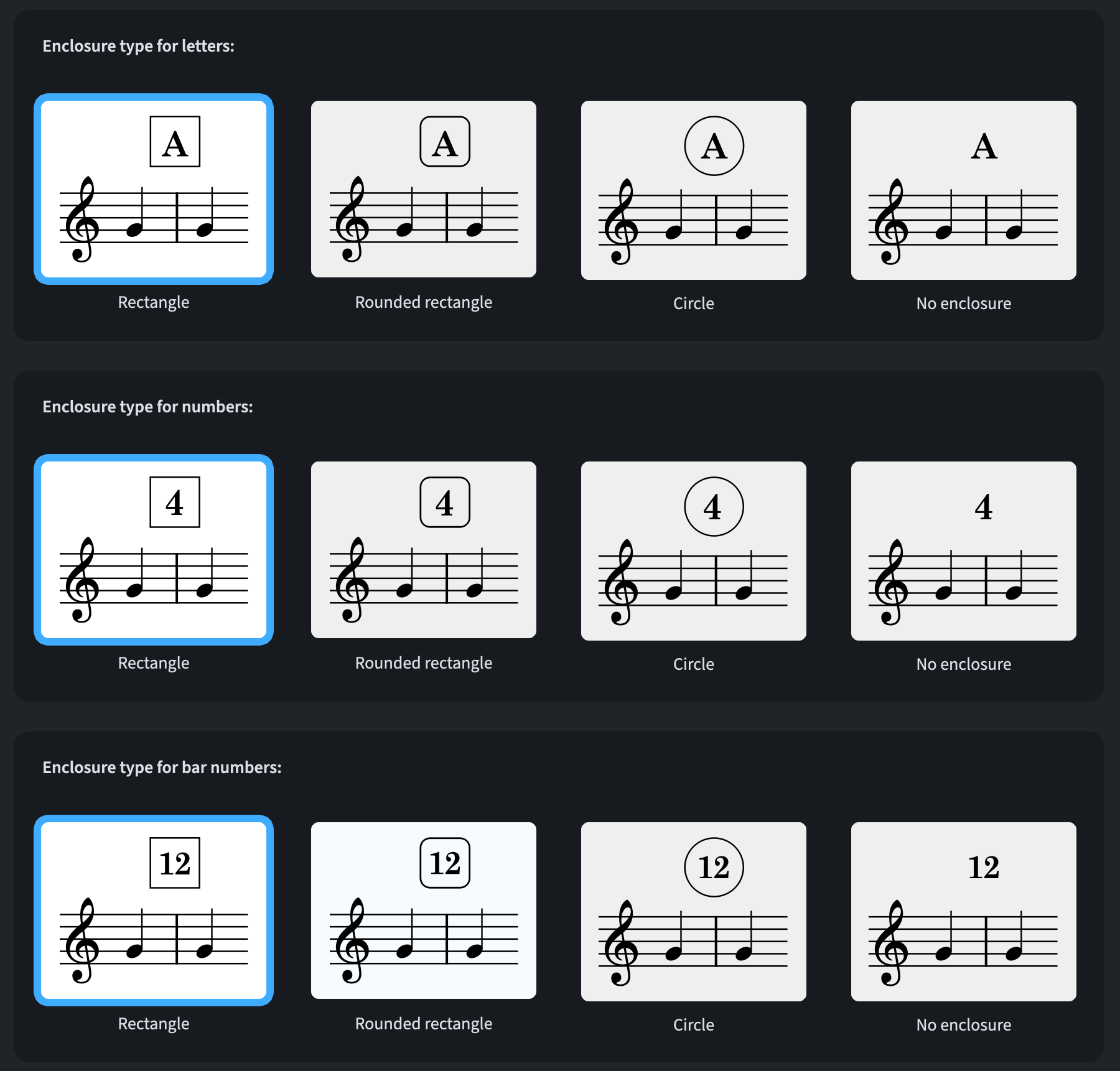
Thanks to a new addition found in Engraving Options ▶︎ Rehearsal Marks ▶︎ Enclosures, it is now possible to set the enclosure type for each type of rehearsal mark sequence (letters, numbers, or bar numbers) independently.
Handling multiple sequences
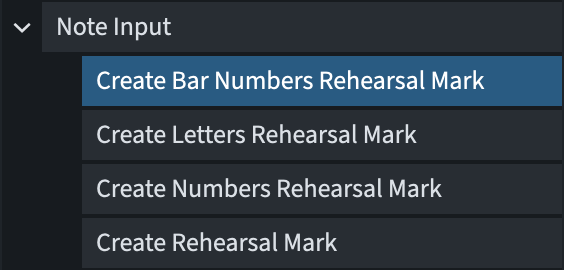
It may be sometimes necessary to use two simultaneous (and different) types of sequences, for example bar numbers and letters. To accelerate this process, new key commands have been added to the Note Input category of Preferences ▶︎ Key Commands.
Rhythmic slashes
Ledger lines
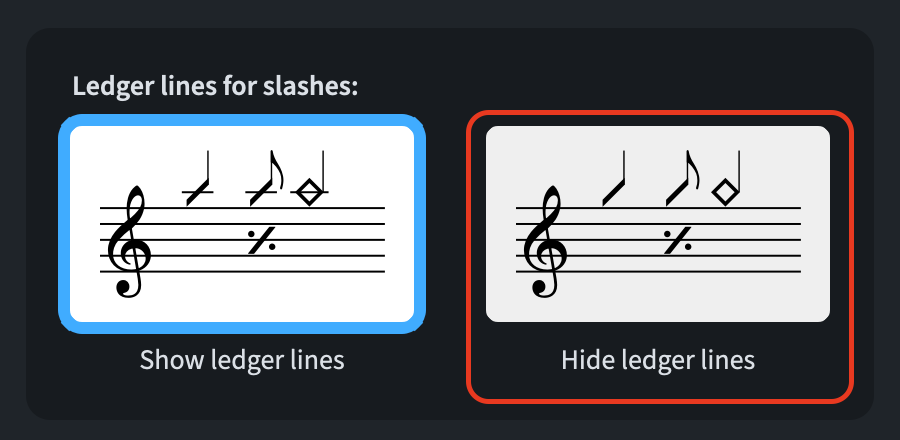
Up to version 6.2 excluded, slash regions would show ledger lines when positioned outside the staff. While for existing projects it will still be so, new projects will have a new dedicated option set to ‘hidden’ by default. To manage this, navigate to Engraving Options ▶︎ Notes ▶︎ Rhythmic Slashes and look for the new Ledger lines for slashes option:
Tablature
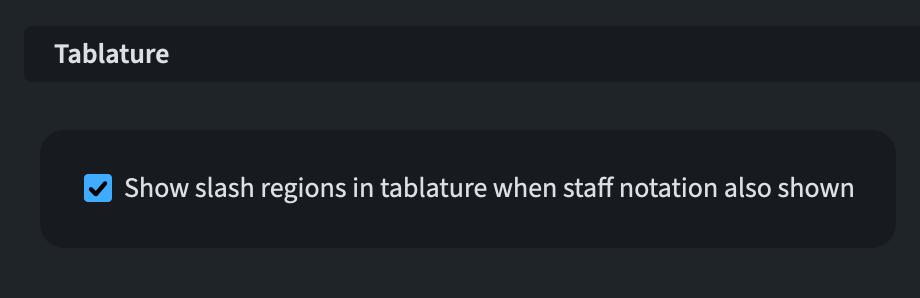
Whenever slashes are shown in the main notation staff, those used to be absent in the tablature staff. Rejoice because it is now possible to show them in the tablature staff as well. Head over to Engraving Options ▶︎ Notes ▶︎ Rhythmic Slashes and choose the new Show slash regions in tablature when staff notation also shown.
Tempo
When engaging the contextual menu (right-click) of an immediate tempo object and selecting the Edit Font label, the Paragraph Styles open at the Tempo (immediate) style (even though the Version History says it would open at the Tempo (metronome mark) style).
Approximate metronome marks (6.2.30)
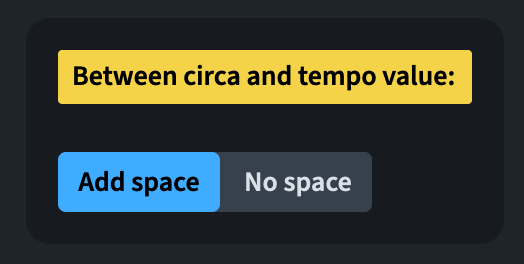
When using the c. abbreviation for the ‘circa’ approximate metronome marks, some publishers prefer to have a space after that, while others do not (for example: c.120 instead of c. 120). To accomodate this, a new Between circa and tempo value option is now available in Engraving Options ▶︎ Tempo ▶︎ Absolute Tempos:
Text
Edit Font (6.2.20)
Selecting an instrument change label or warning and then, from its context menu, tapping on the Edit Font label, now correctly opens the appropriate paragraph style in Library ▶︎ Paragraph Styles.
Inserting spaces
Three new commands have been added to Preferences ▶︎ Key Commands ▶︎ Text Editor, allowing you to define keyboard shortcuts to insert non-breaking spaces (U+00A0), thin spaces (U+2009), and hair spaces (U+200A).
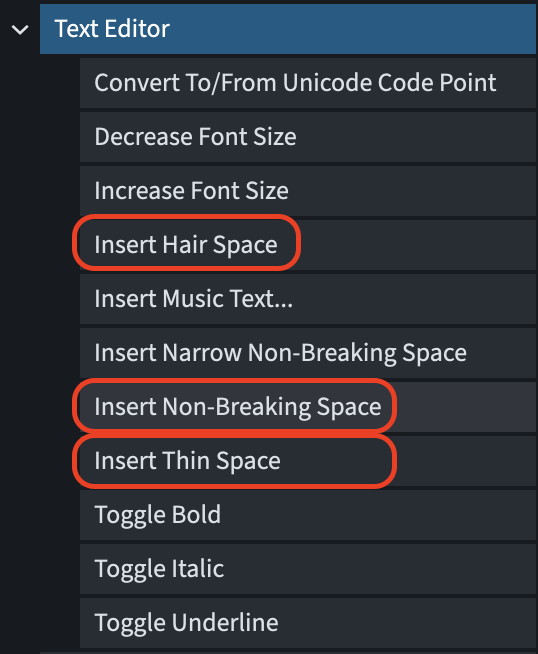
But what are these specific spaces? Here is a table to clarify their differences:
| Character | Unicode | Width | Can a line break occur there? | Typical use |
|---|---|---|---|---|
| Ordinary space |
U+0020
|
Normal word space | Yes | Normal separation between words |
| Non-breaking space (NBSP) |
U+00A0
|
Normally like a normal space | No |
Keep items together: 10 kg, Dr. Rossi, p. 7
|
| Thin space |
U+2009
|
Narrow, about 1/5 em | Usually yes in HTML/web text | Fine typographic spacing, e.g. around punctuation or in an ellipsis |
| Hair space |
U+200A
|
Very narrow, thinner than thin space | Usually yes in HTML/web text | Extremely fine adjustments, e.g. around mathematical or musical symbols |
| Narrow no-break space (NNBSP) |
U+202F
|
Narrow; often similar to a thin space | No | A thin-looking space that must not break, especially in web/HTML text |
Smartening quotes
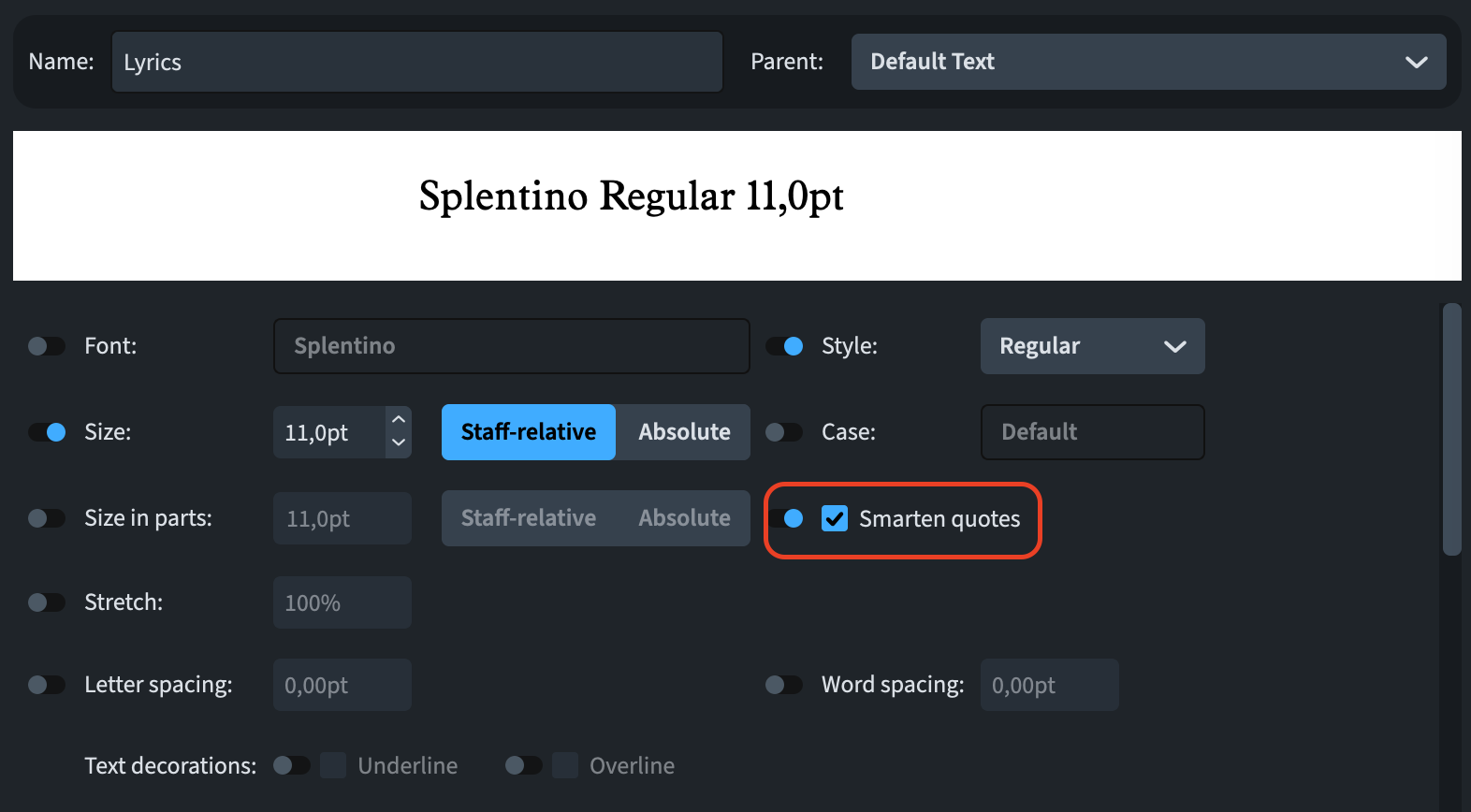
The recently introduced (6.1) Smarten quotesoption in Engraving Options ▶︎ Text has been removed (6.2.10) in favour of the dedicated—and equally named—option in each paragraph and character style. This is certainly a good move because it provides greater control over smart quotes in all areas of the program, such as text frames, staff labels, and lyrics.
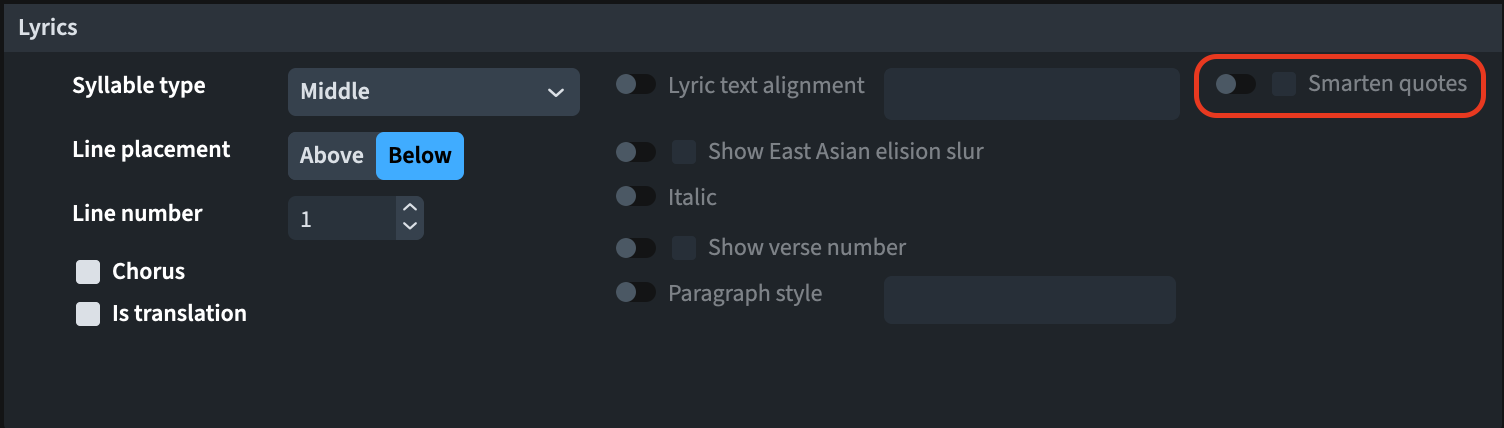
Individual lyrics now have a dedicated Smarten quotes property that allows the user to override the choice made in the respecting paragraph style in either direction.
Tuplets (6.2.10)
Bracket position
To accomodate the preference of certain publishers who favour showing an unbroken bracket with the tuplet digits or ratio text outside of it, a new option called Tuplet bracket position has been added to Engraving Options ▶︎ Tuplets ▶︎ Brackets:
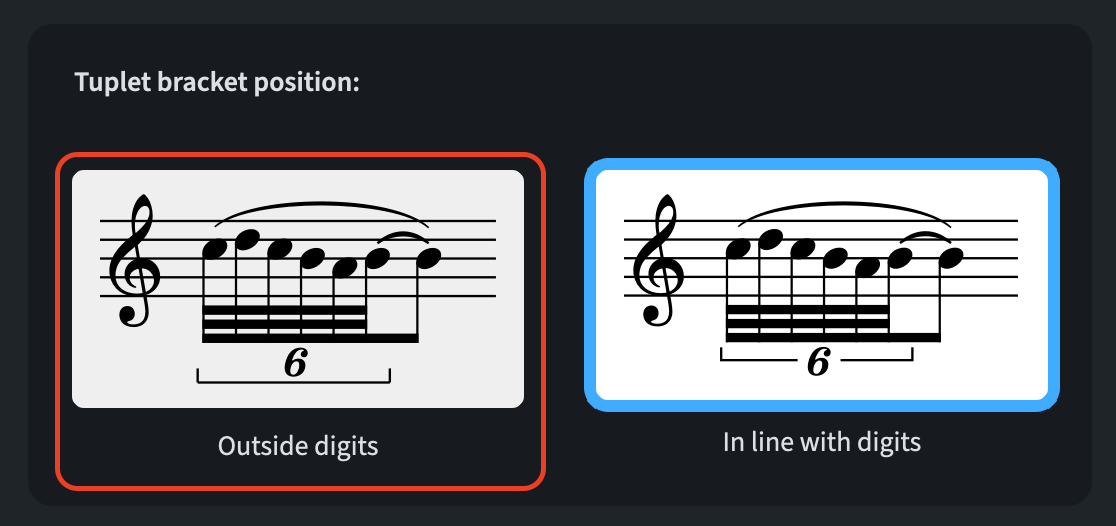
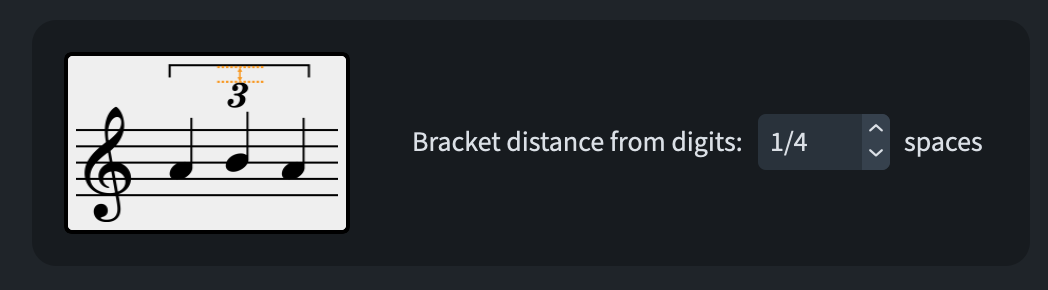
Choose Outside digits to achieve the newly proposed alternative (the default option for all projects remains In line with digits). To manage the distance between the outer edge the tuplet text and the bracket, adjust the Bracket distance from digits option:
User interface
Change Paragraph Style dialog
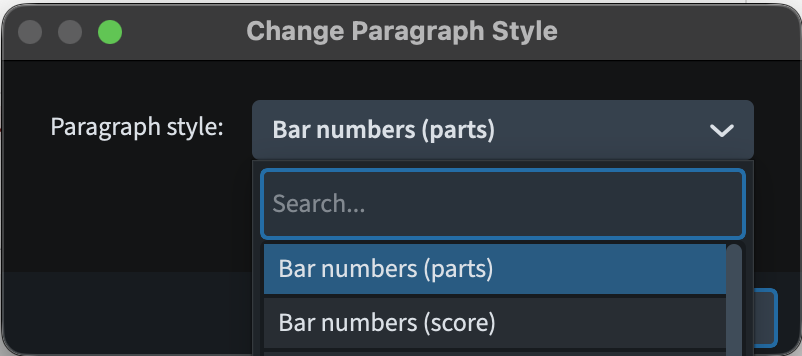
A new search bar has been added to the Change Paragraph Style dialogue, allowing quick filtering of the paragraph style that you are looking for. To access it, open the dropdown menu:
Default output level (6.2.30)
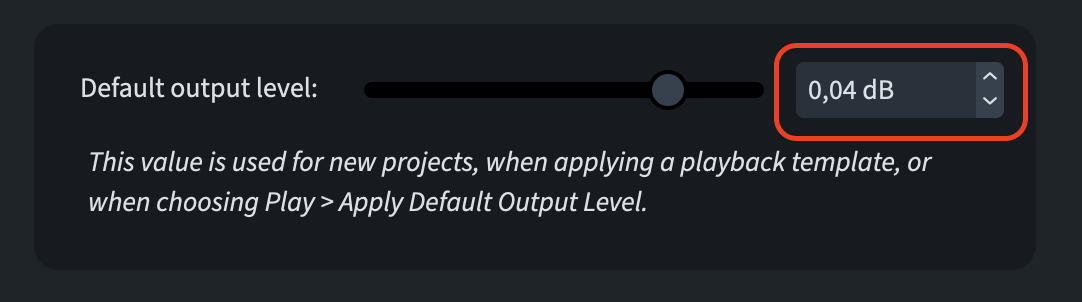
It is now possible to type the desired dB (decibel) value for the Default output level slider in Preferences ▶︎ Play thanks to the new editable spin box:
Instrument picker (6.2.20)
For instrument defined by the user or edited to become custom instruments, it could happen that no instrument name would be found for the language currently set for the application. In this specific case, Dorico now falls back to English if available or to the language the name was provided into.
Panning with the middle mouse button (6.2.10)
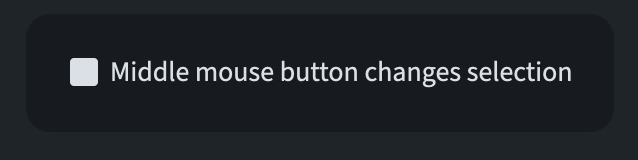
In Preferences ▶︎ Note Input and Editing ▶︎ Note Input there is now a new option called Middle mouse button changes selection, active by default. This allows the middle mouse button (usually the scrolling wheel) to act as a standard button. If you deactivate this option, instead, you could hold the middle button and pan around the score by simply moving the mouse.
Players showing player names
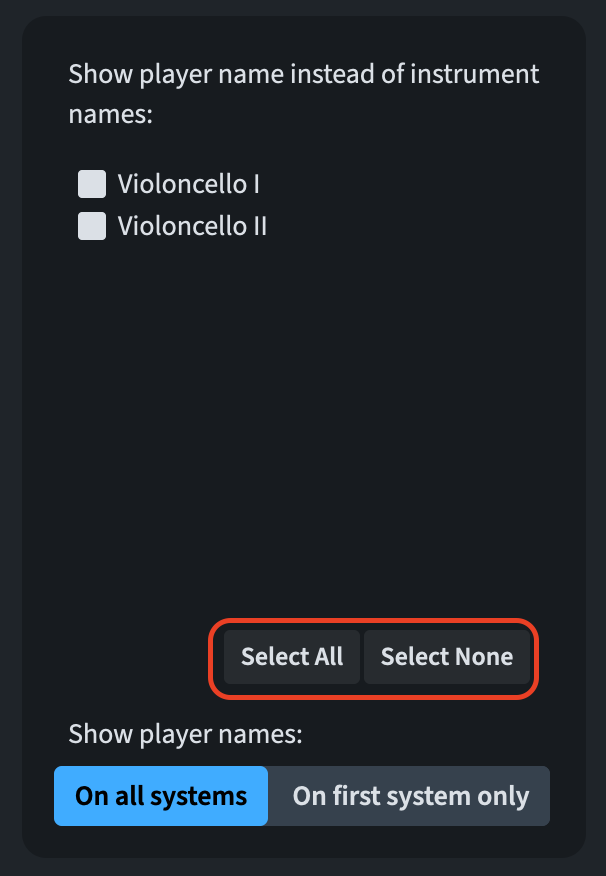
To accelerate the editing process in this area, new Select All and Select None buttons have been added to Layout Options ▶︎ Staves and Systems in the Show player name instead of instrument names list.
Save as Project Template dialogue (6.2.10)
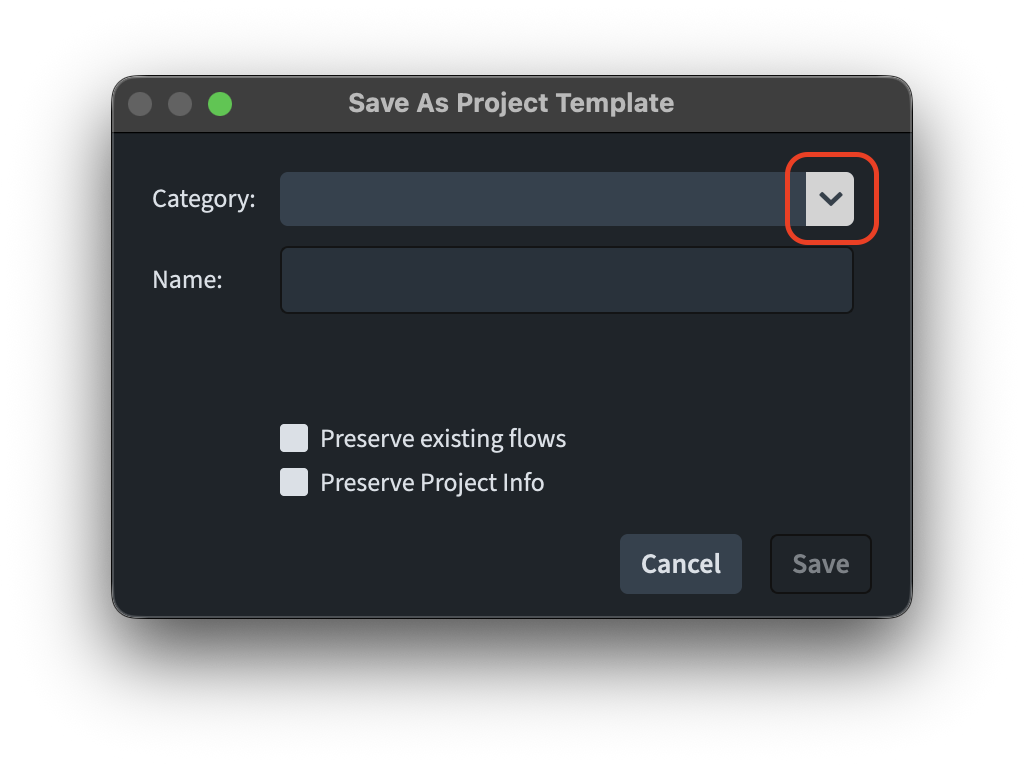
A most welcome improvement has come to the Save as Project Template dialogue: it is now possible to choose one of the existing categories from a drop-down menu, and even type in the search field to have Dorico autocomplete existing names for you. The same happens in the Name field, where existing names will be autocompleted to allow easier versioning and renaming.
Voices
Hidden stems
When the Hide stem property of a note is active, it was previously impossible to assign it to the same voice column index as other notes. This has now been improved.
Bottom line
That’s it for today and for this series of articles! Next time we will get back to more general tutorials about Dorico! If you have specific requests, please let me know down in the comments.
If you enjoyed this post, please leave a like, subscribe to get notified of upcoming articles, and don’t forget to do the same for Anthony’s video and for the Dorico YouTube channel.
Should you be interested in my other activities, please visit my website and consider joining my mailing list, where you will be able to follow my journey through music notation and independent music publishing.
Thank you for your time, and see you here in the next episode.

