
A review of the improvements brought by Dorico 6.1 and 6.1.10
This is the third article in the series covering the improvements introduced by the fourth and fifth patch updates to the Dorico 6 cycle, 6.1 and 6.1.10, announced and released respectively on September 26 and October 9, 2025 (find the first article here and the second article here). I will take care of updating existing articles in the broader Dorico 6 series to make sure nothing gets abandoned alongside our path.
PART 2 — Other improvements (Chapter 2)
Chord symbols
Editing alterations
With chord symbols containing stacked alterations—such as b9 #11—it used to be difficult to modify the appearance of each individual alteration within the stack, for instance changing which accidental glyph gets used. Now, when editing how a chord symbol appears—whether through double-clicking a chord symbol in Engrave mode, or via Library ▶ Chord Symbols—you can double-click directly on the alteration stack to edit it, and go even further by editing a single alteration inside that stack, letting you adjust its accidental and interval components separately.
For more information about the improvements brought to Chord symbols by Dorico 6, please check my two in-depth articles: 1 and 2.
Dynamics
Edit Font
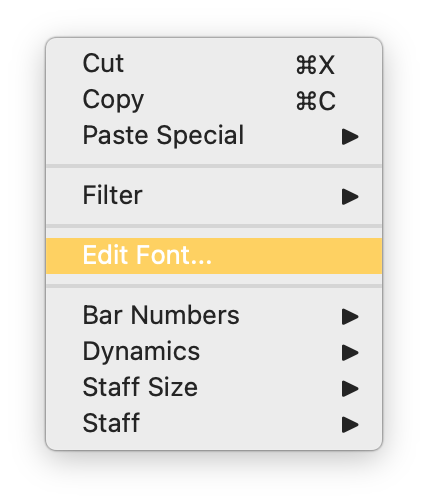
Right-clicking a dynamic and selecting Edit Font from the context menu now causes Dorico to edit either the Dynamic Text Font or the Dynamic Music Text Font style, depending on which is appropriate.
Engrave mode
Lock Layout
A new preference, Create system breaks when using Lock Layout, has been added to the Note Input and Editing page of Preferences, and is enabled by default.
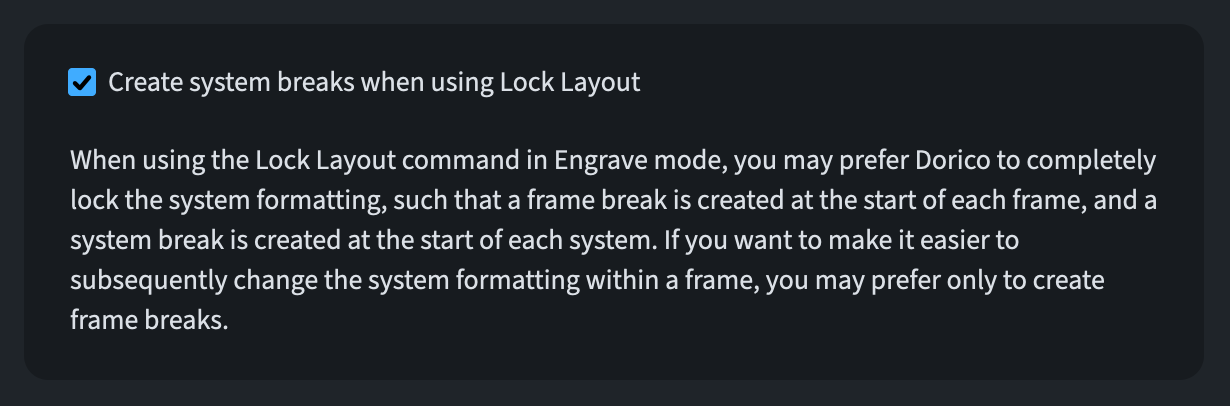
When you use the Lock Layout command in Engrave mode, you might want Dorico to fully lock down the system formatting—inserting a frame break at the beginning of every frame and a system break at the beginning of every system. Alternatively, if you’d rather make it simpler to adjust the system formatting within a frame later on, you may prefer that only frame breaks get created, in which case this preference should be turned off.
Guitar techniques
Vibrato bar scoops
A new Scoop appearance option has been added to the Vibrato Bar section of the Guitar Techniques page within Engraving Options, giving you two ways to render scoops: Straight, which produces a tick- or checkmark-like scoop positioned to the note’s left, and Curved, which generates a curved arrow placed above the note. Additional settings in this same section let you adjust the default placement for scoops drawn with the new curved style.
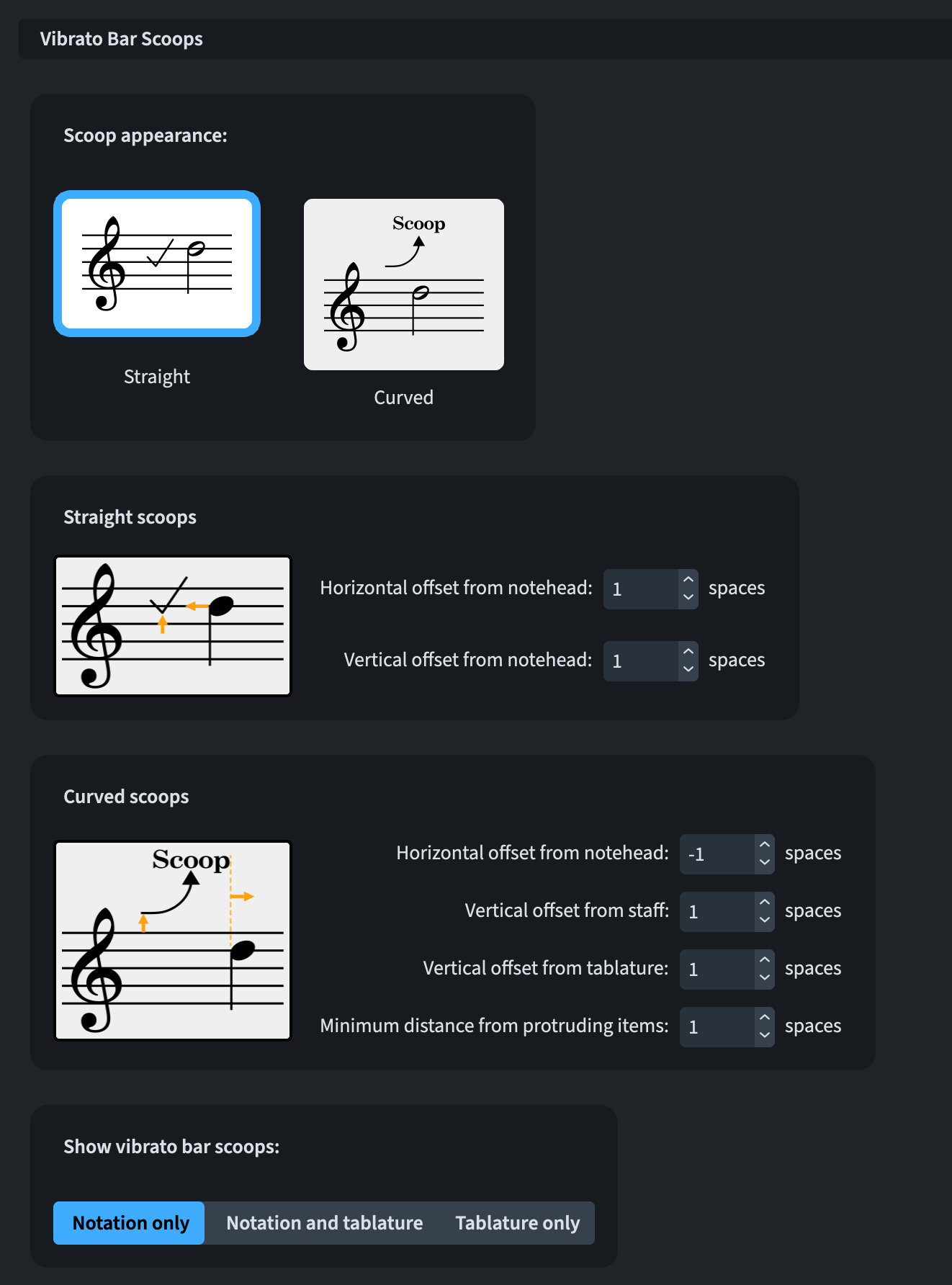
Moreover, new properties now make it possible to fine-tune the position of individual vibrato bar scoops, and these properties work for both straight and curved styles alike.

Harmonics
Artificial harmonics
The Node property found in the Harmonics group of the Properties panel is now tied to the Partial property. Only nodes that are valid for the selected partial will be displayed as options.
For stringed instruments, the Node property now influences how harmonics appear on notation staves as well; in the past, artificial harmonics on stringed instruments would always be notated as if the first node had been selected, irrespective of the Node property’s actual state. Furthermore, the playback of natural harmonics displayed with the White diamond notehead style now correctly reflects the node that has been chosen.
This is a gigantic improvement, especially for composers and arrangers who are not string players or have not a very deep familiarity with how artificial harmonics work.
Lines
Tapered curve line bodies
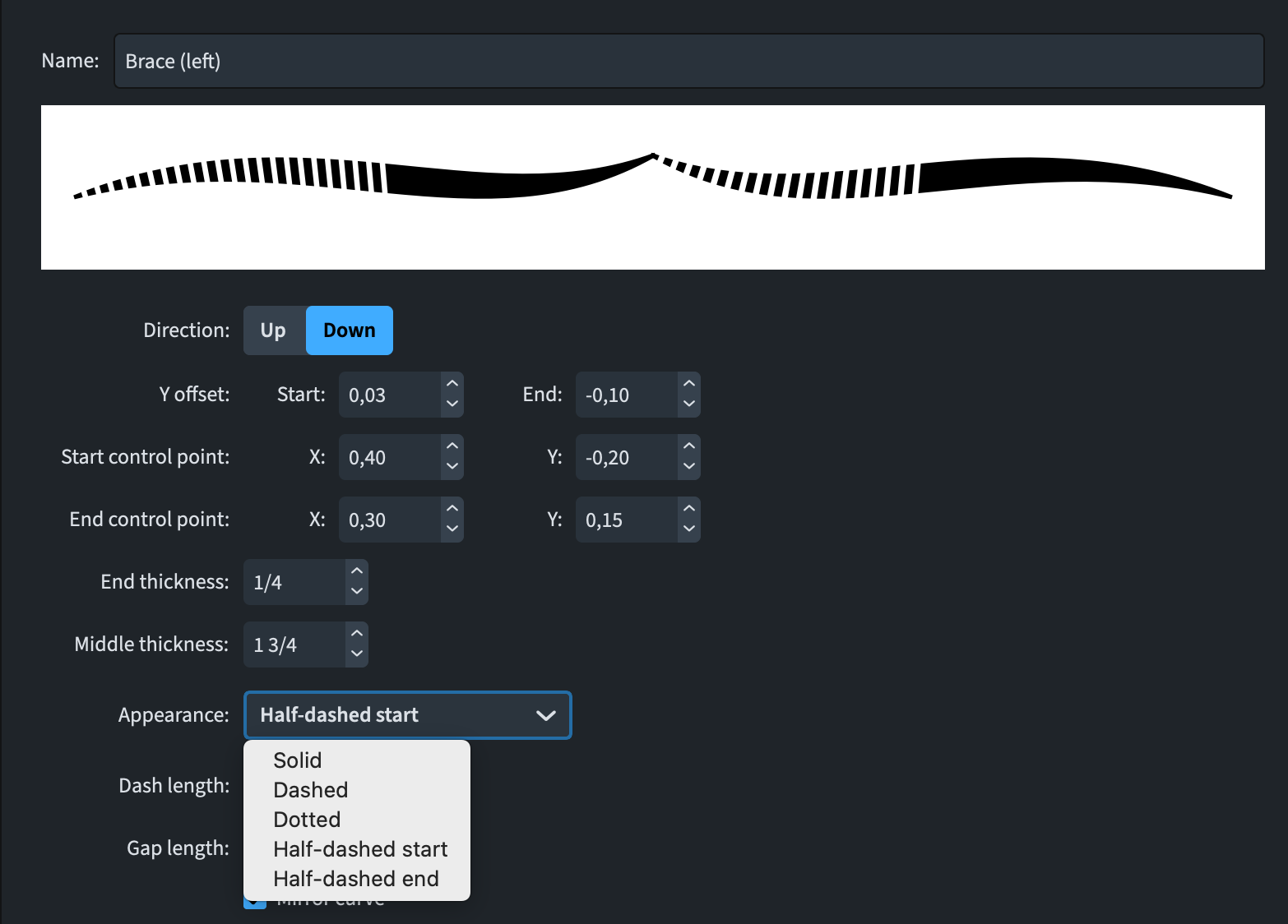
You can now define dashed, half-dashed, and dotted variants of tapered curve line bodies via Library ▶ Line Bodies.
Lyrics
Disabling smart quotes (6.1.10)
A new Smarten quotes property has been introduced for lyrics, letting you turn off the automatic smartening of quotation marks for a specific selected lyric.
Music fonts
Bravura
Bravura has been updated to version 1.455 and brings with it new characters for editorial tuplet brackets, as well as additional symbols representing curved guitar vibrato bar scoops.
Using Sonata Std with Dorico
Sonata Std is the OpenType incarnation of Adobe’s venerable Sonata typeface. It stands as the sole known font to represent its glyphs via the code points belonging to the Unicode Musical Symbols block, U+1D100–U+1D1FF. This particular block occupies a position within Unicode’s Supplementary Multilingual Plane, and glyphs residing there have never been satisfactorily handled by Dorico until now. It is now feasible to designate these code points through Dorico’s music symbols editor and have them render correctly within the application.
MusicXML export
Graphical information
Dorico’s MusicXML export now incorporates a broader range of graphical and positional data. The export now includes the following details:
- Stem lengths (via the default-y attribute on the note element)
- Horizontal note placement (default-x on note)
- Measure width (width on measure)
- Slur and tie placement (default-x and default-y for endpoint positioning, bezier-x and bezier-y for control point positioning on slur and tied)
- Brackets and braces (part-group in part-list, combined with group-barline for barline joins)
- Tempo and metronome mark data now incorporates font information along with default-y positioning for words and metronome directions
- Fermatas (default-x, default-y, relative-x and relative-y)
- Staff-based text elements (default-x, default-y, relative-x and relative-y)
- Standard line widths, note scaling parameters and similar attributes (appearance element)
- Accurate horizontal alignment of grace notes (default-x on note with grace)
- Vertical alignment of rests and bar rests (display-step and display-octave on rest)
- Exact horizontal and vertical placement of ornaments and trills (default-x, default-y, relative-x and relative-y)
Buzz rolls
Buzz roll (z on stem) tremolos are now handled correctly when exported to MusicXML.
Tempo
During MusicXML export of tempo and metronome marks, the engraving option governing the relative sequence of tempo versus metronome mark is now honoured.
Margins
When exporting the system-margins element to MusicXML, Dorico considers any system indent that has been applied to the right portion of the system, and equally manages an unjustified final system within the flow with precision.
Pedal lines
Alignment across the system
A new setting, Align pedal lines across width of system, has been introduced in the Vertical Position section of the Pedal Lines page within Engraving Options. This option is switched on by default in newly-created projects but remains off in pre-existing projects.

When this option is active, Dorico positions all pedal lines within a system at an identical vertical level running across the entire width of that system.
This new behaviour may result in visual changes to existing projects where different types of pedal lines (such as sustain and sostenuto, or una corda pedals) happen to overlap. In earlier versions, Dorico would place a pedal line that both opened and closed within the span of another pedal line inside that line, positioned nearer to the staff. Now instead, Dorico organises pedal lines into stacked rows, with a pedal line that begins later than an already-active pedal line positioned outside it, further removed from the staff. Where pedal lines commence at the same point, the sustain pedal sits closest to the staff, while sostenuto or una corda pedal lines are pushed further away.
Should you turn off the option to align pedal lines across the system width, Dorico will still work to disentangle any overlapping pedal line clusters within the system and position them together to prevent collisions or overprinting. This behaviour consistently applies in galley view regardless of whether the pedal line alignment option is turned on.
Alignment of pedal lifts
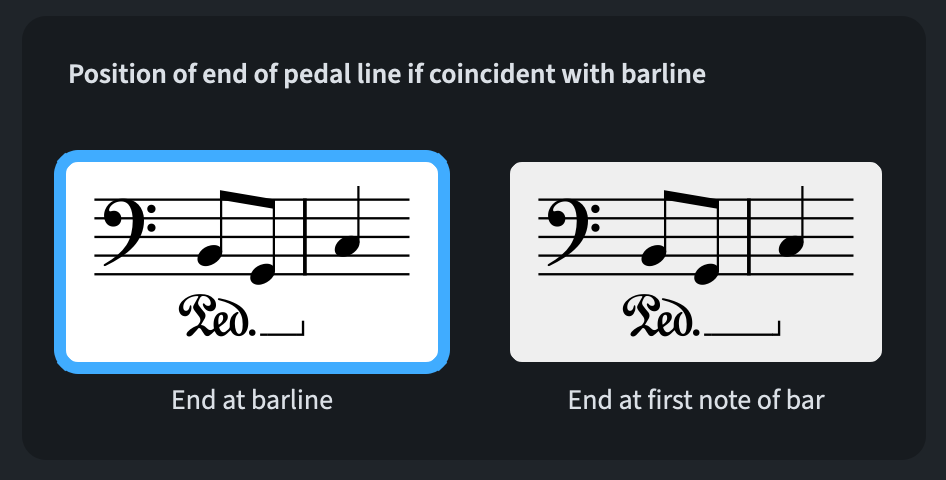
The Horizontal Position section of the Pedal Lines page in Engraving Options now contains a new option called Position of end of pedal line if coincident with barline. This allows you to determine how a pedal line should be handled when it terminates exactly at a barline—either having the lift terminate right at the barline itself, or having it sync with the left edge of the note or chord that comes after the barline.
Legacy vertical positioning option (6.1.10)
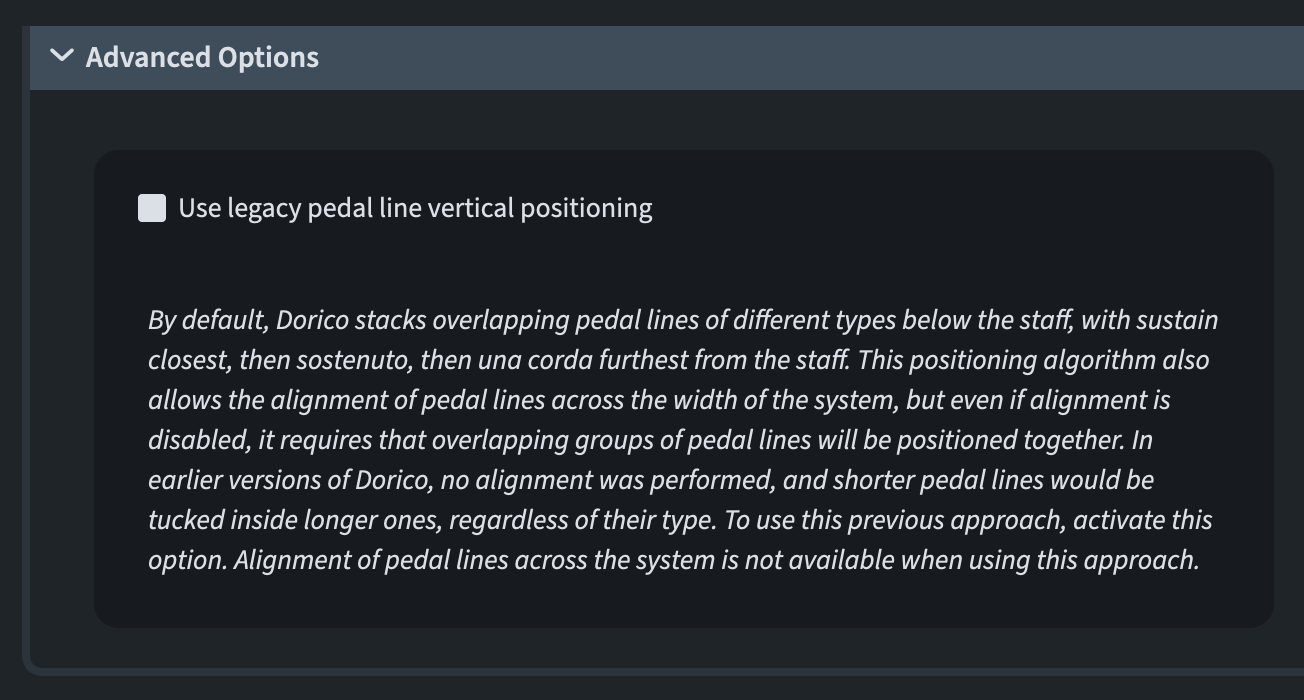
Responding to feedback received after Dorico 6.1’s release, a new option called Use legacy pedal line vertical positioning has been added to the newly created Advanced Options section, found within the Vertical Position section of the Pedal Lines page in Engraving Options. This option gets automatically switched on for any project created in an older Dorico version, the first time it’s opened in Dorico 6.1.10—preserving how it previously looked.
While this option is active, you won’t be able to enable Align pedal lines across width of system, nor will you be able to set a value for Minimum distance from protruding items.
Change of default setting (6.1.10)
In newly created projects, the Align pedal lines across width of system option—located in the Vertical Position section of the Pedal Lines page of Engraving Options—is now switched off by default. Should you want pedal lines aligned consistently across the system’s width, you’ll need to turn this option on yourself.
Percussion
Grid group names
Grid group names are now compatible with rich text formatting, similar to other staff labels. This allows percussion kit group names presented using the grid format to utilise this feature.
Bottom Line
That’s it for today! Come back next time for the conclusion of this glorious series covering all novelties introduced in Dorico 6.1.
If you enjoyed this post, please leave a like, subscribe to get notified of upcoming articles, and don’t forget to do the same for Anthony’s video and for the Dorico YouTube channel.
Should you be interested in my other activities, please visit my website and consider joining my mailing list, where you will be able to follow my journey through music notation and independent music publishing.
Thank you for your time, and see you here in the next episode.


One thought on “Any other wish?”