
A review of the improvements brought by Dorico 6.1 and 6.1.10
This is the fourth and last article in the series covering the improvements introduced by the fourth and fifth patch updates to the Dorico 6 cycle, 6.1 and 6.1.10, announced and released respectively on September 26 and October 9, 2025 (find the previous articles here: first article, second article, third article). I will take care of updating existing articles in the broader Dorico 6 series to make sure nothing gets abandoned alongside our path.
PART 2 — Other improvements (Chapter 3)
Platform support
iPadOS 26
The newest release of iPadOS introduces substantial modifications to how application windows function. It now mandates a double-tap on the project name displayed in the toolbar of Dorico for iPad to launch the Project Info dialog. This change makes it possible for you to tap and hold that section of the toolbar to reposition the project window across your iPad’s display.
Playback
Per-switch delay
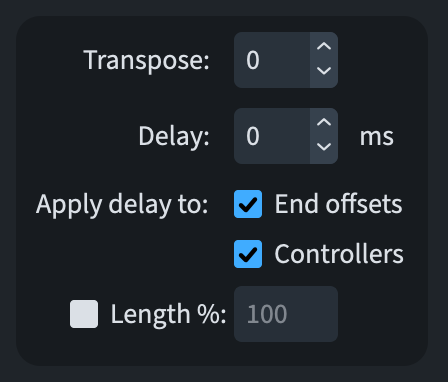
By default, whatever Delay value has been set for a base switch in an expression map gets applied across the board—to the note’s onset (start), its offset (end), and any MIDI controllers needed to activate the switch. That said, some users would rather keep note offsets and MIDI controllers unaffected by this delay. To support this preference, Library ▶ Expression Maps now lets you decide independently whether the delay should be applied to End offsets and to Controllers.
Tremolo playback on percussion
A new setting, Apply accent to all notes for unpitched percussion measured tremolo, has been introduced on the Dynamics page of Playback Options. Once enabled, Dorico will extend an accent written on a single-note tremolo to every note within that tremolo—but only for unpitched percussion instruments. On pitched instruments, the accent continues to apply solely to the tremolo’s first note.

Project files
Revert
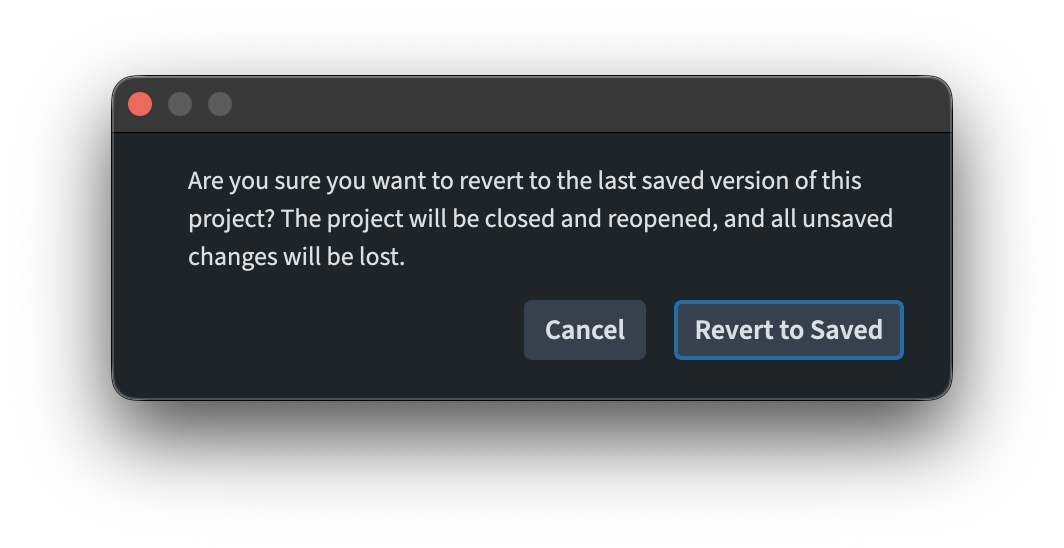
A new File ▶ Revert command has been added. When you use it, Dorico will warn you that unsaved changes will be lost. If you proceed, it will close the project without saving it and then reopen it.
Selections
Select More
When using Edit ▶ Select More from a single selected system or frame break, Dorico will now only select breaks of the same type—a massive gift to productivity!
Tablature
Enclosures around tab numbers
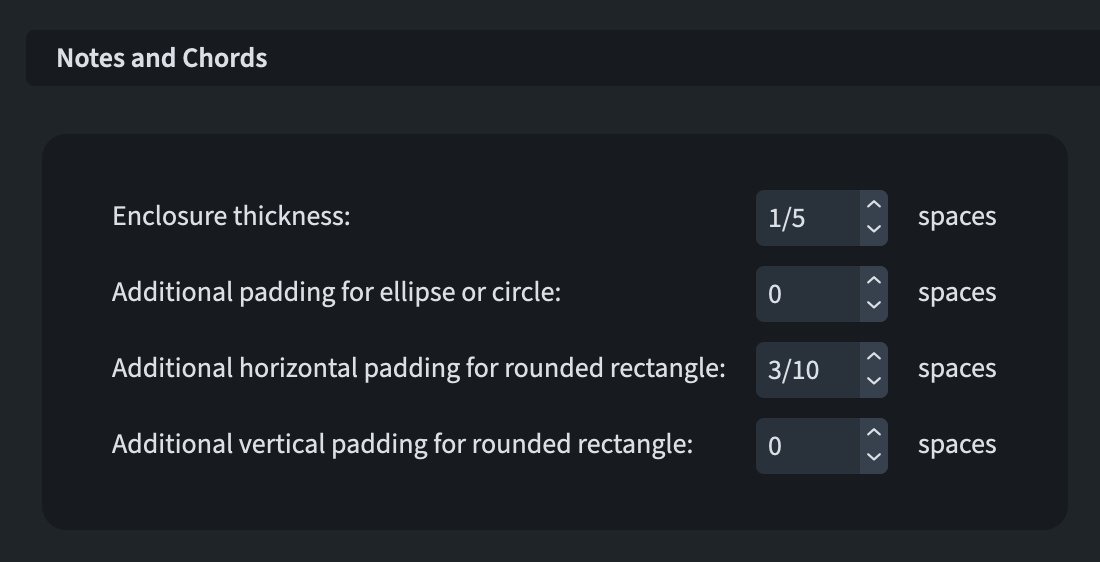
When Enclosures for notes and chords longer than a quarter note (crotchet) is configured as either Ellipse or Rounded rectangle within the Enclosures section of the Tablature page in Engraving Options, you can now control the spacing between the tablature numbers and their surrounding enclosure—with separate horizontal and vertical controls available for rounded rectangles, and diameter control provided for ellipses.
Stems in tablature
A new Inner stem adj property has been added, allowing you to change the vertical position of the stem’s end closest to the tablature number.
Tied notes
Two new choices have been incorporated into the Tied notes in tablature setting, located in the Ties section of the Tablature page within Engraving Options. These additions allow Dorico to follow the tied-note conventions made popular by the UK’s Total Guitar, Guitar Techniques, and Guitarist magazines—conventions that have since been adopted by the Trinity/Rock School electric guitar syllabus as well.
According to this convention, tablature displays only the tie chain’s starting note, omitting the tie itself along with any indication of the note or notes it’s tied to. The one exception arises when something—a bend, slide, or similar technique—is attached to the tied-to note; in that case, the attachment is shown enclosed in square brackets.
To follow this convention, select Hide fret numbers, tied notes with attachments in square brackets, per string. Alternatively, if you’d rather have a single square bracket spanning fret numbers across adjacent strings, choose Hide fret numbers, tied notes with attachments in square brackets, grouped.
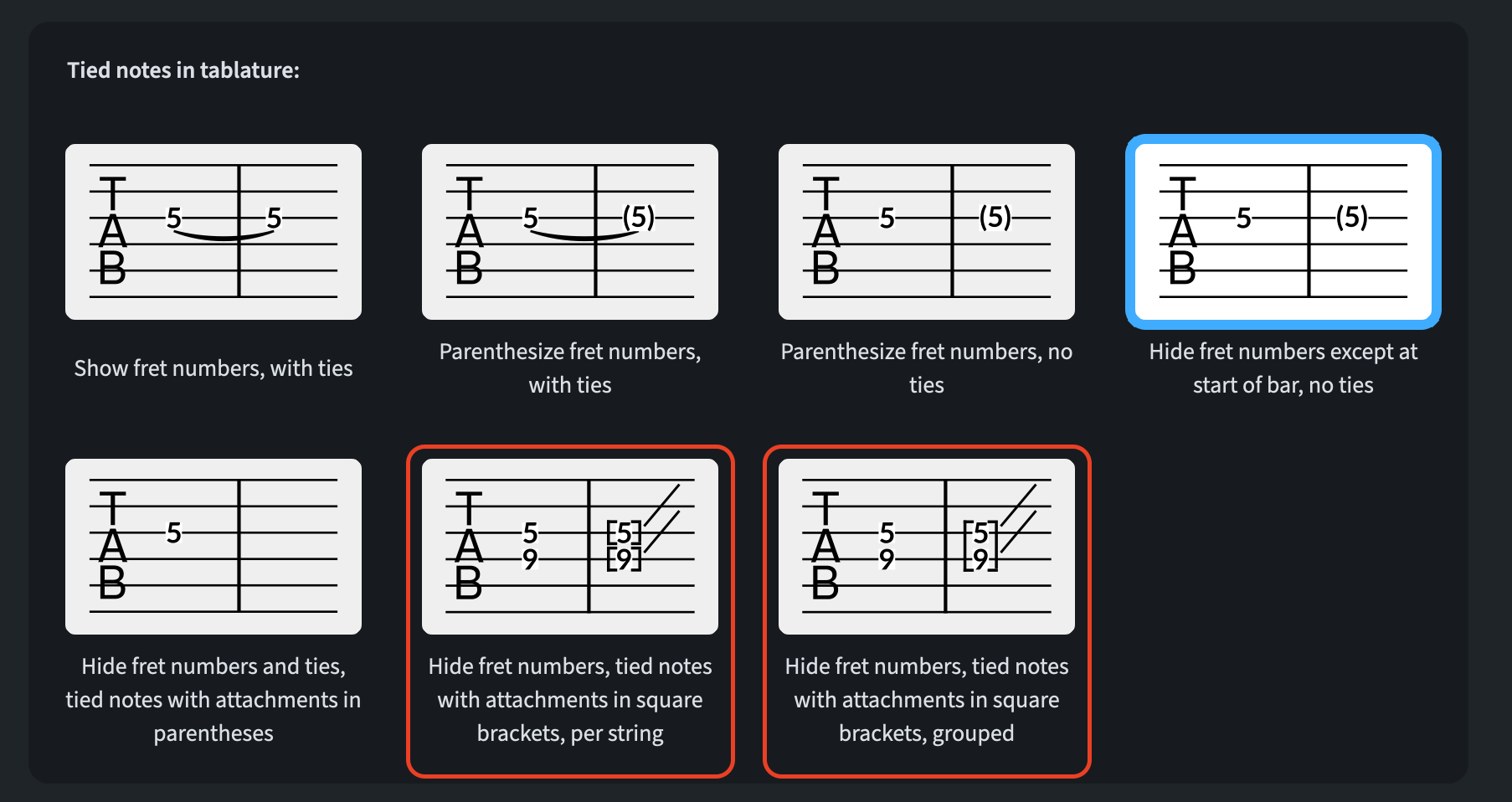
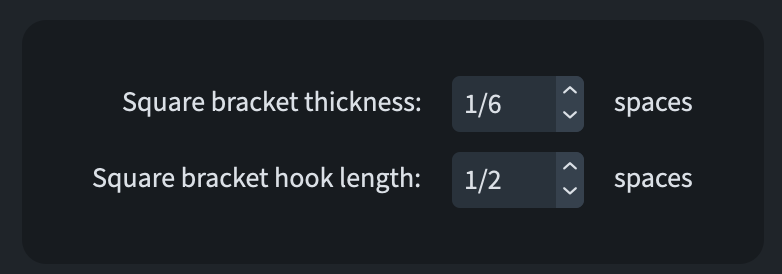
Two additional new settings, Square bracket thickness and Square bracket hook length, give you control over how the square brackets themselves are rendered.
Text
Smart quotes
A new Smarten quotation marks option has been added to the Text page of Engraving Options. Once enabled, Dorico will automatically transform straight quotes into proper smart quotes wherever text appears throughout the project; however, even with the option turned off, smart quotes will still be applied within text frames, lyrics, and staff labels, since these have always relied on smart quotes by default.
This has been changed in version 6.2.10, already available at the moment of writing this article, as follows:
Smartening quotes. The decision for whether quotes in text should be smartened is now determined by a dedicated Smarten quotes option in each paragraph and character style. As such, the old Smarten quotes option on the Text page of Engraving Options has been removed. This provides much greater control over smart quotes in text frames, text items in the music, staff labels, lyrics, and more. The Smarten quotes property for an individual lyric now allows you to override the decision in both directions, i.e. to specify that an individual lyric should use smart quotes when they are disabled in the relevant paragraph style, and vice versa.
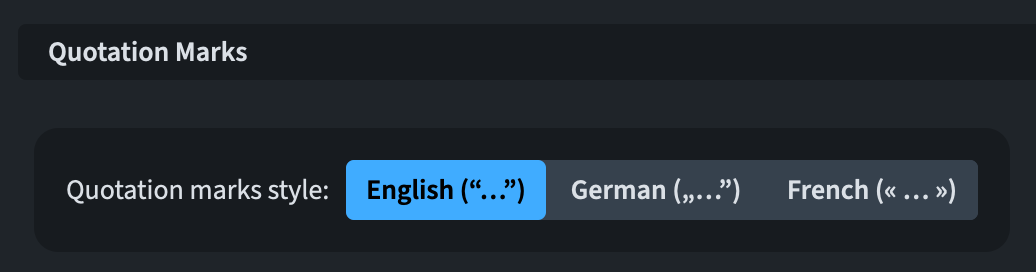
Additionally, a new Quotation marks style setting has been introduced, offering a choice among three different conventions for rendering quotation marks—reflecting those most typically used in English, French, and German.
Character styles in Project Info
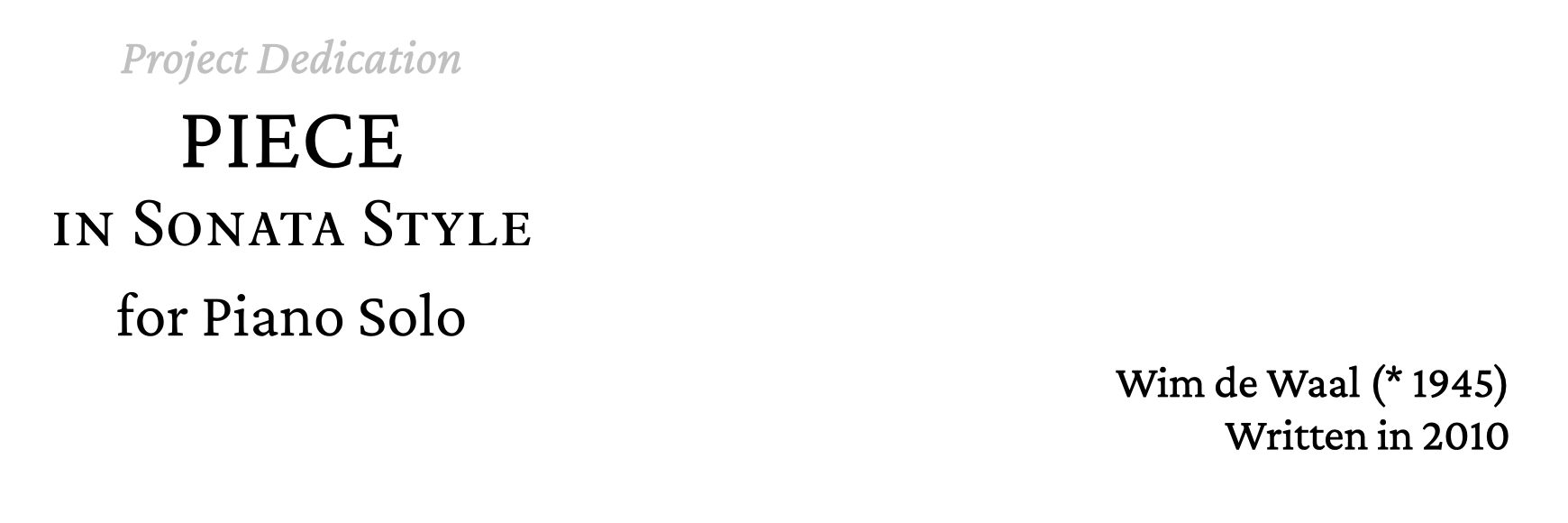
It’s now possible to apply character style changes within the fields found in File ▶ Project Info, giving you greater flexibility when formatting portions of text that appear in text frames through tokens linked to these fields. The text meant to receive the character style is enclosed within a special pair of tokens, \{@style:<stylename>@} and \{@/style@}. Simply substitute stylename with the name of your style (case-sensitive).
Crimson Pro font family
The Crimson font family—a modern recreation of old-style serif typefaces like Garamond—has shipped with Dorico since version 1.0. That said, Crimson has now given way to a redesigned successor, Crimson Pro, which Dorico now bundles in place of the original Crimson family. Crimson Pro brings eight different weights, broader support for languages and scripts, and enhanced legibility along with refined optical detailing.
Ties
Ties over system breaks
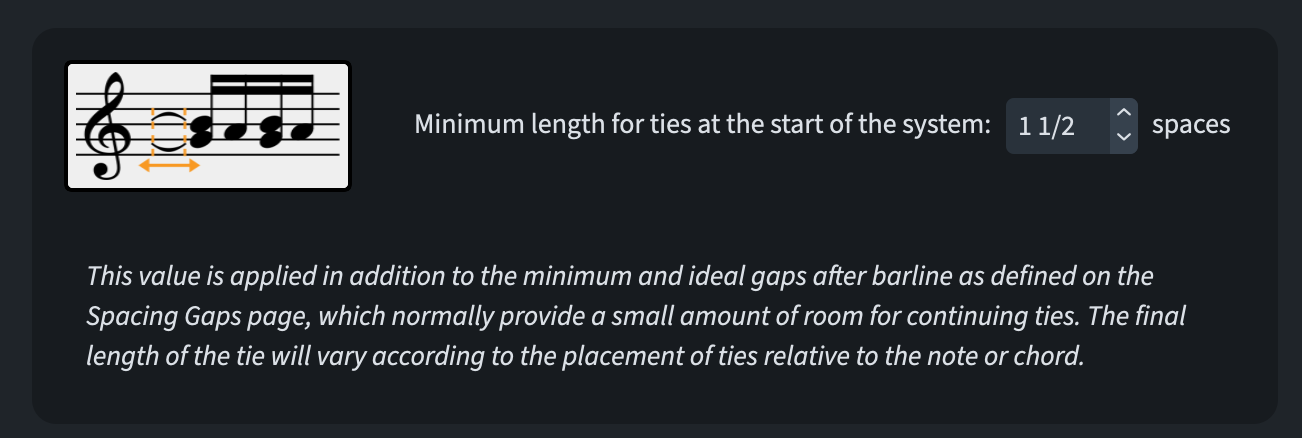
A new setting, Minimum length for ties at the start of the system, has been added to the Length section of the Ties page within Engraving Options. New projects default this to 1.5 spaces, which prevents ties leading into the first note or chord of a new system from appearing too short and visually distorted. In existing projects, by contrast, this defaults to zero, so as not to alter their appearance when the project is loaded.
Tuplets
Bracketed tuplet digits
A new Ratio bracket type property has been added to the Tuplets group within the Properties panel. When switched on, Dorico draws either parentheses (curved brackets) or square brackets around the tuplet digit or ratio, and you can specify whether those brackets appear in italic or roman style.
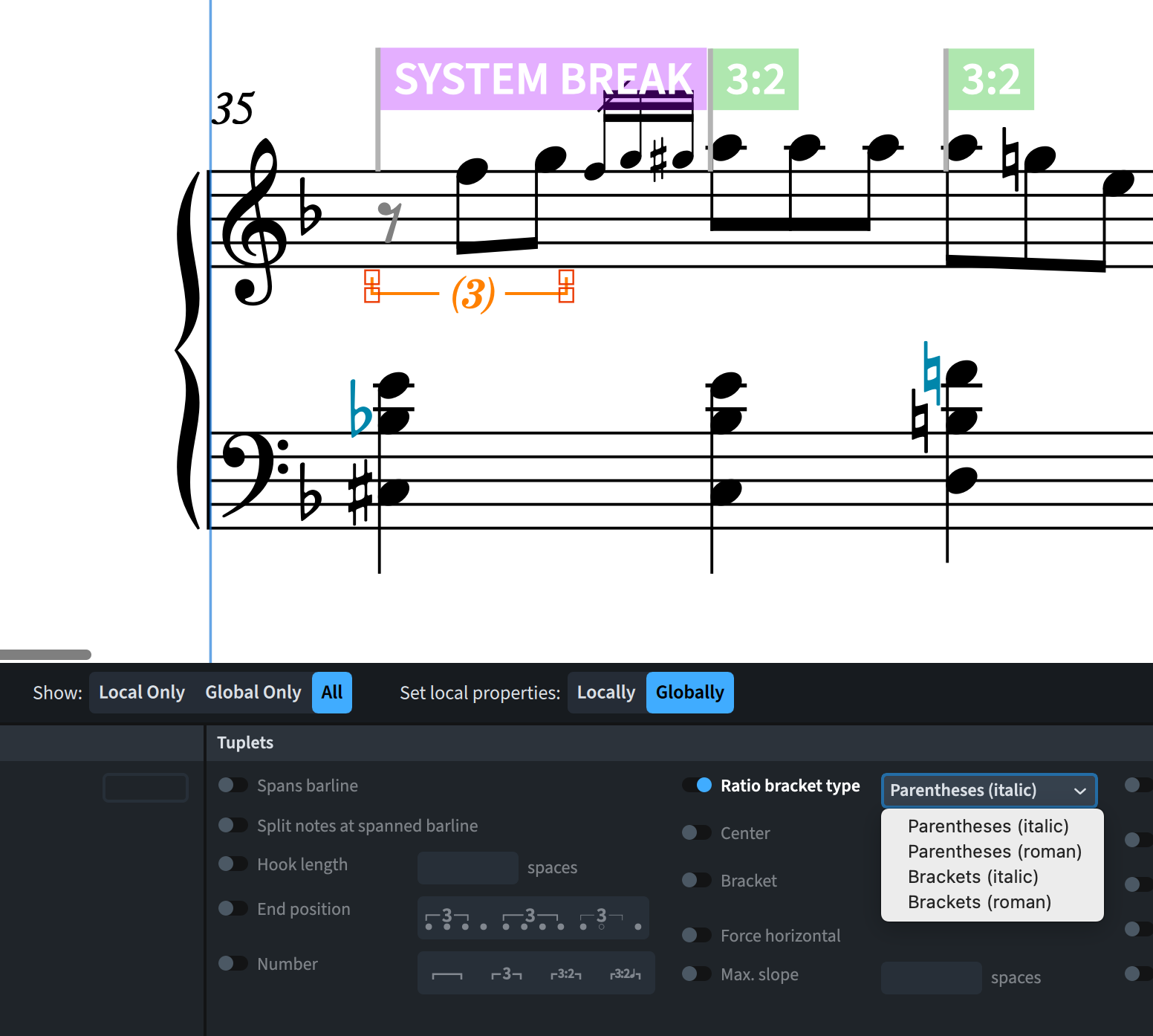
When Tuplet digit style (in Engraving Options ▶︎ Tuplets) is set to either Bold weight or Regular weight, the brackets will only render correctly if the Tuplet Font font style has Bravura selected, since no other music font includes the necessary bracket symbols. However, if Plain font is selected instead, Dorico will pull the parentheses and brackets from whatever font is specified by the Tuplet Plain Font font style.
User interface
Alphabetic ordering in lists
Wherever feasible, Dorico now applies natural sort order to alphabetically sorted lists, replacing the default lexicographical sorting method. Standard lexicographical ordering compares characters strictly according to their Unicode or ASCII values, meaning a list would end up sorted as file1.txt, file10.txt, file2.txt—since, character by character, 1 precedes 2. Similarly, accented characters get separated from their base form when sorted this way; é, for example, would land far away from e because the two occupy different code points. Natural sort order, on the other hand, arranges entries the way a person would intuitively expect, particularly where numbers are involved. Under this method, the same list would instead be ordered as file1.txt, file2.txt, file10.txt. It also treats accented letters such as é, è, or ö as variations of their underlying base letter (e or o), grouping comparable items together in a way that feels more natural.
Status bar summary
When several implicit rests are selected together, the selection’s time duration is now shown correctly, as expected. Likewise, selecting a staff- or system-attached text item now causes Dorico to show the paragraph style name used by that text item, along with the font family and style names; should the text item carry a local override for font or style, an asterisk gets appended to indicate this.

Expression map switch names
In the Library > Expression Maps dialogue, if the name of a base or add-on switch doesn’t match the combination of playback techniques it’s set to produce, the playback technique names will be automatically appended to the switch’s name in the dialogue.
Counterpart layout
Toggling between full score and part layouts via Window ▶ Counterpart Layout in Engrave mode now preserves the current selection, so that selection stays properly visible once you switch to the new layout (thank you!).
Graphic slices
Clicking a graphic slice within the panel in Engrave mode now takes you directly to that frame’s location within the current layout (it’s the small things, right?).
Proofreading panel
The Ignore button in the Proofreading panel has been made larger, making it easier to click.
Video
Warning about synchronisation
Setting Pre-roll before flow to anything other than zero on the Timing page of Library ▶ Playback Options means attached videos won’t play back in sync as you’d expect. Dorico now displays a warning to that effect whenever you change this setting while a video is attached to one or more flows within the project.
Bottom Line
That’s it for today! Thank you for staying with me for this series, covering all novelties introduced in Dorico 6.1. Come back next time for the 6.2 update.
If you enjoyed this post, please leave a like, subscribe to get notified of upcoming articles, and don’t forget to do the same for Anthony’s video and for the Dorico YouTube channel.
Should you be interested in my other activities, please visit my website and consider joining my mailing list, where you will be able to follow my journey through music notation and independent music publishing.
Thank you for your time, and see you here in the next episode.

